How to run your event with Yaypick
Getting started
From a new account to your first event on the big screen: the event, the pass, the activities, your team and the night.
Set up
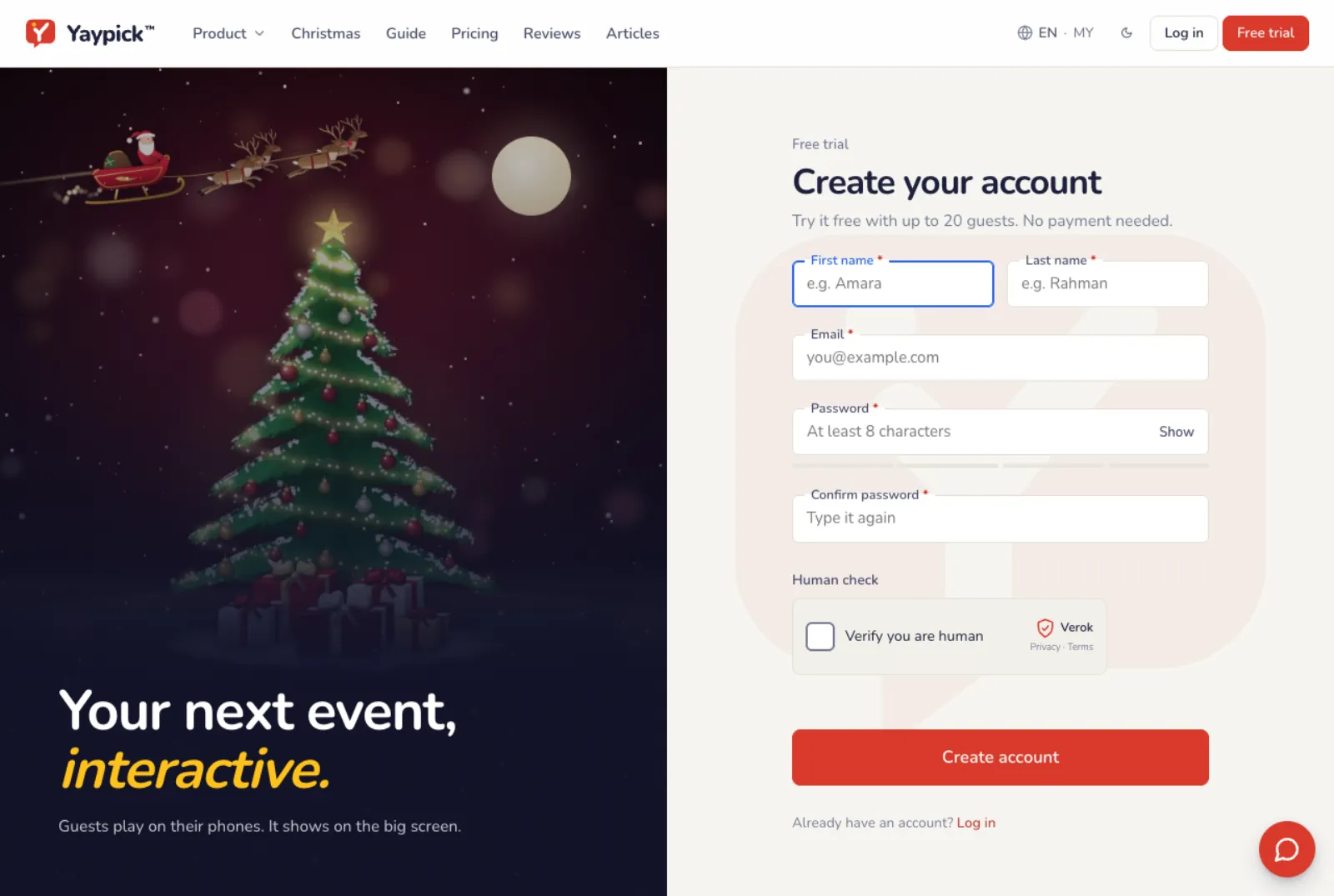
Create your free account
Sign up with your email. The free trial lets you set up your event and rehearse it with up to 20 people. No payment needed.
Create the event
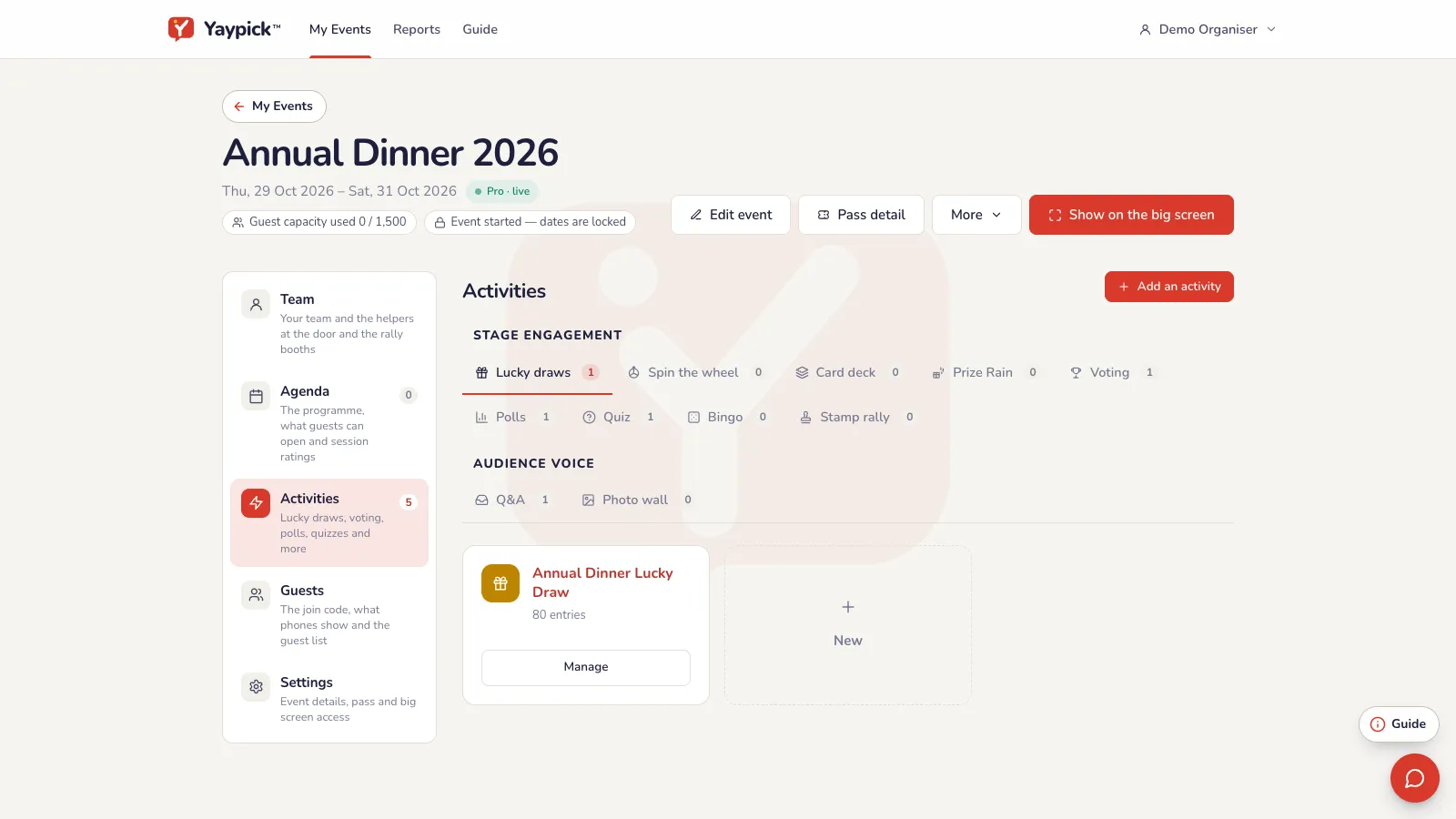
On My Events, tap Add event. Give it a name, pick the type and set the dates. Everything for the event lives inside it: the activities, the guest list, the agenda and your team.
Add a pass sized for your guests
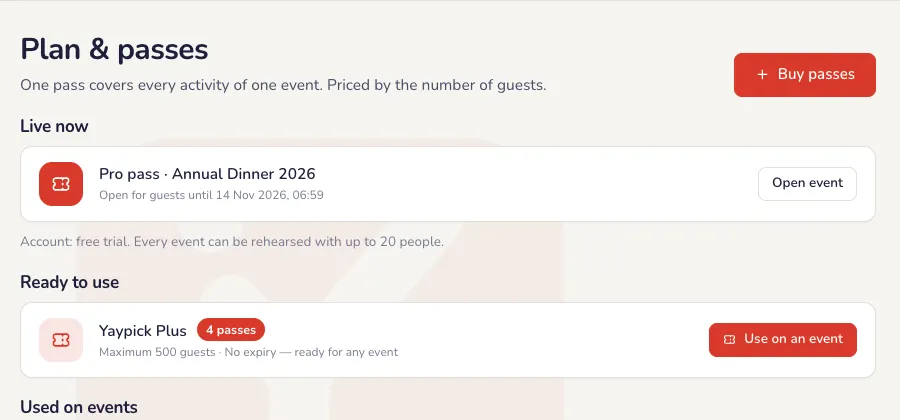
One pass covers one event, and it never expires until you use it. Pick the size for your guest list. Need more places later? Add a smaller pass to the same event and the places add up.
Add the activities
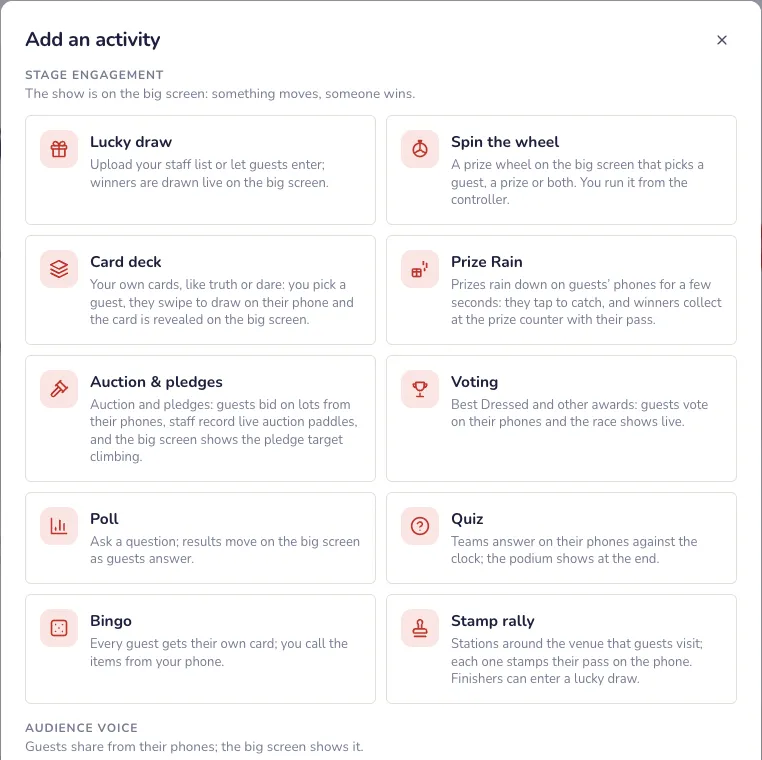
In the event, tap Add an activity: lucky draw, voting, poll, quiz, Q&A, photo wall, bingo and more. Open each one to set it up; each has its own guide on this page.
Invite your team
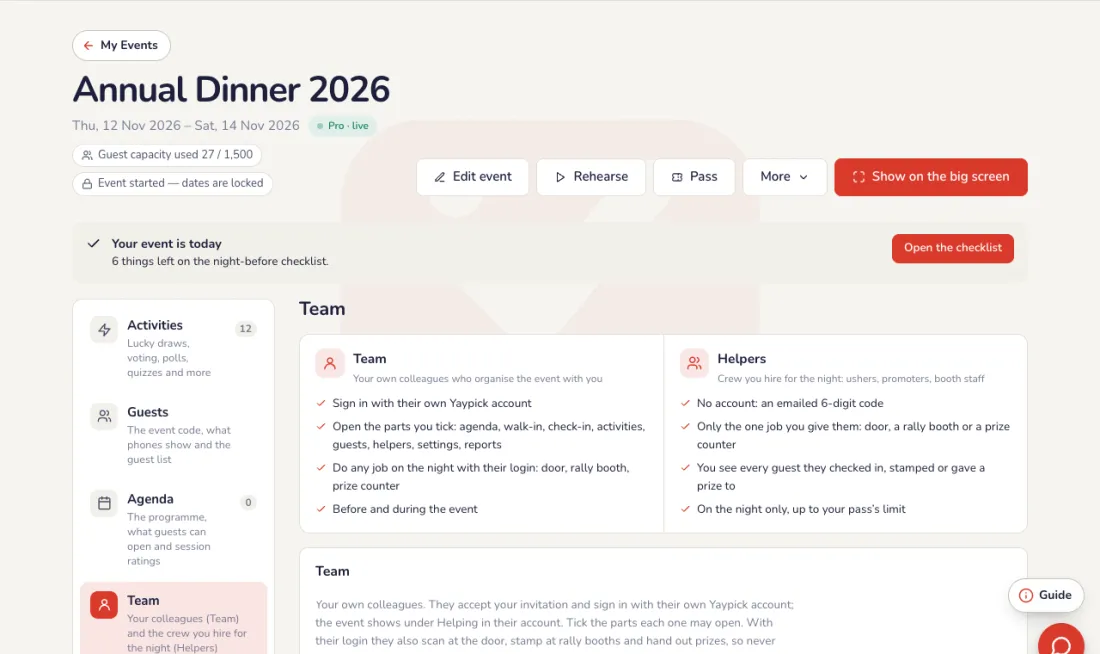
Tap Team to invite your colleagues by email: each gets their own login and only the parts you tick. Below, add Helpers: crew you hire for the night, with no account, each given one job (door, rally booth or prize counter).
The big screen
Open the big screen
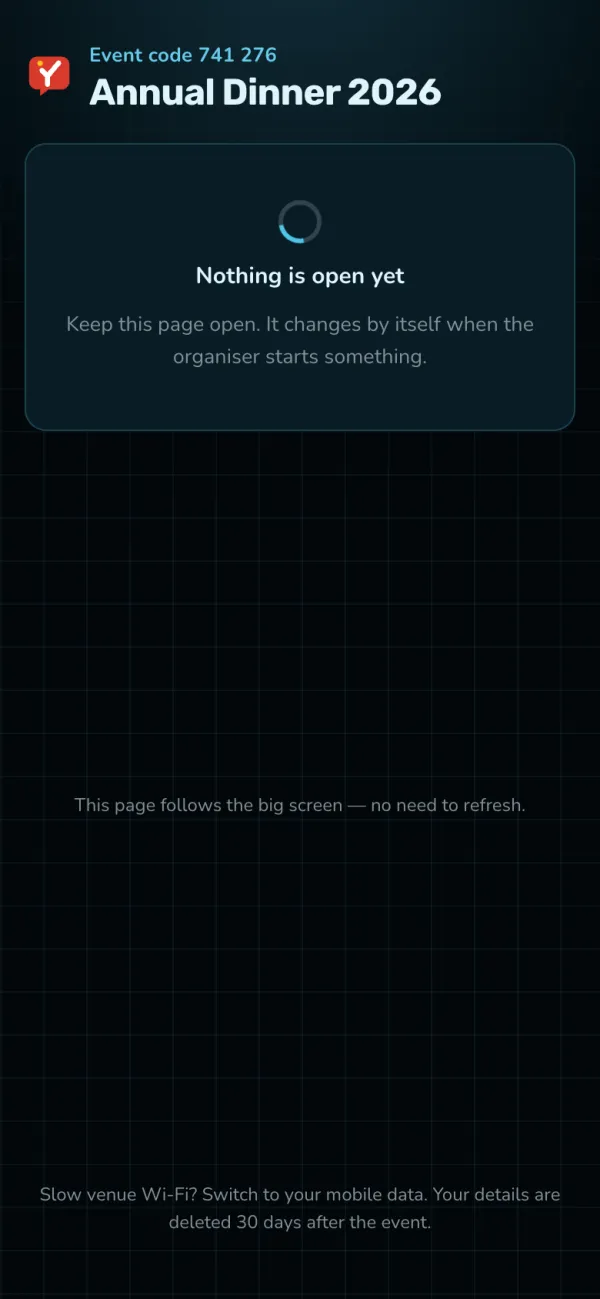
On the laptop connected to the projector, open the event and tap Show on the big screen, then press F for full screen. It shows the event code until you start something.
Guests join with one code
Guests scan the QR code on the big screen or type the 6-digit code. There is no app to install. Their phone follows whatever you put on: the poll, the vote, the quiz or the Q&A.
On the night
Run it from your phone
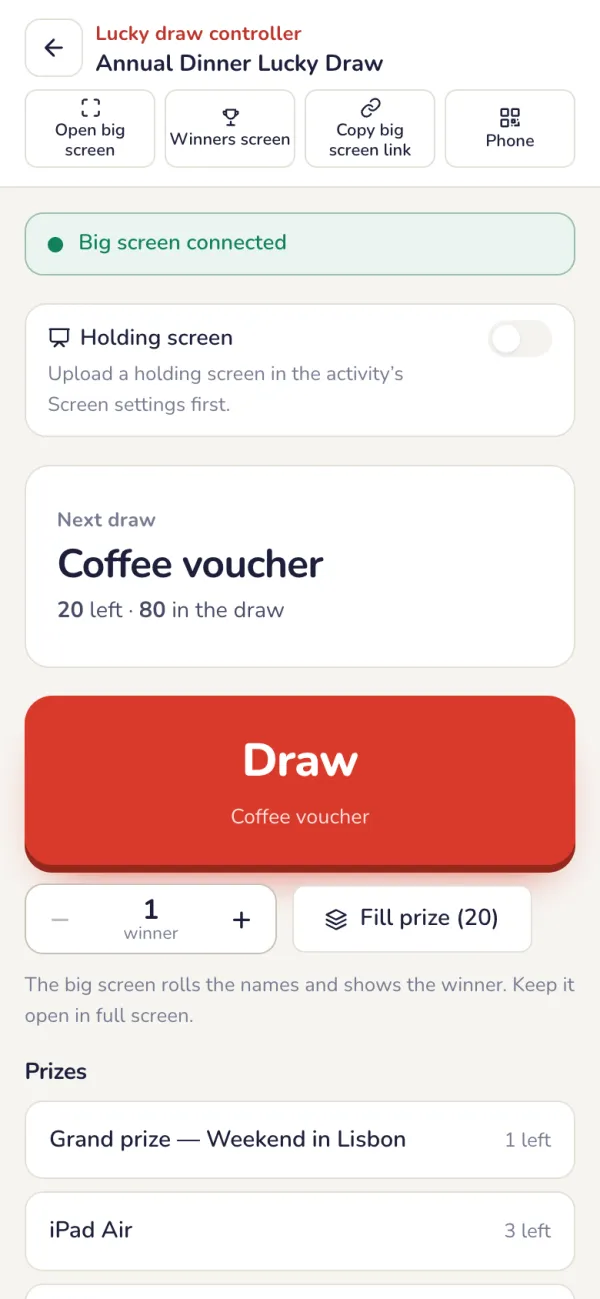
Open each activity’s controller on your phone or a second computer. What you tap there shows on the big screen, so nobody needs to stand at the laptop.
Rehearse before the night
A few days before, run every activity once with your committee, on the real projector and the internet you will use on the night. Check the names, the prizes and the questions.

After the event
Download the report
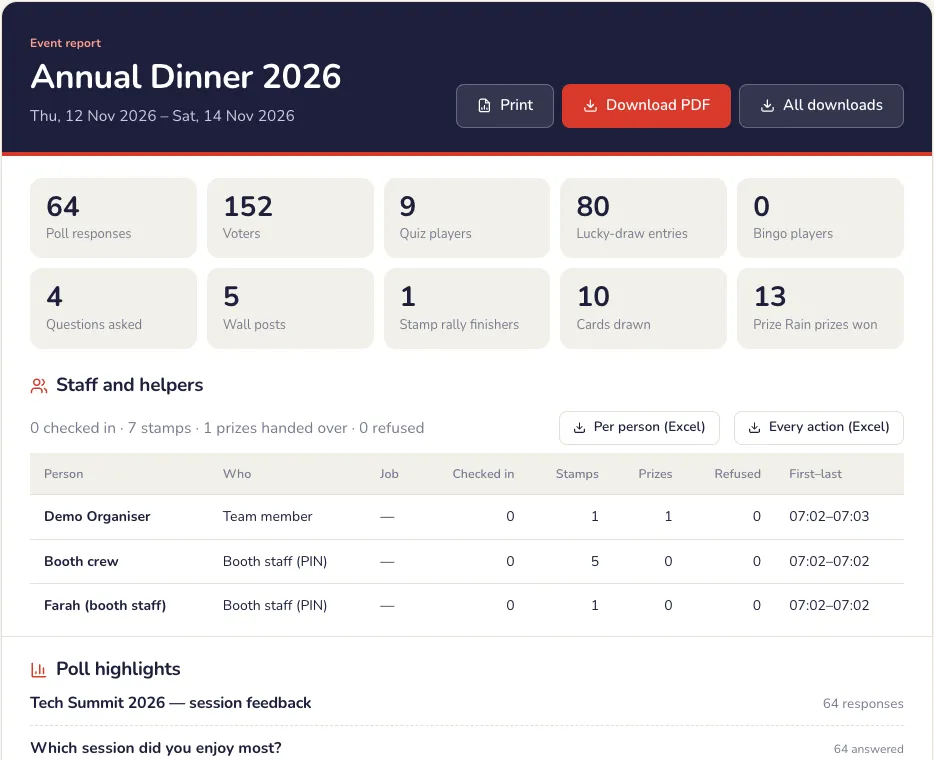
After the event, the report has attendance, votes, winners, quiz scores and Q&A in one PDF, with Excel exports and certificates.
Common problems
- Do guests need to download an app?
- No. Guests scan a QR code with their phone camera and take part in the browser. Nothing to install, no account to create.
- What if the venue Wi-Fi is weak?
- Guests use their own mobile data. Connect the big screen laptop by cable or to its own hotspot, not to the guest Wi-Fi.
- Can I try it before buying a pass?
- Yes. The free trial lets you set up and rehearse with up to 20 people. Buy a pass when you are ready for the full guest list.
- The big screen shows the wrong thing.
- The big screen follows the controller. Open the controller of the activity you want and start it there; the screen changes by itself.
Lucky draw
Prizes with pictures, your guest list from Excel, the big-screen style, then the draw from your phone.
Create your event
Name it, set the date and use a pass sized for your guest list. Every lucky draw, vote and poll for the night lives inside the event.
Add the lucky draw and its prizes
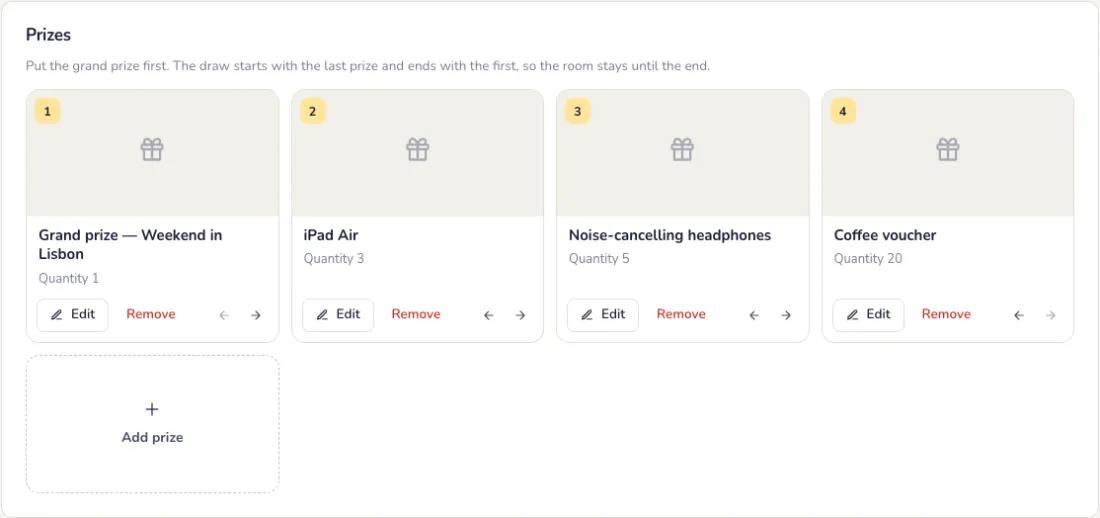
On the Prizes tab, add each prize with how many to give away and a picture, plus a second one such as the back of the box. Put the grand prize first: the draw starts with the last prize in the list and ends with the grand prize.
Add your guests
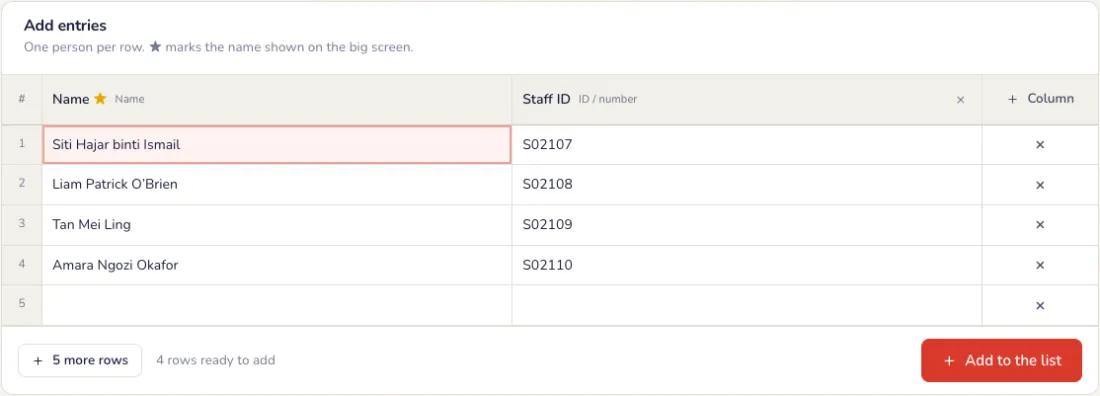
On the Entries tab, use the event guest list or add your own: type names, paste a block from Excel, upload a CSV or Excel file, or import everyone who answered a poll. Add columns such as department, table or staff ID in Columns & duplicates.
Choose how the draw works
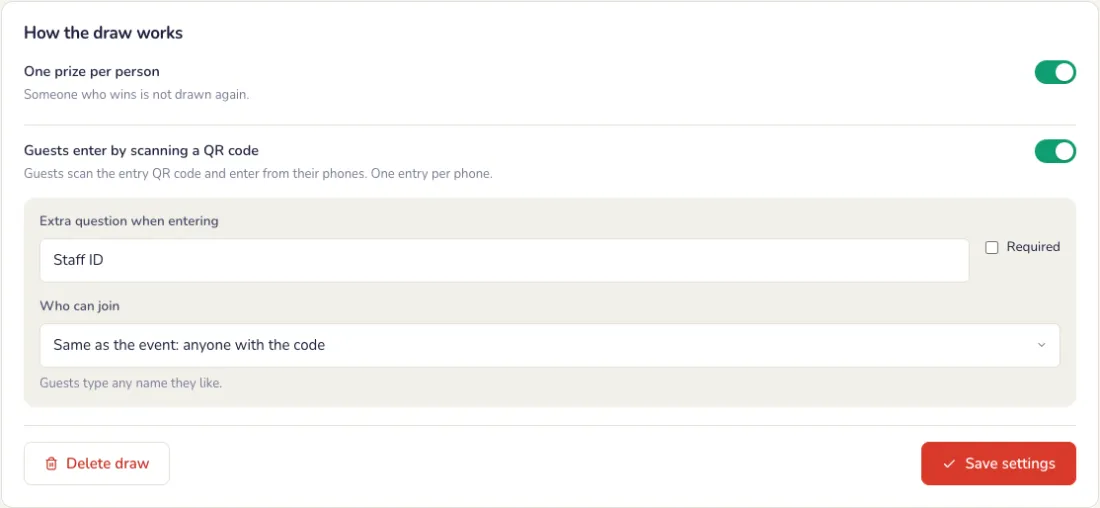
On the Settings tab. Press Save settings when you are done.
- One prize per person: someone who wins is not drawn again. Turn it off to let a winner win again.
- Guests enter by scanning a QR code: guests add themselves from their phones, one entry per phone. You can ask one extra question, such as staff ID or table number, and make it required.
- Who can join: anyone with the link or QR code, or only people on the event’s guest list.
- Reveal time: how many seconds the names roll before the winner shows, from 1 to 15.
The big screen
Make the big screen yours
On the Screen tab, the options are on the left and a live preview is on the right. Type a sample name and press Play to see a draw; nothing is drawn.
- Text: the headline before the draw, the subtitle, and what shows for each winner: the name only, or with a full or masked ID.
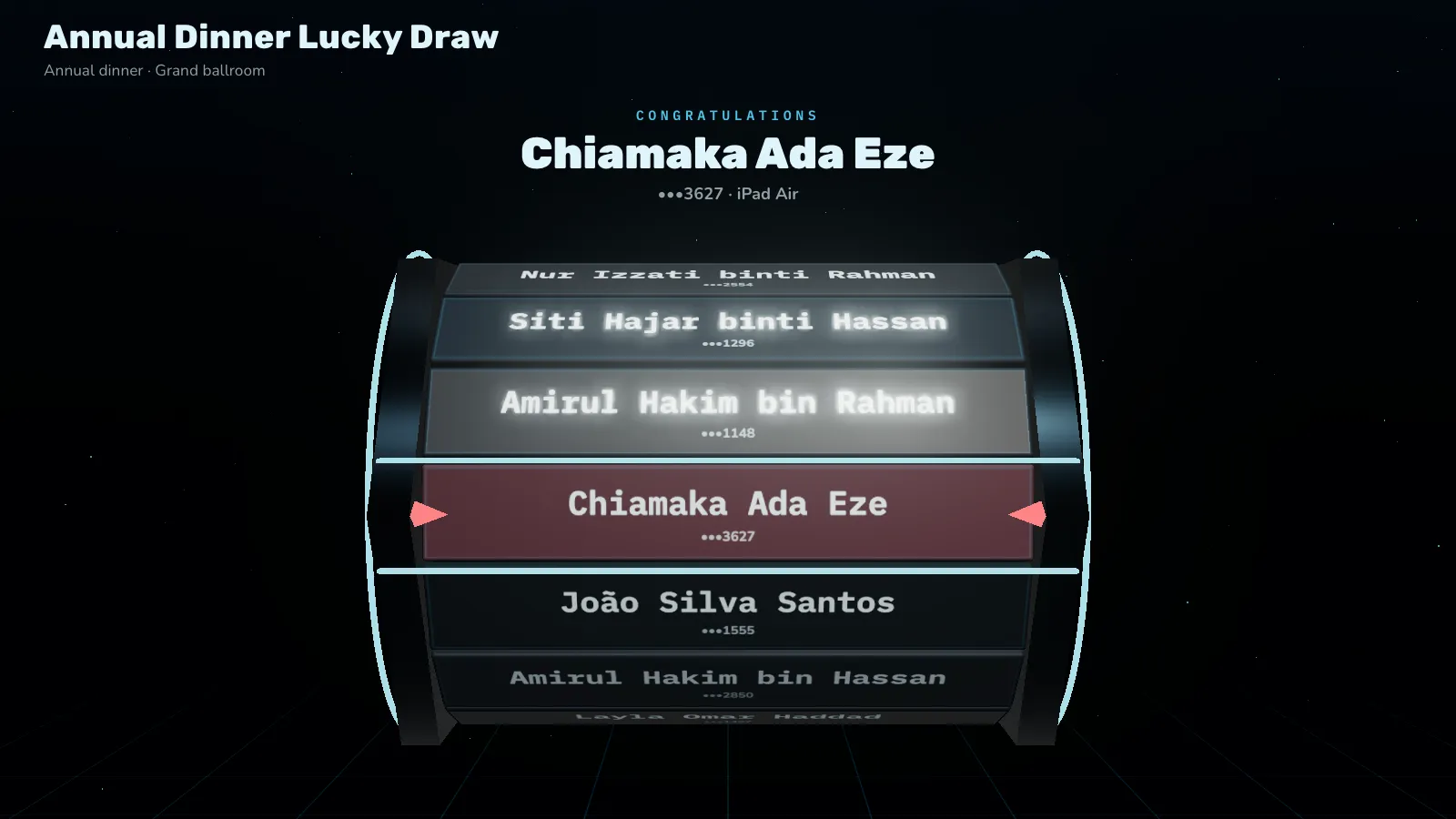
- Animation: ten ways to reveal the winner, such as Roll & spell, Split-flap board and Countdown.
- Look: accent colour, dark or light, your logo and where it sits, the draw box and its colour, the text colour, the name size and where prize pictures go.
- Background: the theme, the accent colour, your own colour or your photo, darkened so names stay readable. Extras: the number of entries, and confetti when a winner shows.
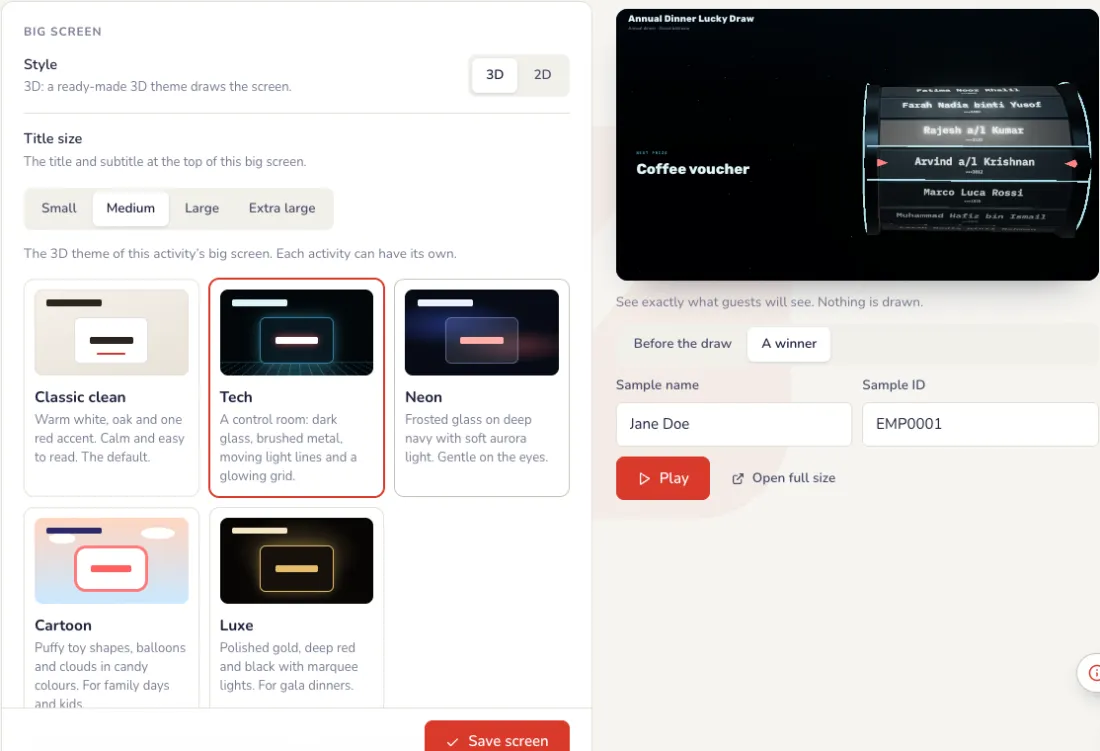
Big screen theme and holding screen
Lower down the Screen tab. Every change shows in the preview first; the big screen changes only when you press Save screen.
- Theme: Classic clean (warm white, one red accent), Tech (a control room with moving light lines), Neon (frosted glass, soft aurora), Cartoon (puffy toy shapes, balloons) or Luxe (gold, deep red and black). Classic clean is on every event; the other themes and the 3D spin wheel come with a pass.
- Holding screen: a full-screen image, such as your company’s design with the event name, shown instead of the live screen while it is on. Choose Fill the screen or Show all of it.
- The image can be PNG, JPG or WebP, up to 1 MB, best at 1920 × 1080. Video holding screens are coming soon.
- During the event, the Holding screen button on the controller switches it on and off.
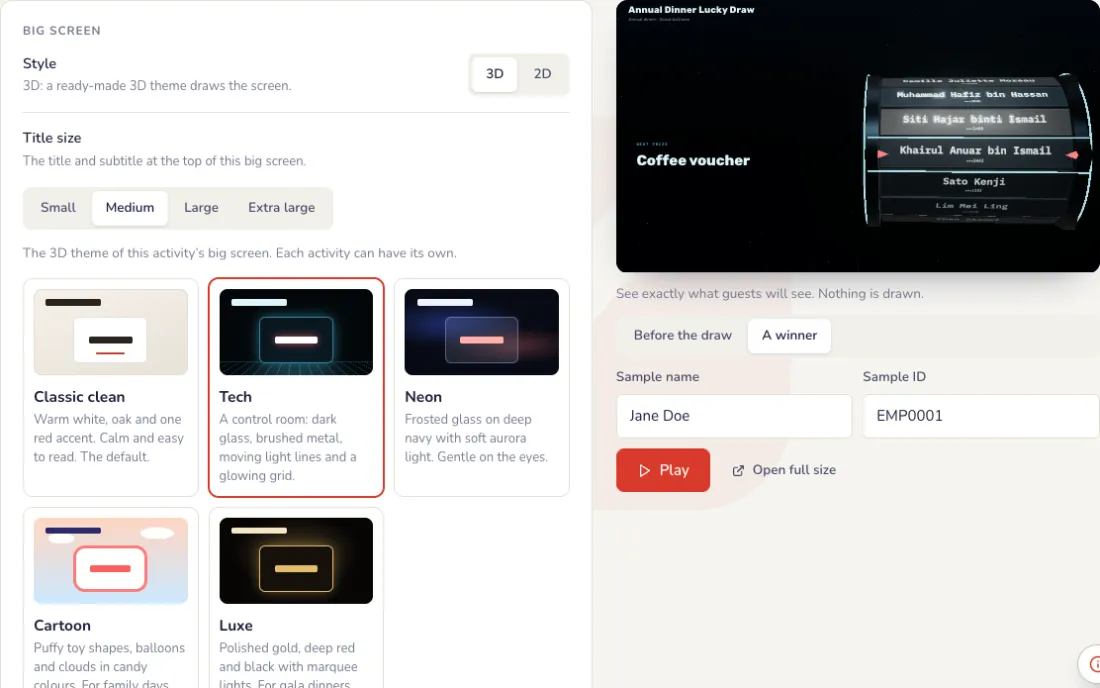
On the night
Put it on the projector
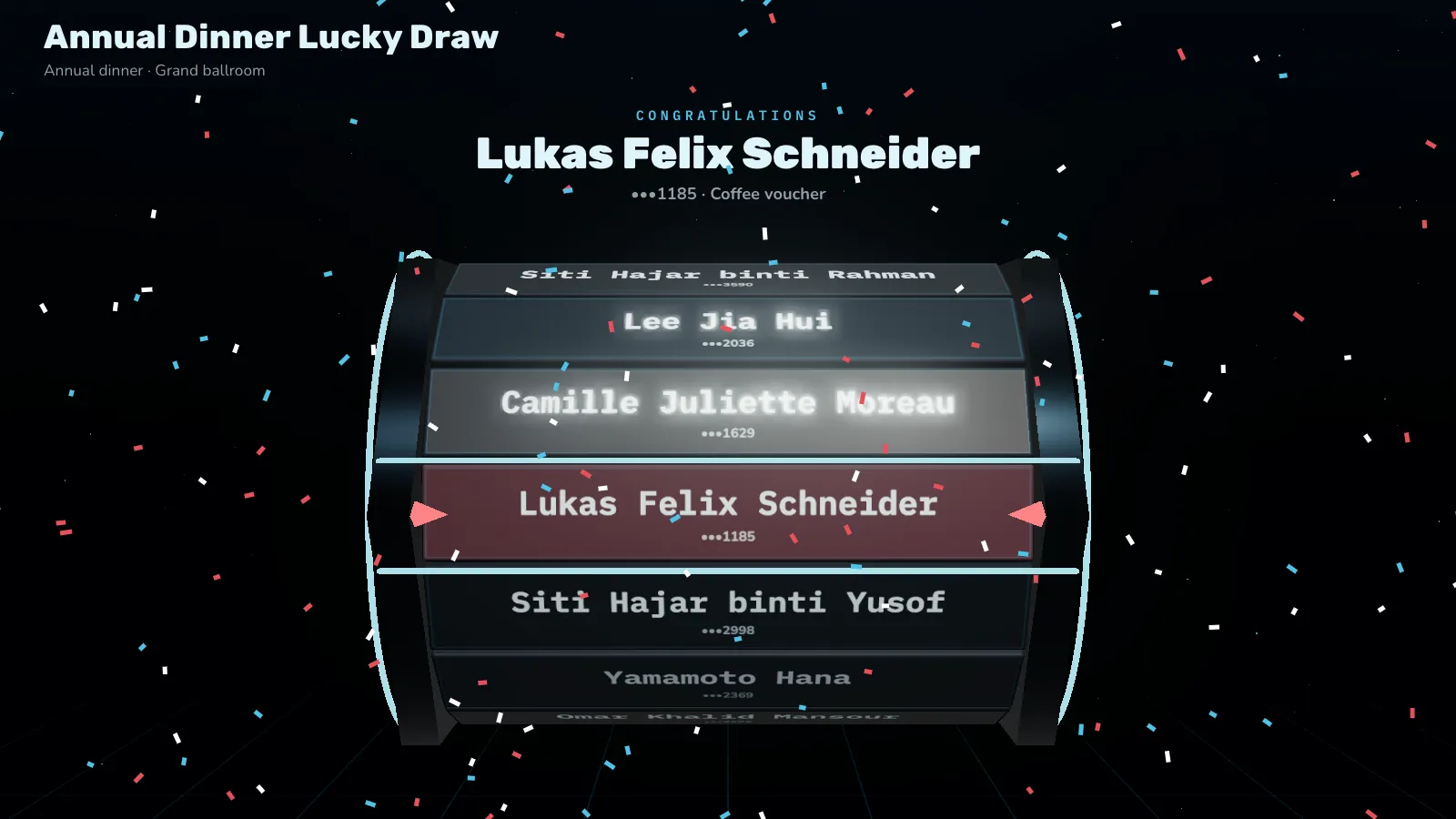
Press Open big screen on the laptop connected to the projector, then F for full screen. Guests see only the draw: the prize, the names and the winner.
Run the draw from your phone
Press Run the draw, pick the prize, choose how many winners to draw at once and press Draw. The big screen rolls the names and lands on the winner. If a winner is not in the room, press Absent? Redraw.
- Draw several winners at once: press More or Fewer, or Fill prize to draw every winner the prize has left. Drawing many at once needs a pass.
- No prize (just pick names): draw names without a prize, for a quick pick on stage.
- Winners screen: shows every winner so far on the big screen, for the end of the night.
- If the Wi-Fi drops, the controller keeps trying by itself and the draw is saved as soon as the connection is back. Don’t press Draw again.
After the event
Every winner is recorded
The Winners tab lists each winner with the prize and the time. The draw log records every draw, redraw and reset, and who did it. Download the results as a PDF in Reports.
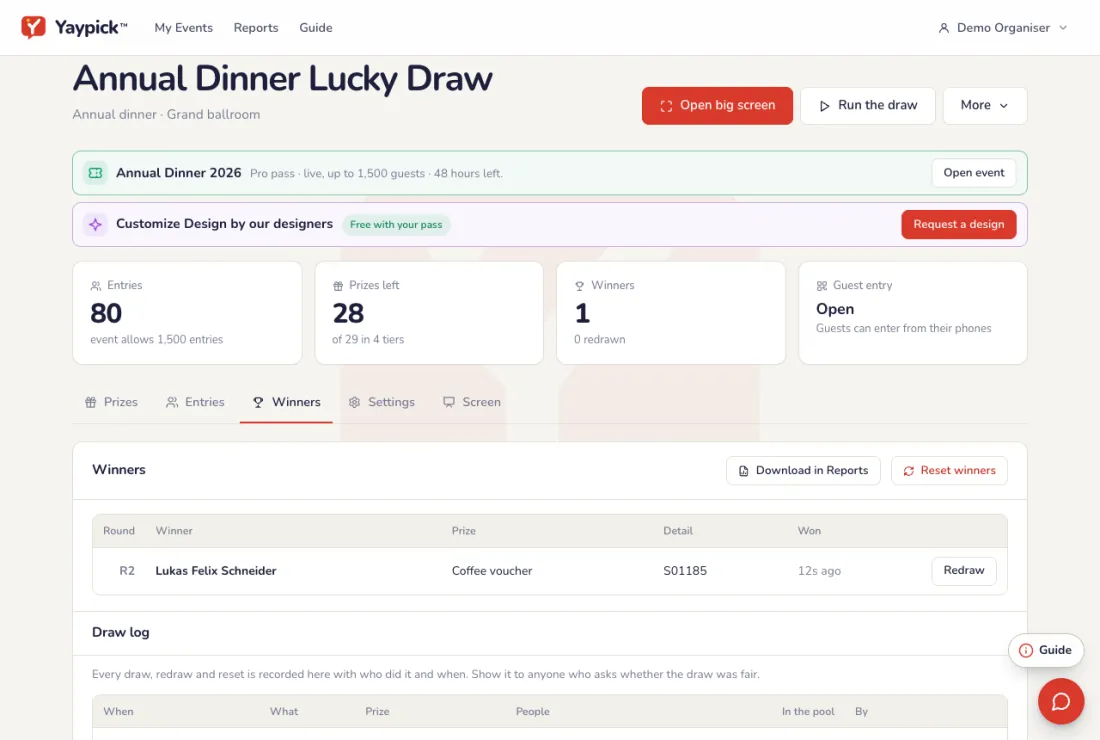
Common problems
- A winner is not in the room.
- On the controller, press Absent? Redraw. A new name is drawn for the same prize, and the redraw is kept in the draw log.
- Can someone win twice?
- Only if you turn off One prize per person in Settings. With it on, a winner is not drawn again.
- Some guests are not on my list.
- Turn on Guests enter by scanning a QR code. Guests add themselves from their phones, one entry per phone.
- How do I show the draw was fair?
- The draw log records every draw, redraw and reset, and who did it. Download the results as a PDF in Reports.
- The Wi-Fi dropped during a draw.
- The controller keeps trying by itself, and the draw is saved as soon as the connection is back. Don’t press Draw again.
- I want to show every winner at the end.
- Press Winners screen on the controller: the big screen shows every winner so far.
Spin the wheel
A prize wheel on the big screen: segments with names, pictures or both, your look and sound, run from the controller. Included in every plan.
Set up
Add the segments
A name, a picture or both on each one. Paste a list to add many at once.
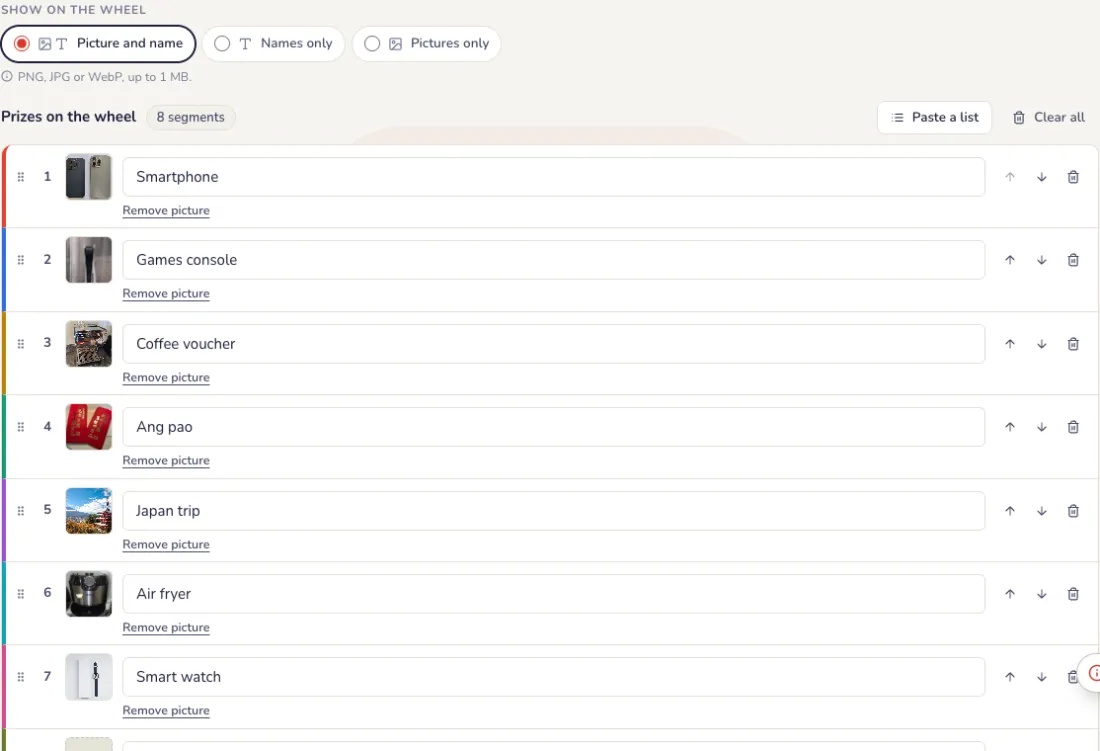
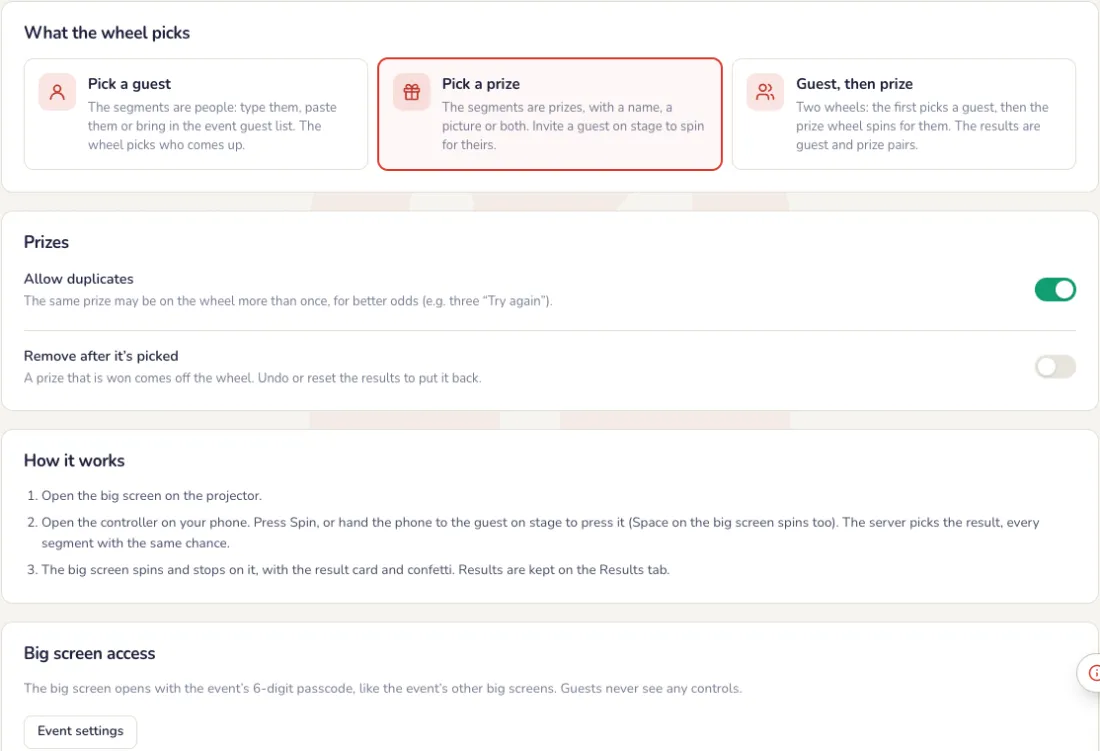
Choose what the wheel picks
On the Settings tab.
- Pick a guest: the segments are people, typed, pasted or from the event guest list.
- Pick a prize: the segments are prizes, with a name, a picture or both.
- Guest, then prize: one wheel picks a guest, then the prize wheel spins for them.
- Allow duplicates: the same name or prize can be on the wheel more than once, for better odds.
- Remove after it’s picked: a picked guest or a won prize comes off the wheel. Undo or reset the results to put it back.
The big screen
Make the wheel yours
On the Screen tab, start from a ready-made design such as Classic gold, Neon or Festive red and gold, then change any part. Press Play in the preview for a test spin.
- Wheel: colours (Yaypick, your brand colour or your own), rim, lights, the middle (Yaypick mark, your logo or text), pointer and its position, font, name colour and size.
- Motion: spin length from 3 to 15 seconds, direction, and the ending: smooth, tease or bounce.
- Sound: ticks, the result sound, a drum roll while it spins, and the volume.
- Big screen: headline, subtitle, dark or light, a background colour or photo, how the result shows (card, banner or wheel only) and confetti.
Big screen theme and holding screen
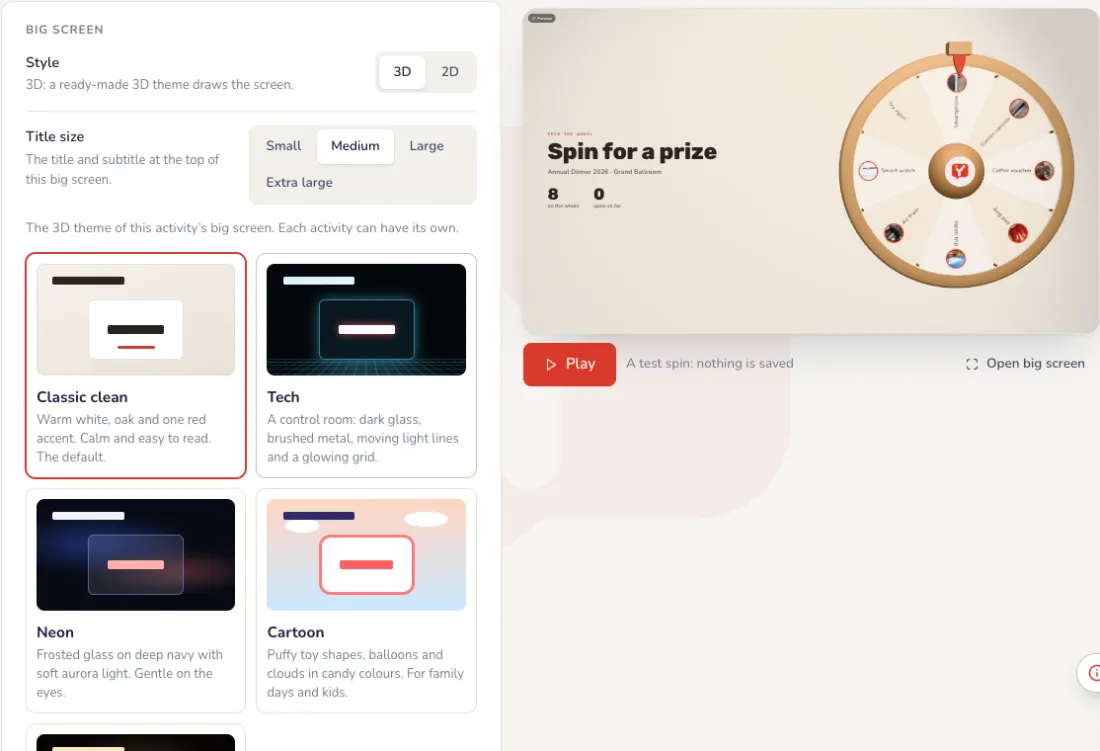
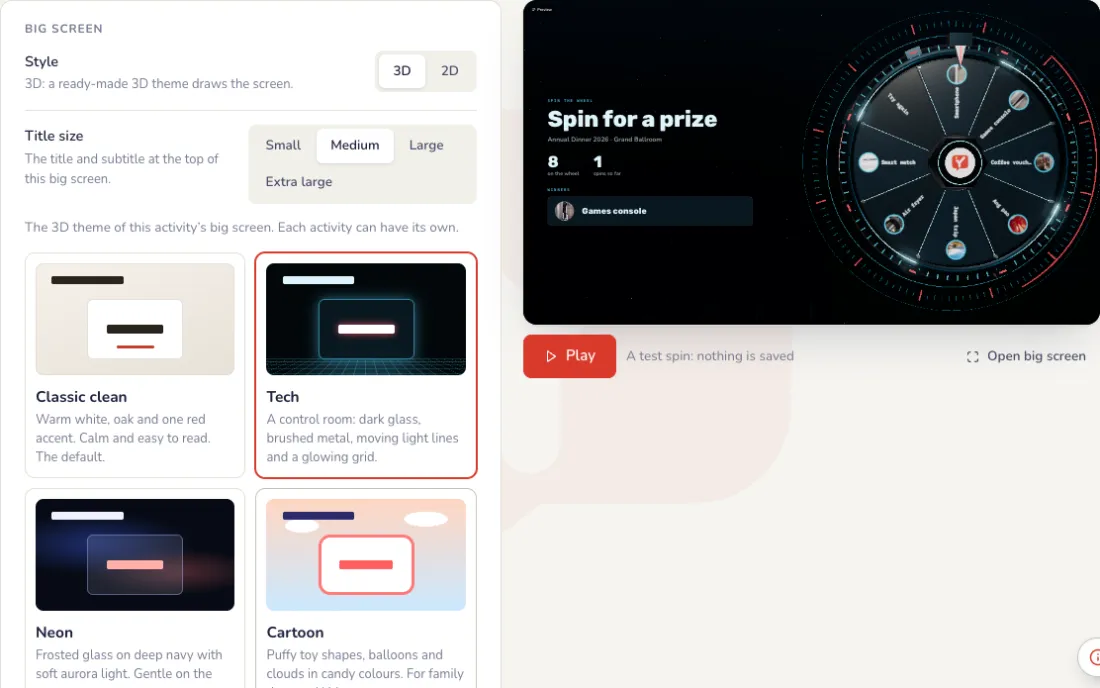
At the end of the Screen tab. Every change shows in the preview first; the big screen changes only when you press Save.
- Theme: Classic clean (warm white, one red accent), Tech (a control room with moving light lines), Neon (frosted glass, soft aurora), Cartoon (puffy toy shapes, balloons) or Luxe (gold, deep red and black). Classic clean is on every event; the other themes and the 3D spin wheel come with a pass.
- Holding screen: a full-screen image, such as your company’s design with the event name, shown instead of the live screen while it is on. Choose Fill the screen or Show all of it.
- The image can be PNG, JPG or WebP, up to 1 MB, best at 1920 × 1080. Video holding screens are coming soon.
- During the event, the Holding screen button on the controller switches it on and off.
On the night
Spin from the controller
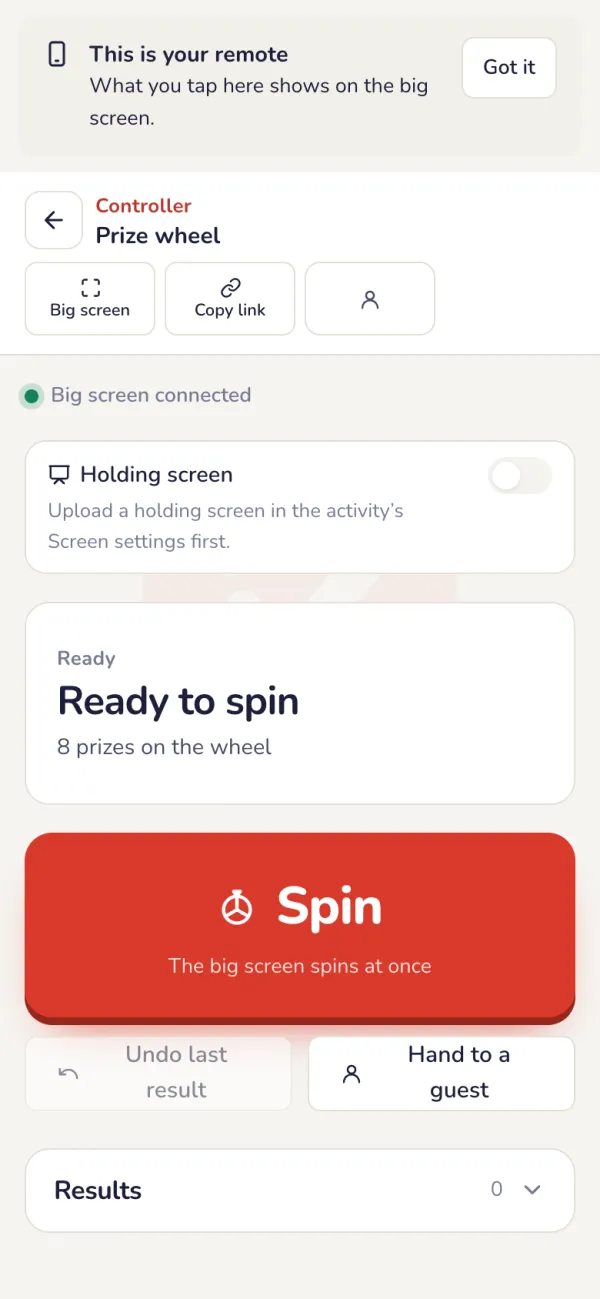
Press Spin on the controller, or hand the phone to a guest on stage. Our server picks the result fairly; every segment has the same chance.
- The controller shows whether the big screen is connected, the last result and how many segments are left on the wheel.
- Guest, then prize: press Spin for a guest, invite them to the stage, then press Spin for the prize. Pick another guest if they are not there.
- Undo last result: the result no longer counts and the segment goes back on the wheel.
The result on the big screen
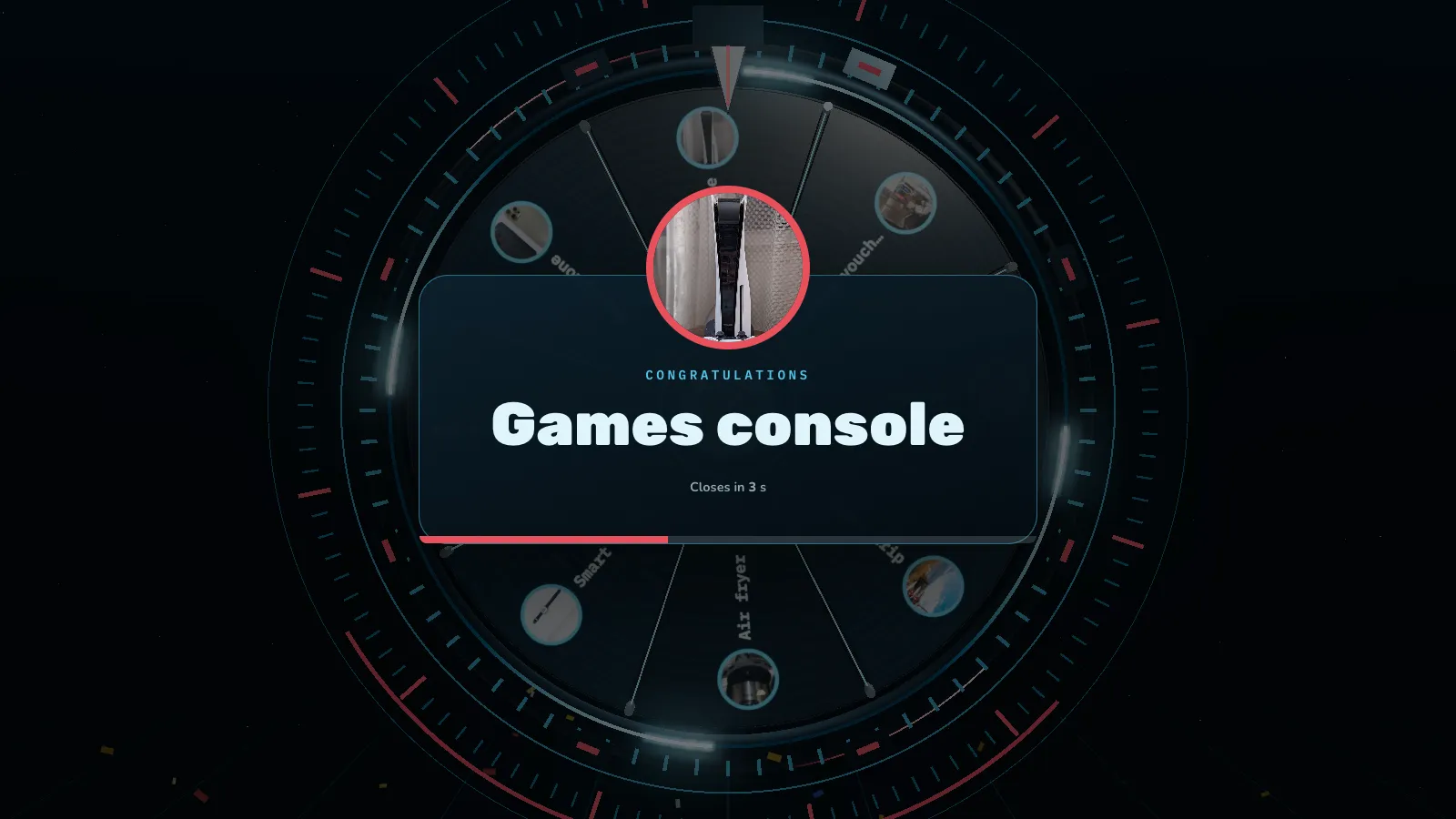
The wheel slows down, lands on the result and shows it large, with confetti.
After the event
Every result is kept
Every spin shows on the Results list. Reset results clears them and puts every segment back on the wheel, for example after a rehearsal. The results are in the event report too.

Common problems
- Is the result fair?
- Yes. Our server picks the result and every segment has the same chance. To give a name better odds, turn on Allow duplicates and add it more than once.
- The same name keeps coming up.
- Turn on Remove after it’s picked. Undo or reset the results to put it back on the wheel.
- Can a guest spin on stage?
- Yes. Open the controller on your phone and hand it to them: they press Spin.
- A spin was a mistake.
- Press Undo last result on the controller. It no longer counts and the segment goes back on the wheel.
Card deck
Your own cards, like truth or dare: you pick a guest, only their phone can draw, and the whole room sees the card. Included in every plan.
Set up
Create the deck
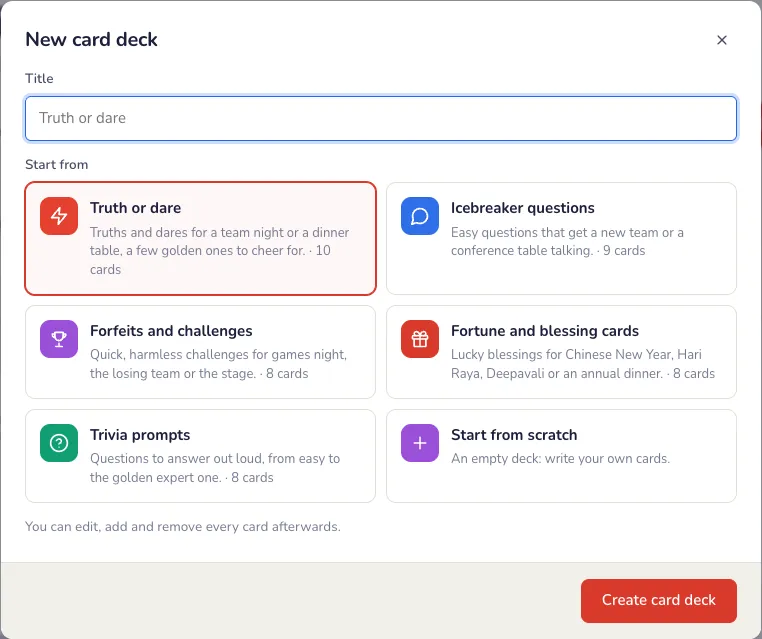
On the event page, press Add an activity, then Card deck. Start from a ready-made deck (truth or dare, icebreaker questions, forfeits and challenges, fortune and blessing cards, or trivia prompts) or from scratch.
Write the cards
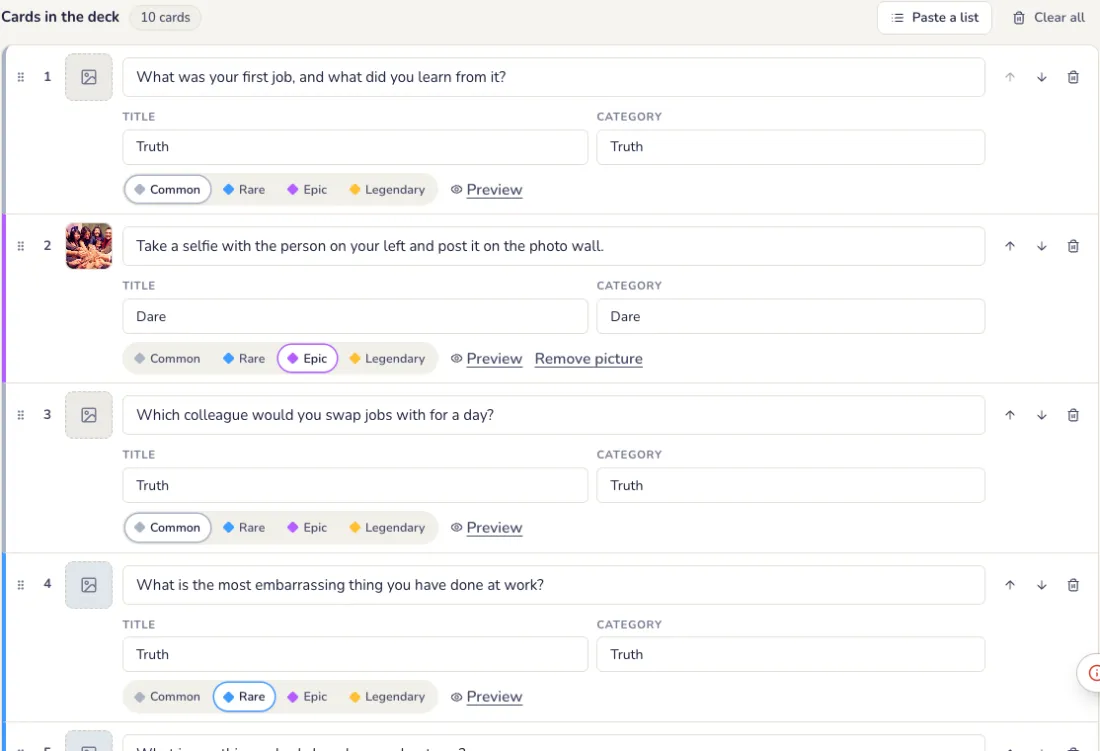
On the Cards tab, each card is its own row: what it says, then an optional title and category such as Truth or Dare. Drag the number to move a card; Paste a list adds one card per line.
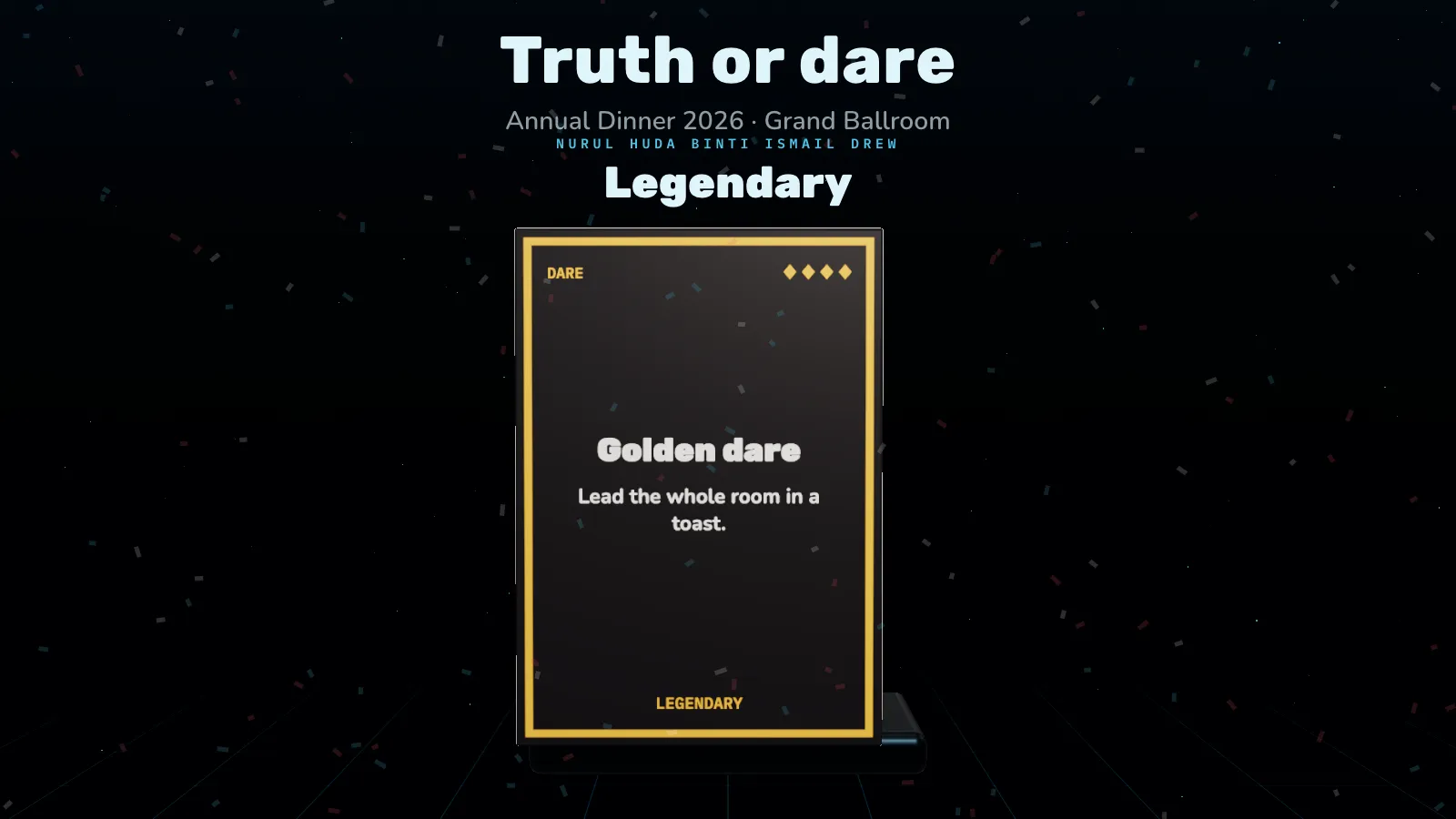
- Rarity: Common, Rare, Epic or Legendary sets the card’s frame and glow, and how big its reveal is. Every card has the same chance of being drawn.
- Picture: press the square at the start of the row to add a PNG, JPG or WebP up to 1 MB. It shows on the card’s face.
- Preview shows the card as guests will see it. Press Save in the bar at the bottom.
Choose who draws
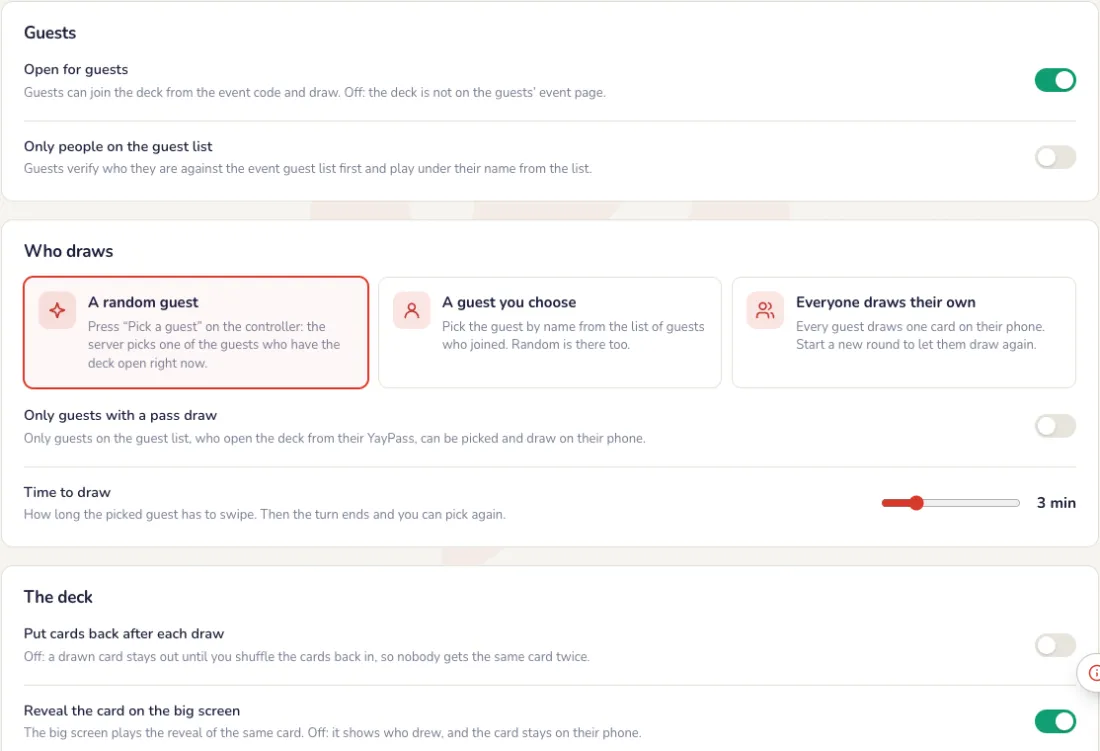
On the Settings tab. Each choice saves at once.
- A random guest: the server picks one of the guests who have the deck open right now, guests without a card first.
- A guest you choose: pick the guest by name from the list of guests who joined.
- Everyone draws their own: every guest draws one card on their phone; New round on the controller lets them draw again.
- Time to draw (1 to 10 minutes), putting cards back after each draw or keeping them out until you shuffle them back, and whether the card is revealed on the big screen.
- Open for guests, and only people on the event guest list.
The big screen
Make the cards yours
On the Screen tab, beside a live preview. Press Play for a test reveal of a random card; nothing is saved until you press Save.
- Cards: the card back (Aurora, Crimson and gold, Midnight, Jade or Gold), the colour, and your logo on the back of every card.
- Big screen: the headline and subtitle, dark or light, and confetti when a Legendary card is drawn.
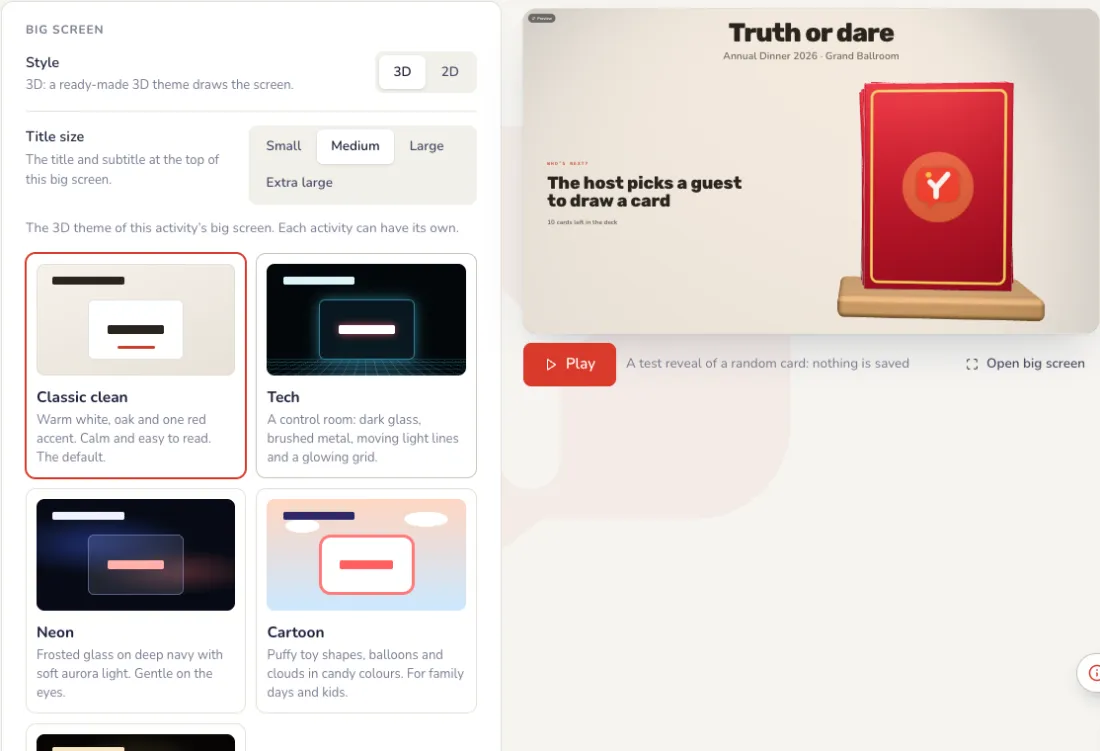
Big screen theme and holding screen
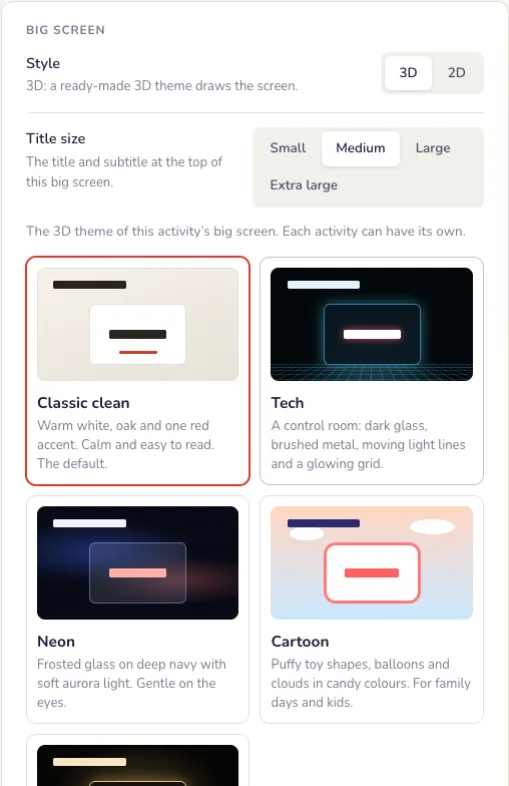
At the end of the Screen tab. Every change shows in the preview first; the big screen changes only when you press Save.
- Theme: Classic clean (warm white, one red accent), Tech (a control room with moving light lines), Neon (frosted glass, soft aurora), Cartoon (puffy toy shapes, balloons) or Luxe (gold, deep red and black). Classic clean is on every event; the other themes and the 3D spin wheel come with a pass.
- Holding screen: a full-screen image, such as your company’s design with the event name, shown instead of the live screen while it is on. Choose Fill the screen or Show all of it.
- The image can be PNG, JPG or WebP, up to 1 MB, best at 1920 × 1080. Video holding screens are coming soon.
- During the event, the Holding screen button on the controller switches it on and off.
On the night
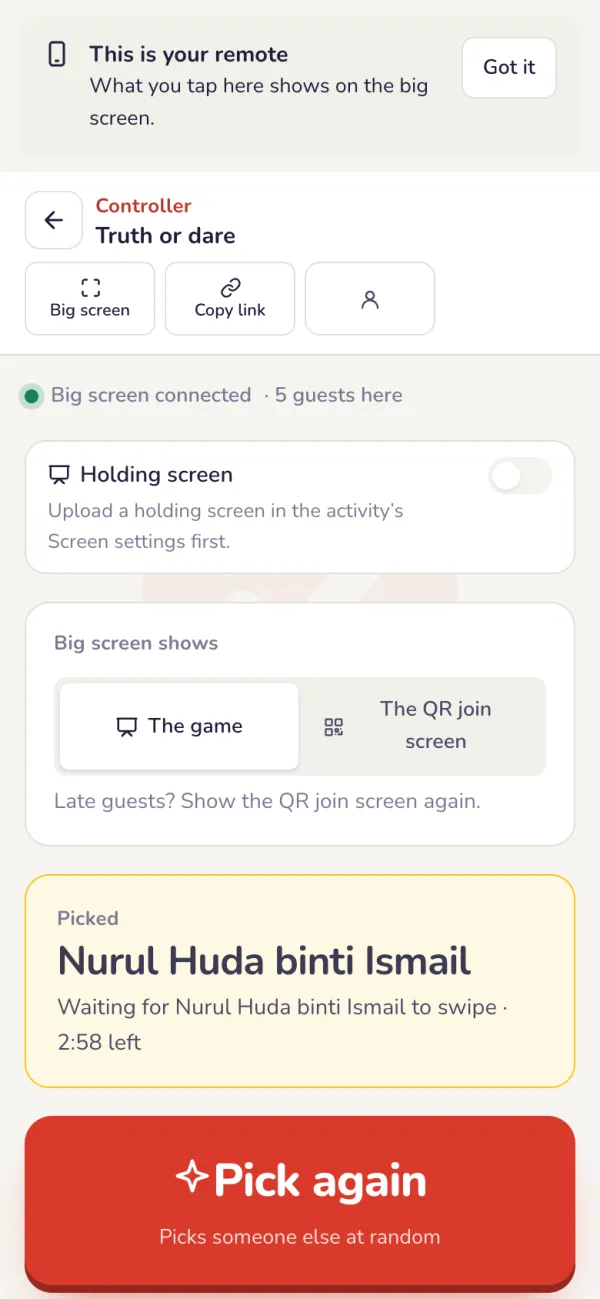
Pick a guest from the controller
Open the controller on your phone and press Pick a guest, or Pick beside a name. The picked guest’s phone buzzes. Pick again or Skip this turn if they are not there.
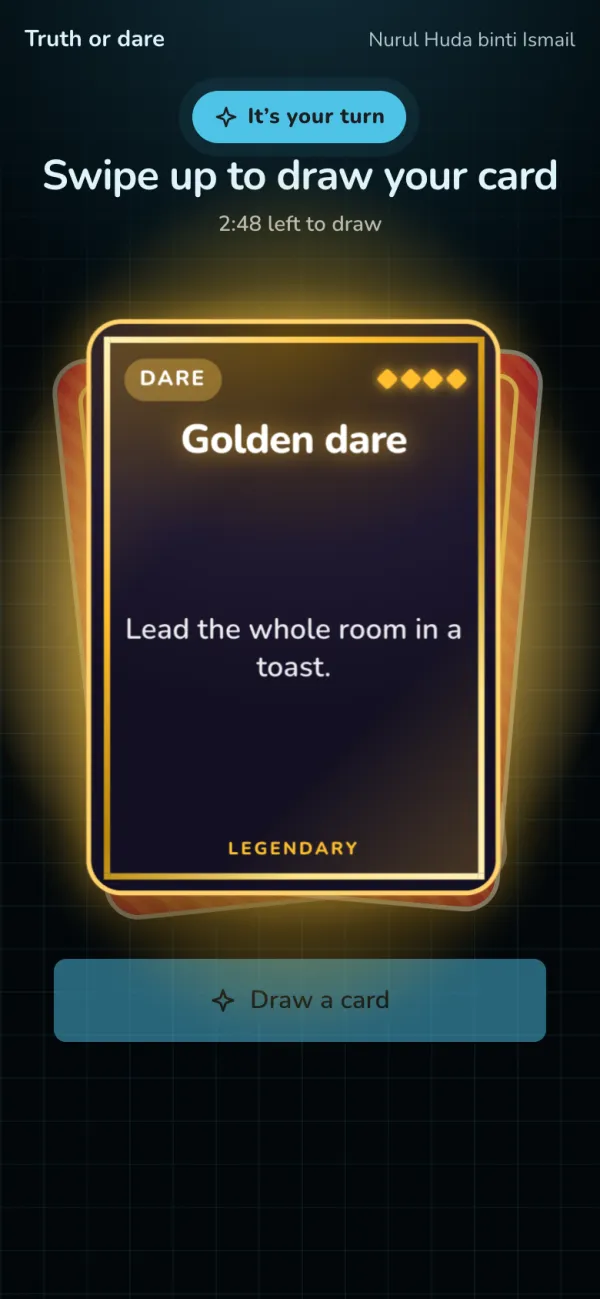
The guest swipes up to draw
Only the picked guest’s phone can draw; everyone else sees who is drawing. They swipe the deck up (or press Draw a card) and the card lifts, spins and bursts open in its rarity’s colour.
The reveal for the whole room
The projector shows whose turn it is, then plays the same reveal, bigger, with their name. Then press Next guest on the controller.
After the event
Every draw is kept
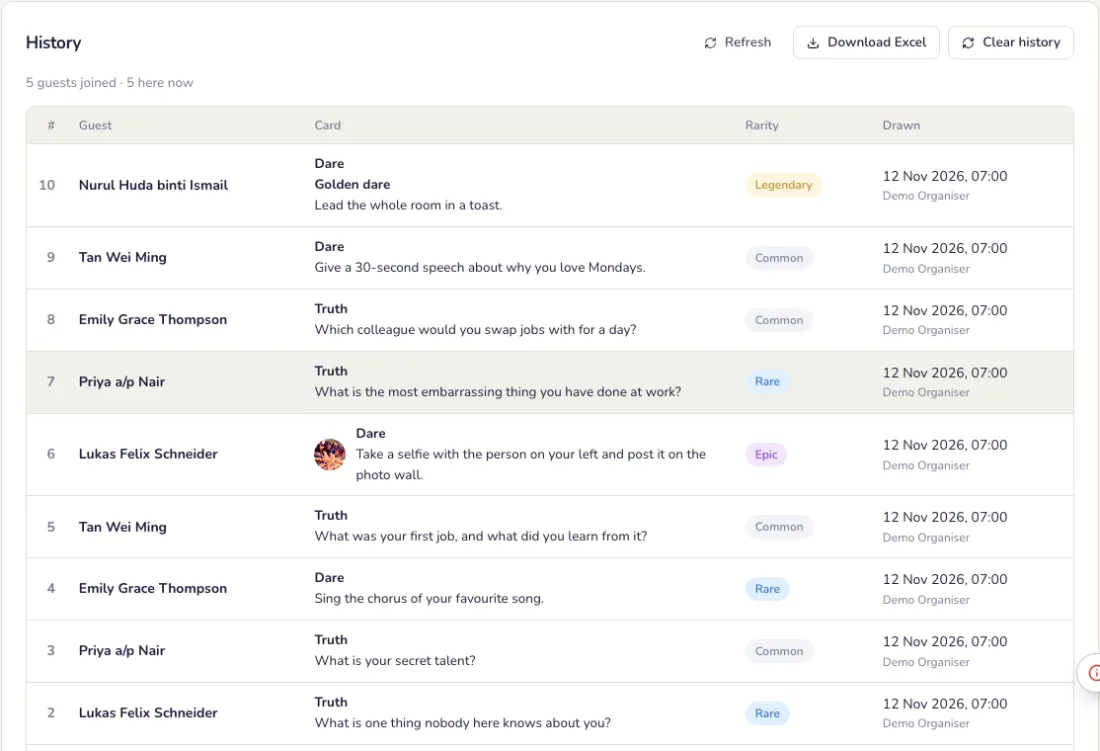
The History tab lists who drew which card and when. Download it as a CSV, and find it in the event report and on the Reports page.
Common problems
- The picked guest is not there.
- On the controller, press Pick again, or Skip this turn.
- Are Legendary cards harder to draw?
- No. Rarity only changes the card’s frame, glow and reveal. Every card has the same chance.
- Everyone wants to play.
- In Settings, choose Everyone draws their own. Each guest draws a card on their phone; New round lets them draw again.
Prize Rain
Prizes rain down on every guest’s phone for a few seconds: they tap to catch, each catch may hold a prize, and winners collect at the prize counter. Included in every plan.
Set up
Add the prizes, best first
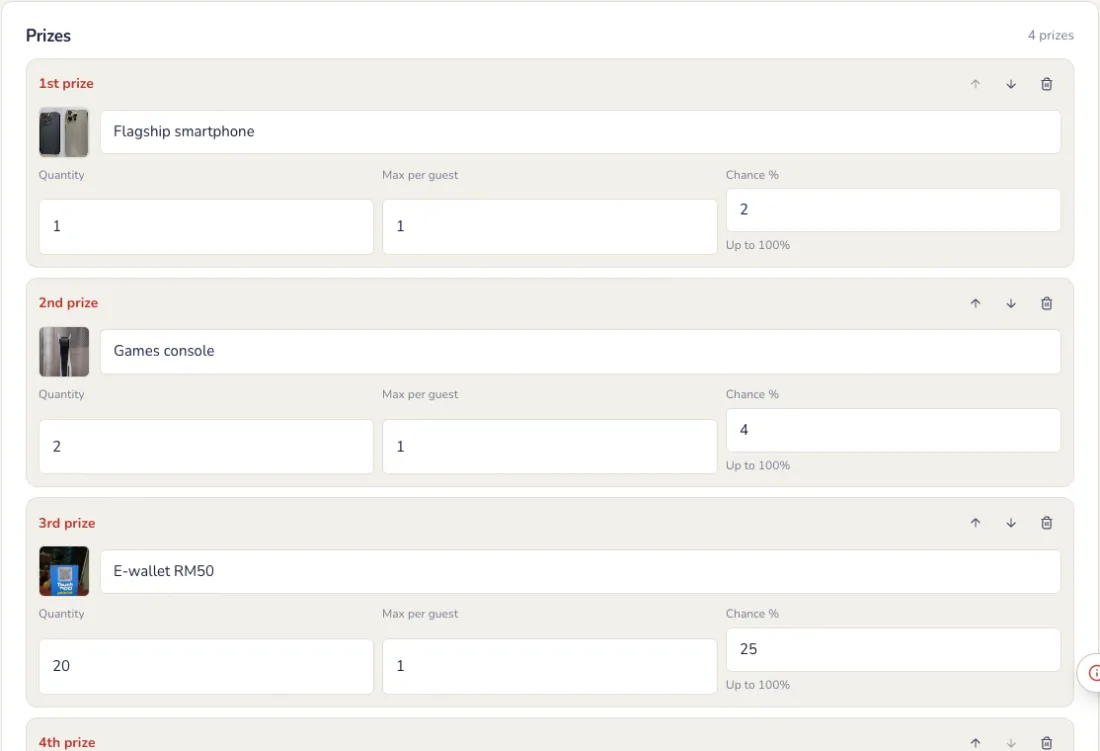
On the event page, press Add an activity, then Prize Rain. On the Prizes tab, the 1st prize is the top one: each has a name, a picture, how many there are and the most one guest can win.
Choose how chances work
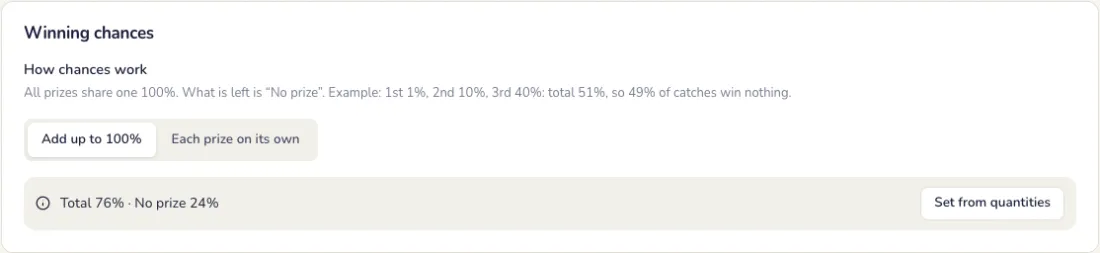
At the top of the Prizes tab.
- Add up to 100%: all prizes share one 100%; what is left is “No prize”. The total can’t go over 100%. Set from quantities fills the chances by stock.
- Each prize on its own: every prize has its own chance, up to 100% each, checked from the 1st prize down. The total can be more than 100%.
- A sold-out prize is never given again, and rare prizes stay as rare as you set them.
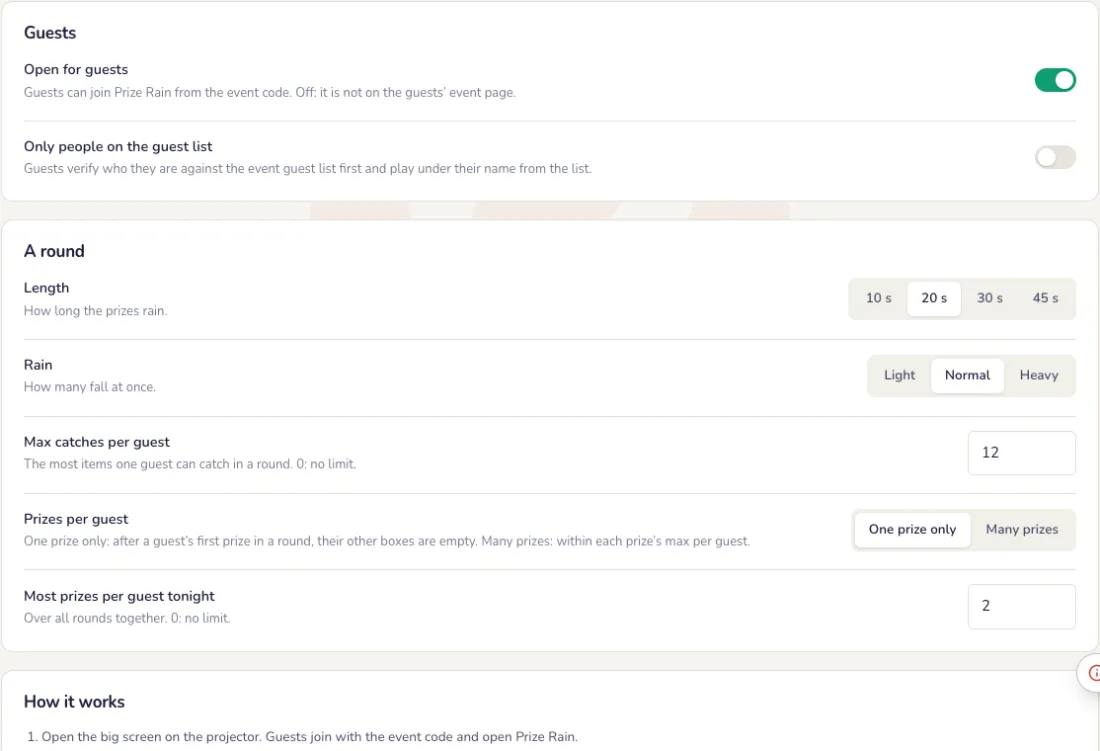
Set up a round
On the Settings tab. Each choice saves at once.
- Length: 10, 20, 30 or 45 seconds of rain, light, normal or heavy.
- Max catches per guest, and one prize or many prizes per guest in a round.
- Only people on the guest list, if you like.
The big screen
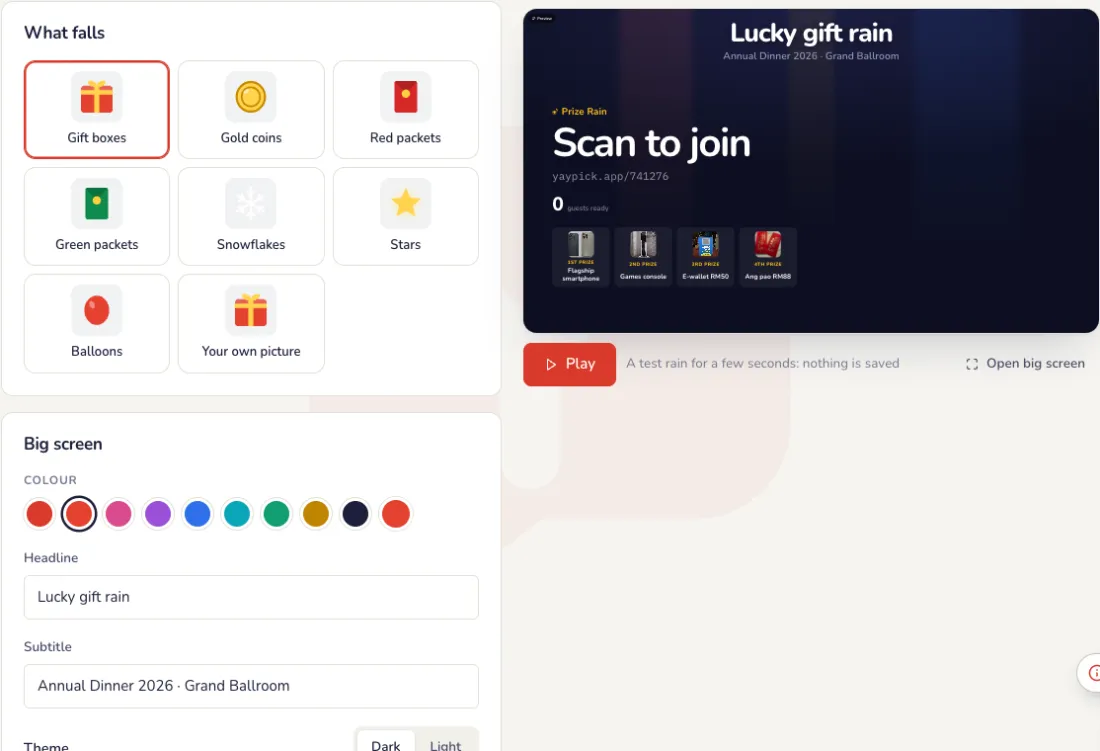
Choose what falls
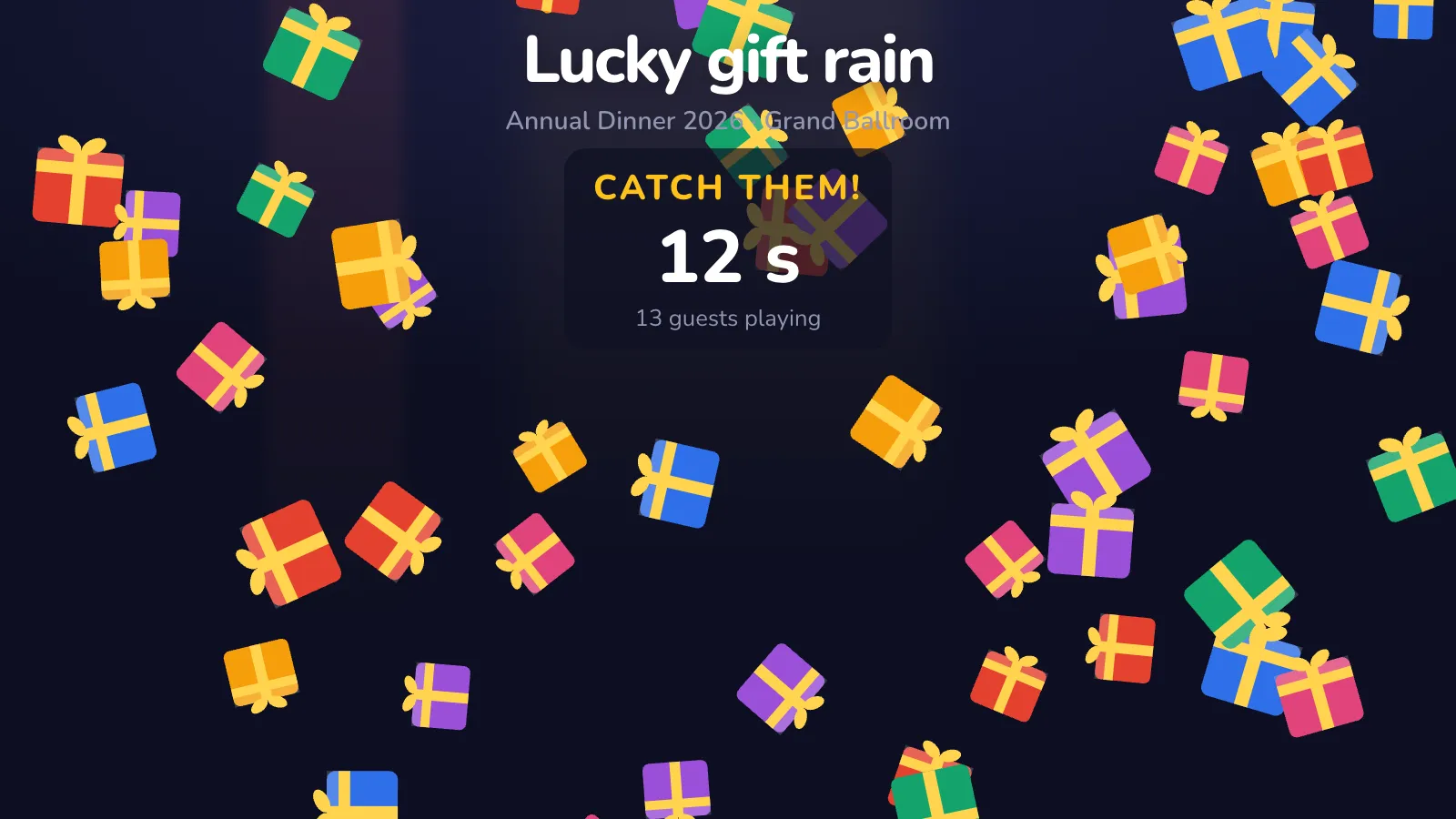
On the Screen tab, beside a live preview: gift boxes, gold coins, red or green packets, snowflakes, stars, balloons or your own picture, your colour and words. Press Play for a test rain.
On the night
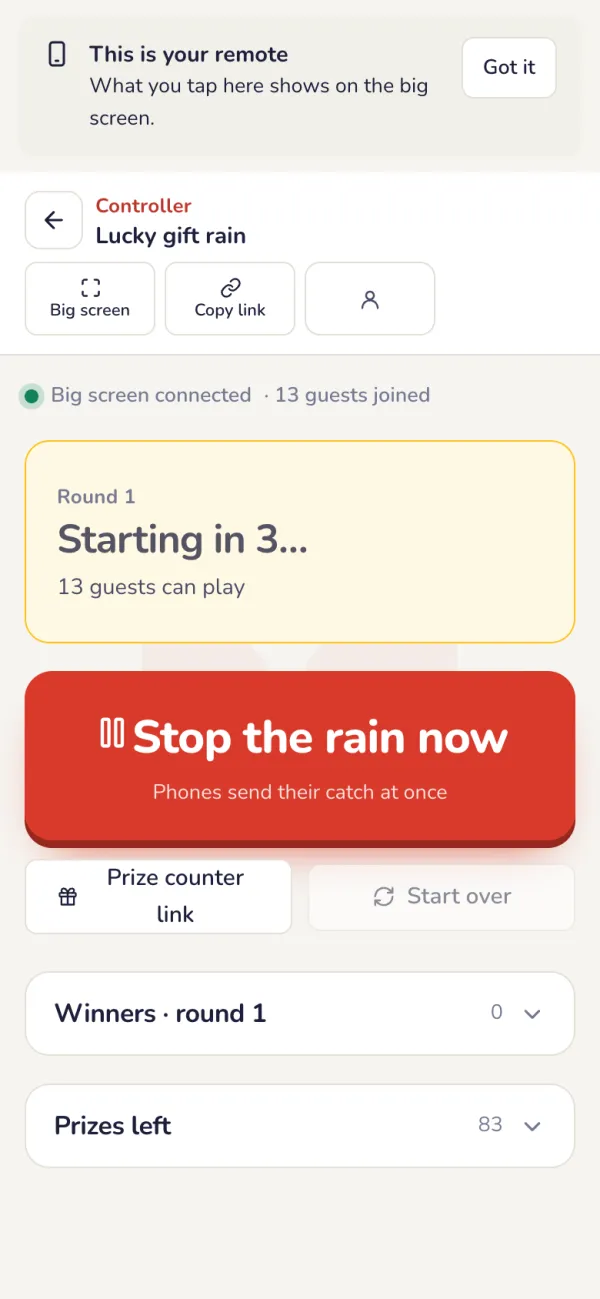
Start the rain from the controller
Press Start the rain: every phone and the big screen count 3-2-1 together, then the prizes fall. Stop the rain now ends a round early.
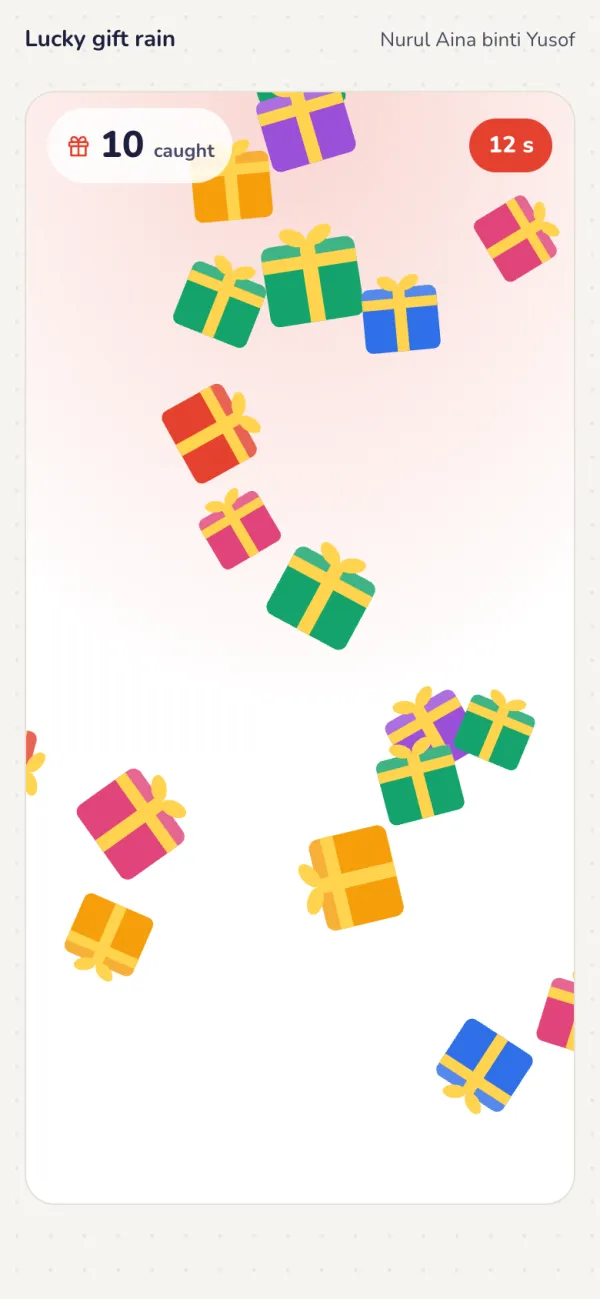
Guests tap to catch
Each tap catches a falling item. When the rain stops, every catch is opened at once: the phone shows what they won, or “No prize this time”.
The whole room watches
The big screen shows the join QR and the prizes, the countdown, the rain, then the winners of the round with their prizes.
Winners collect at the prize counter
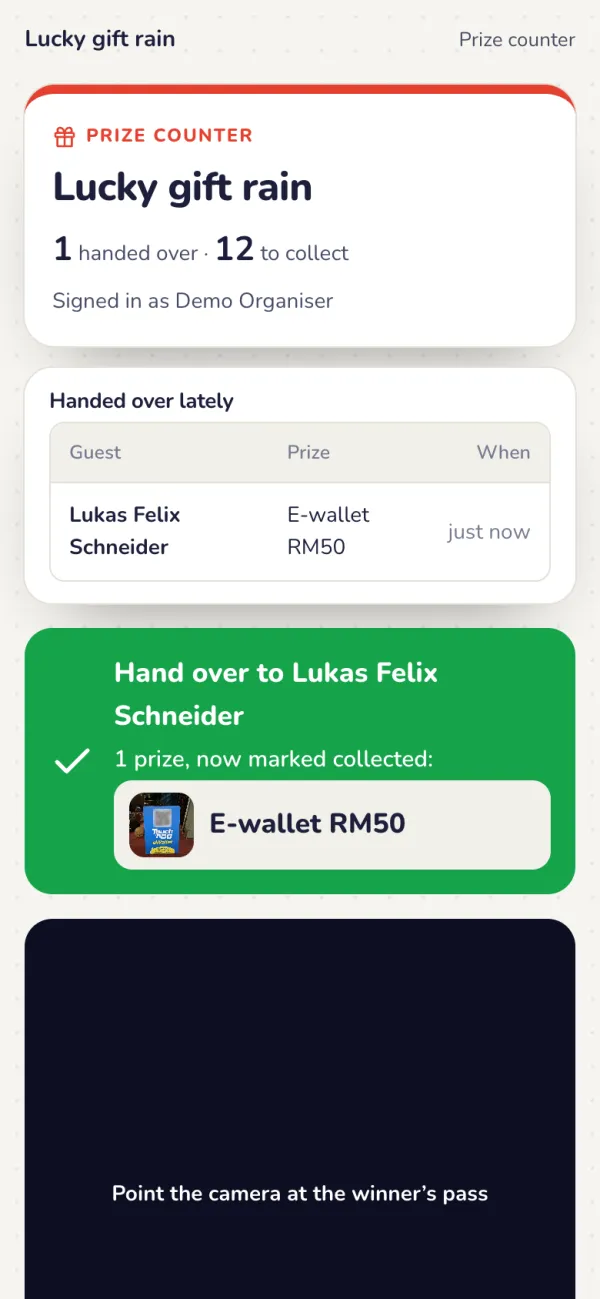
Press Prize counter at the top of the Prize Rain page for its link, QR and PIN. The assistant scans the winner’s pass (or the prize QR on their phone): every prize they won is marked handed over. Scanning again shows when and by whom.
After the event
Every prize is recorded
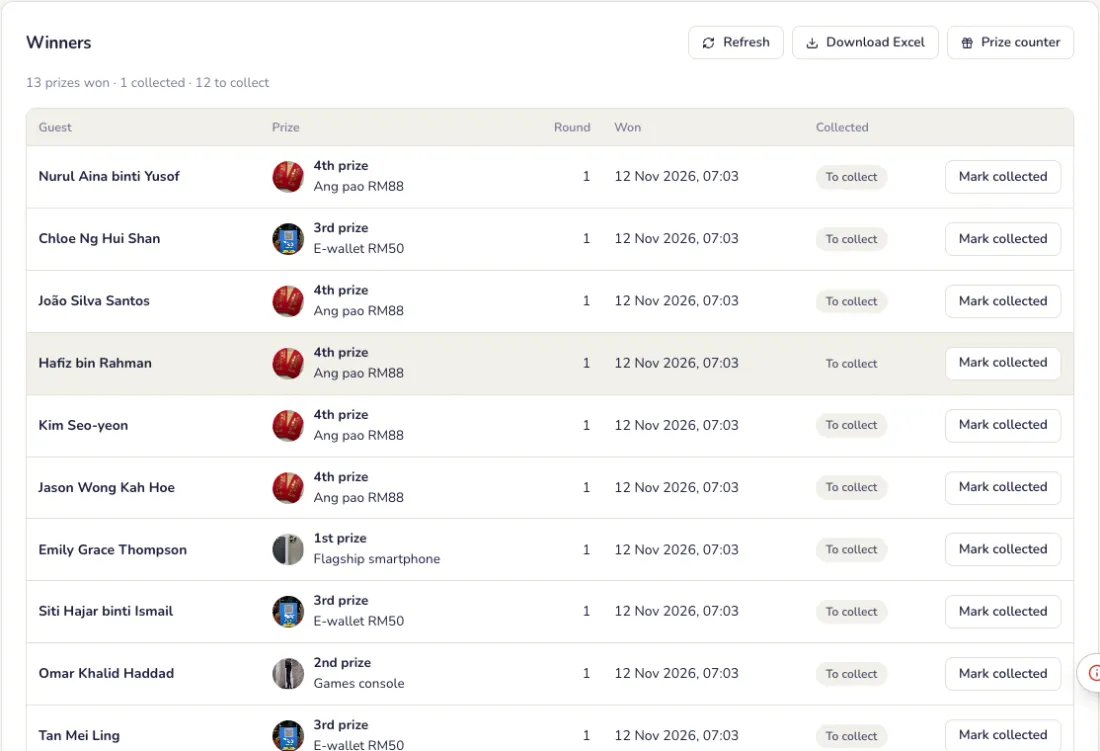
The Winners tab lists who won what in which round, and whether it was collected. Download it as a spreadsheet.
Common problems
- Too many prizes are given out.
- Lower the chances on the Prizes tab. With Add up to 100%, what is left is “No prize”. Each prize also has a limit per guest, and a sold-out prize is never given again.
- How do winners collect their prize?
- At the prize counter, an assistant scans the winner’s pass or the prize QR on their phone. Every prize they won is marked handed over, and scanning again shows when and by whom.
- Can I end a round early?
- Yes. Press Stop the rain now on the controller.
Voting
A Best Employee vote: nominees, the QR page, opening the vote, live results and the winner reveal.
Set up
Add the nominees
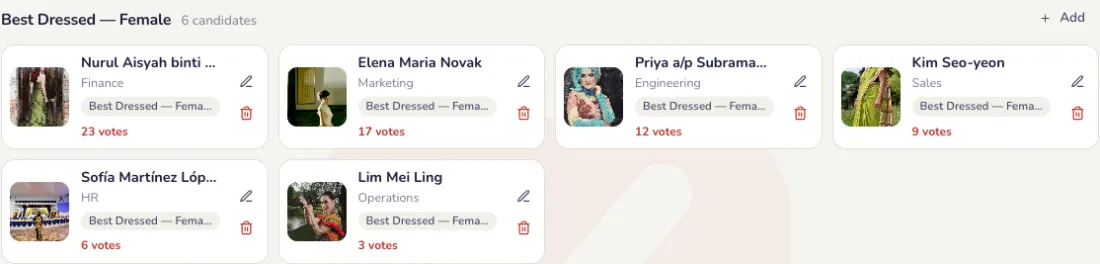
A name, a department and a photo for each, in one or more categories.
Choose who can vote and the rules
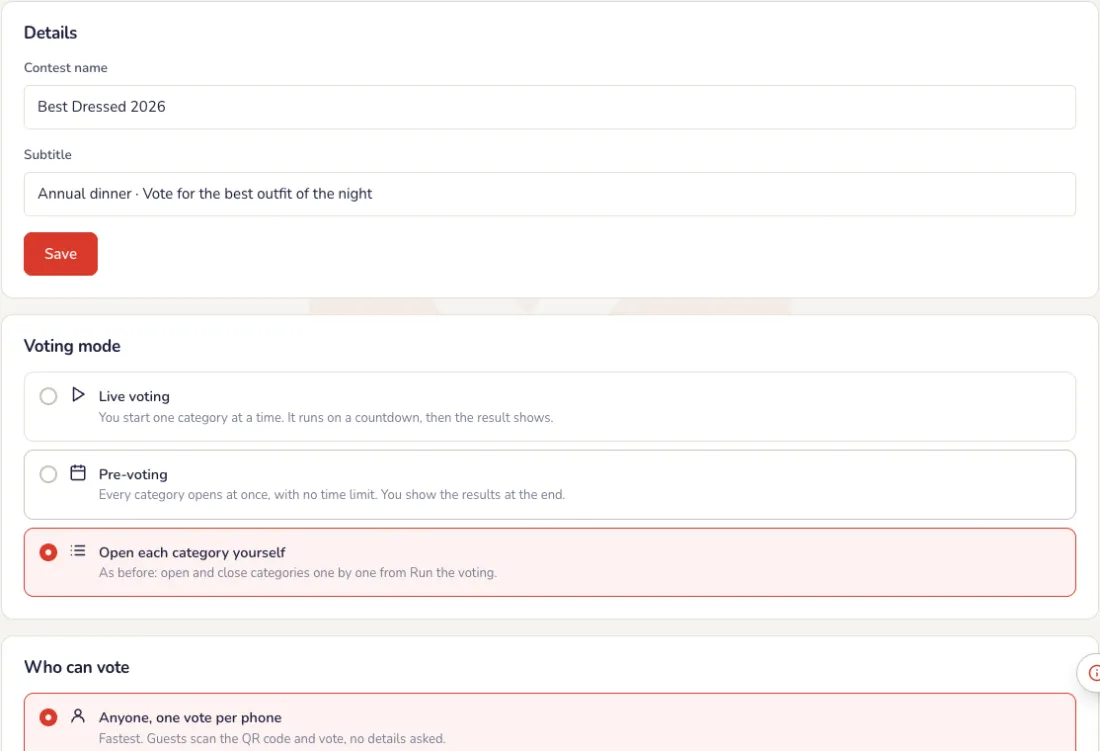
On the Settings tab. Each part has its own Save button.
- Who can vote: anyone (one vote per phone), only staff on the event guest list, only people on your own list, or another way such as vote codes on table cards, phone number, email or ticket number.
- Voting rules: votes per category, whether one candidate can get several of them, whether guests can change their vote, and whether guests see results on their phones (never, after voting closes, or live).
- Voting timer: the default length, what happens at 0:00 (close voting, go to the reveal or the finale, or show “Time’s up” and keep voting open), the countdown on phones and the red warning seconds.
- Self-registration: contestants enter themselves with a selfie from a QR code, with approval first, a required photo or an extra field if you want them.
The big screen
Design the big screen
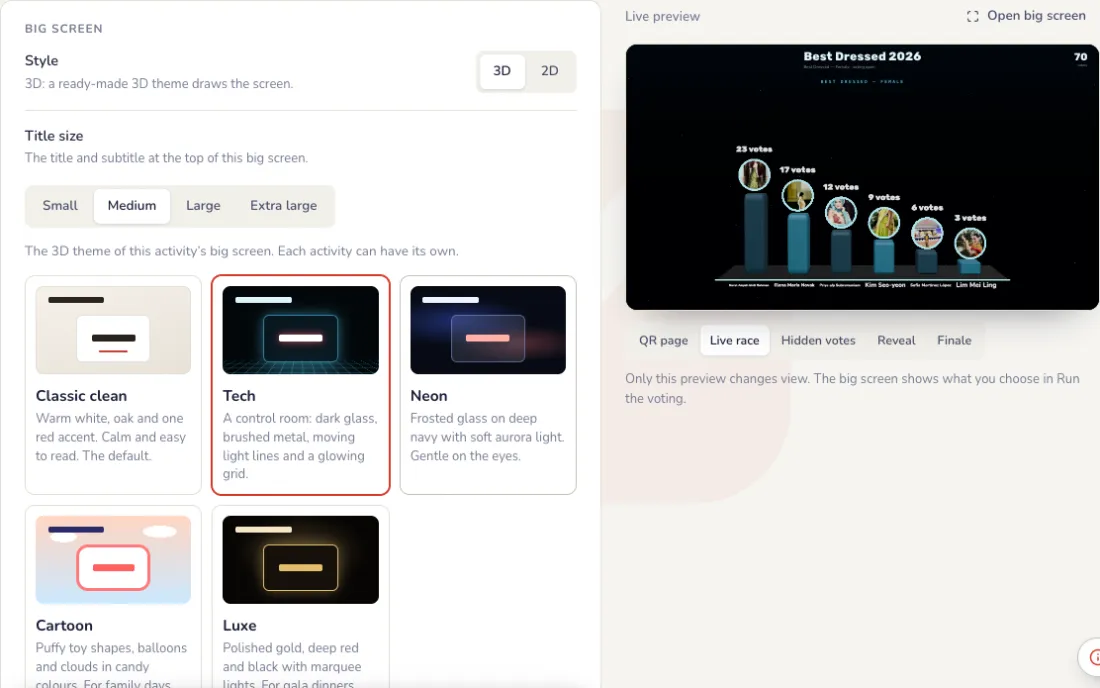
On the Screen tab, the preview on the right shows each view: QR page, Live race, Hidden votes, Reveal and Finale.
- Style: ready-made looks such as Midnight, Gala gold, Corporate blue, Clean white and Party neon.
- Your logo (position and size), the background (default, colour, gradient or photo), accent and text colours, cards and typeface. Saving these needs a plan.
- What shows: the title and category, the voter count, the timer and its size, and the headlines of the QR page and the hidden votes view.
- Results: how many places, vote counts, percentages or neither, and a podium or a leaderboard for the finale.
- Animation and effects: motion, live re-ranking, vote pop-ups, a 3-2-1 countdown, a drumroll, a spotlight on the winner, confetti and sound.
Big screen theme and holding screen
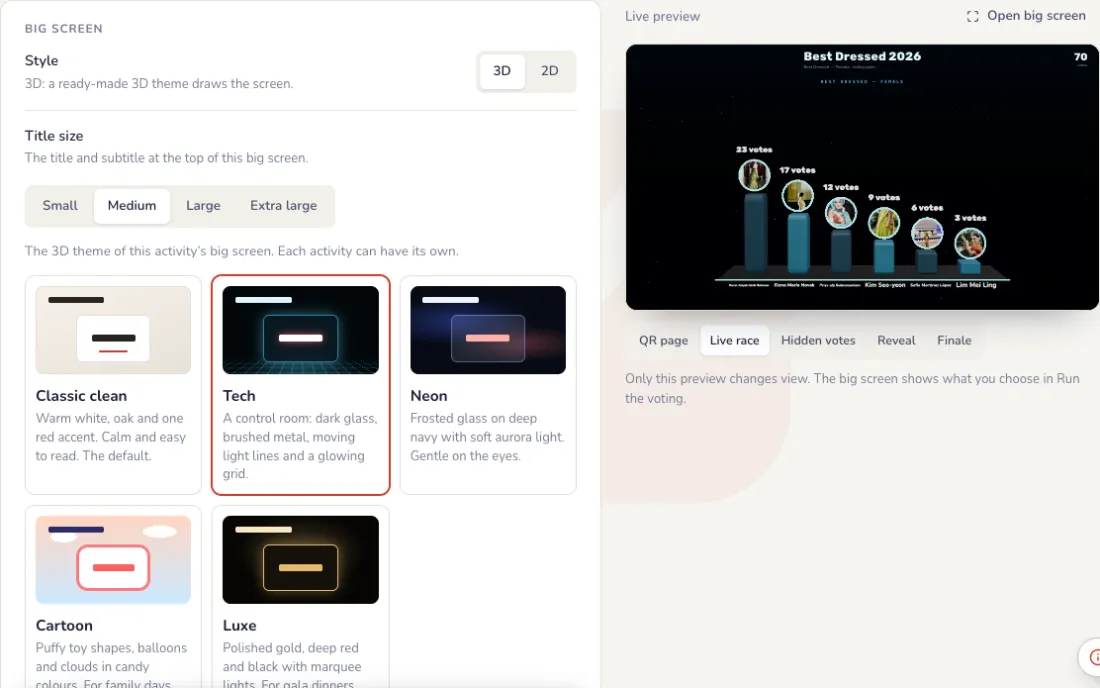
At the end of the Screen tab. Every change shows in the preview first; the big screen changes only when you press Save.
- Theme: Classic clean (warm white, one red accent), Tech (a control room with moving light lines), Neon (frosted glass, soft aurora), Cartoon (puffy toy shapes, balloons) or Luxe (gold, deep red and black). Classic clean is on every event; the other themes and the 3D spin wheel come with a pass.
- Holding screen: a full-screen image, such as your company’s design with the event name, shown instead of the live screen while it is on. Choose Fill the screen or Show all of it.
- The image can be PNG, JPG or WebP, up to 1 MB, best at 1920 × 1080. Video holding screens are coming soon.
- During the event, the Holding screen button on the controller switches it on and off.
On the night
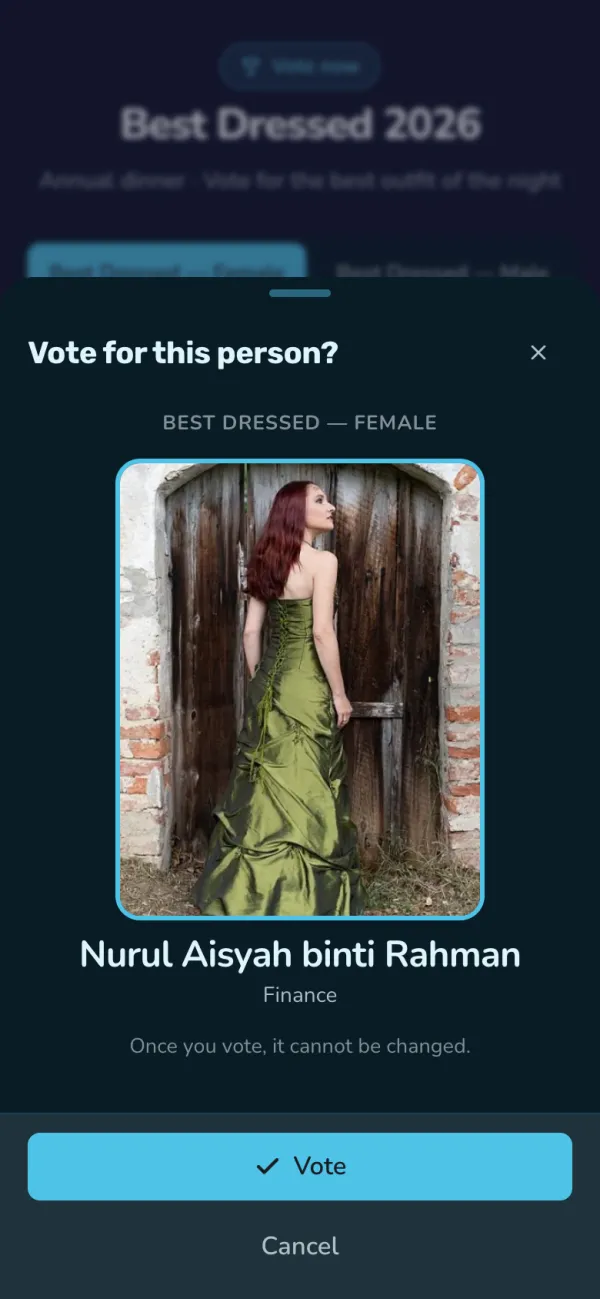
Guests vote on their phone
They scan the QR code and tap their favourite. One vote per phone.
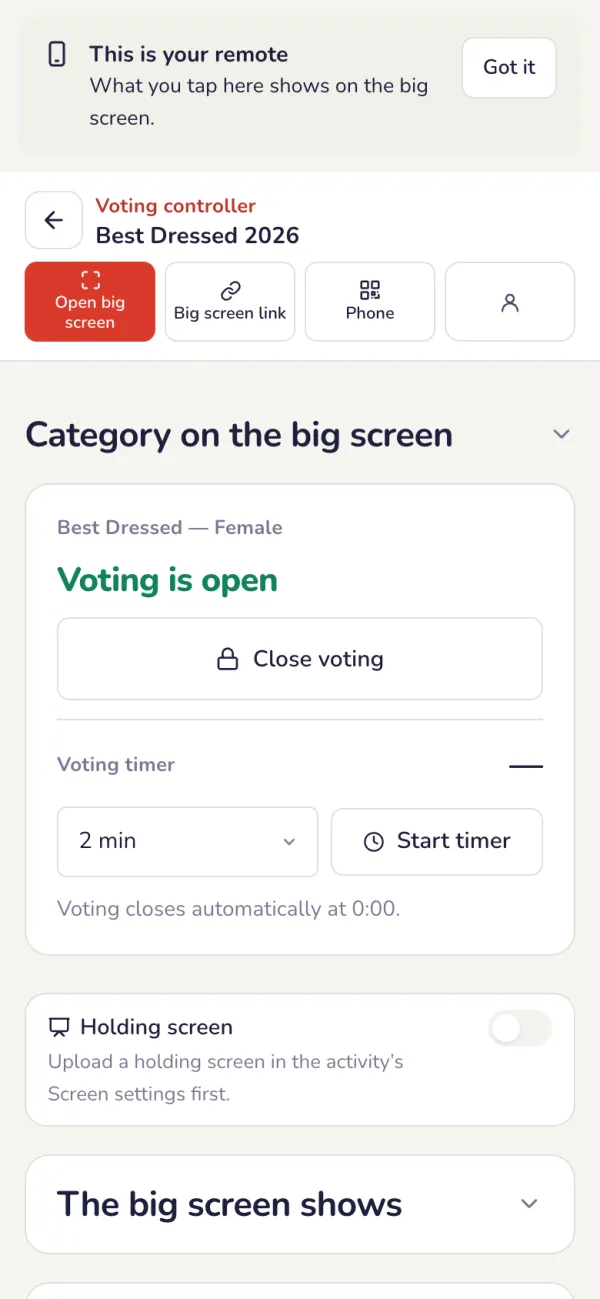
Run the voting from your phone
Press Run the voting. Pick the category for the big screen, open and close voting, start a timer, and choose what the big screen shows: the QR page, the live race or hidden votes, then the reveal or the finale.
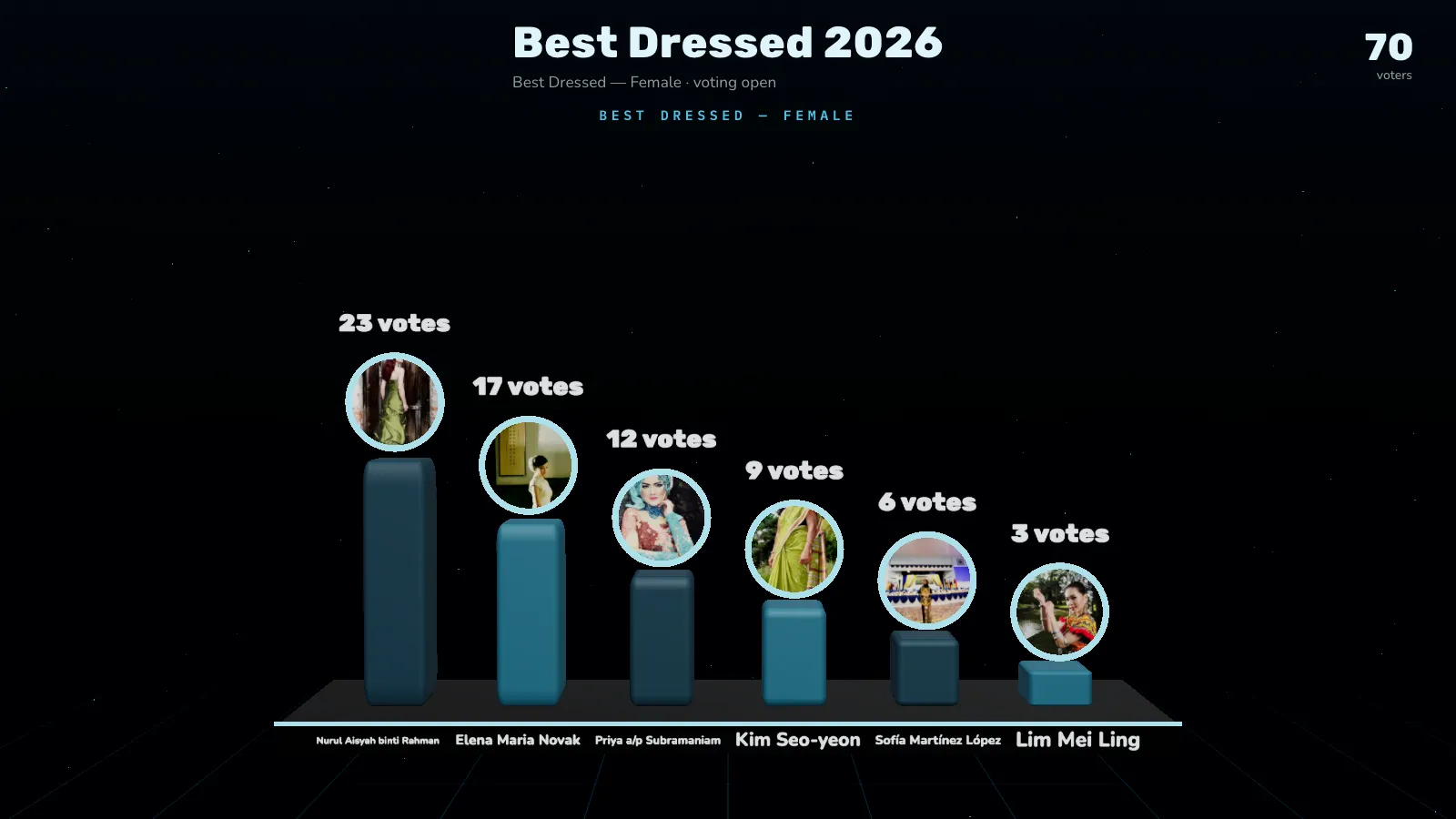
- Live race: everyone watches the votes come in, then the Finale shows the podium.
- Secret, then reveal: votes stay hidden; when voting closes, press Reveal next to reveal the winners one by one, or Restart reveal.
- Timer: start a preset or a custom length, add time, pause or stop it. What happens at 0:00 is set in Settings.
- Category on the big screen: switch to the next category when you are ready.
A live race on the big screen
Votes arrive as they are cast. Reveal the winners when you are ready.
After the event
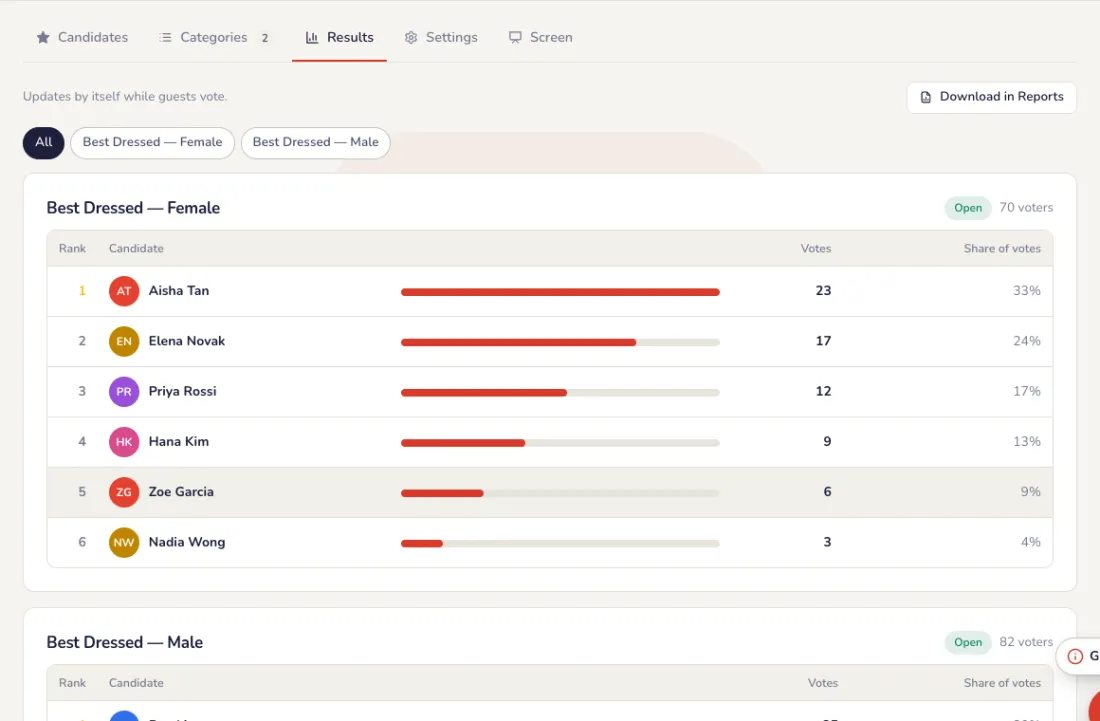
The results
The Results tab shows the standings and votes in every category, and updates by itself while guests vote. Download them in Reports; the event report lists the winners, top 2 or 3 per category.
Common problems
- How do I stop people voting twice?
- In Settings, choose Who can vote: one vote per phone, only staff on the event guest list, only people on your own list, or vote codes on table cards, phone number, email or ticket number.
- I want to keep the results secret until the reveal.
- Show the Hidden votes view on the big screen, and set whether guests see results on their phones to never or after voting closes.
- Can nominees enter themselves?
- Yes. Turn on Self-registration: contestants enter with a selfie from a QR code, with your approval first if you want it.
- The timer ended but people are still voting.
- In Voting timer, choose what happens at 0:00: close voting, go to the reveal or the finale, or show “Time’s up” and keep voting open.
- We lost the vote codes.
- For privacy, only scrambled versions are kept, so they can’t be shown again. Download or print the codes as soon as you create them.
- I want to keep the winners a surprise.
- Choose Secret, then reveal on the controller: votes stay hidden, and you reveal the winners one by one when voting closes.
Live poll
Write a question, publish, and watch the answers arrive on the big screen.
Set up
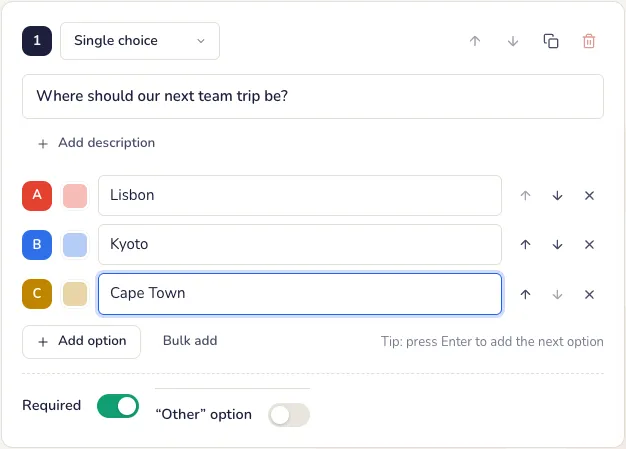
Write the question
Choose the type: single or multiple choice, rating, NPS, ranking, open text and more. Add the answers and publish: the poll is live straight away.
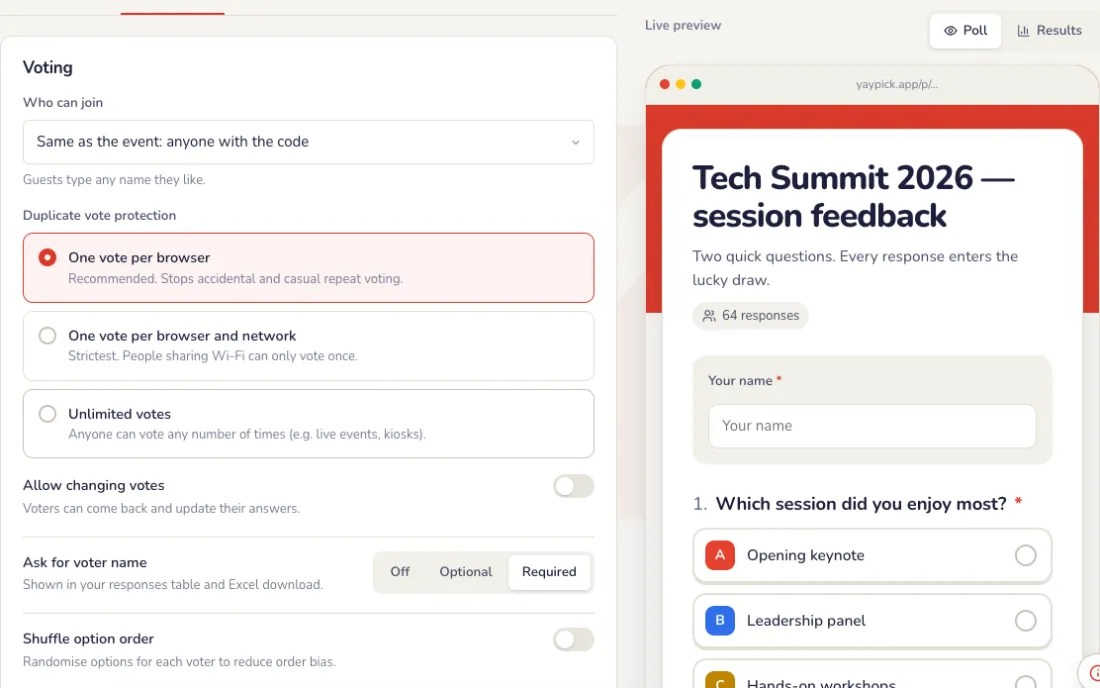
Choose the poll settings
On the Settings tab of Edit poll. The preview on the right follows every change.
- Who can join: anyone with the link or QR code, or only people on the event’s guest list.
- Duplicate vote protection: one vote per browser, one per browser and network, or unlimited.
- Allow changing votes, ask for the voter’s name (off, optional or required), shuffle the options, one section per page, and the rude-word filter.
- Results: who can see them (everyone, after voting, after the poll closes, or only you), the response count and the thank-you message.
- Schedule and limits: close at a set time or after a number of responses, and an optional password.
Choose how it looks on phones
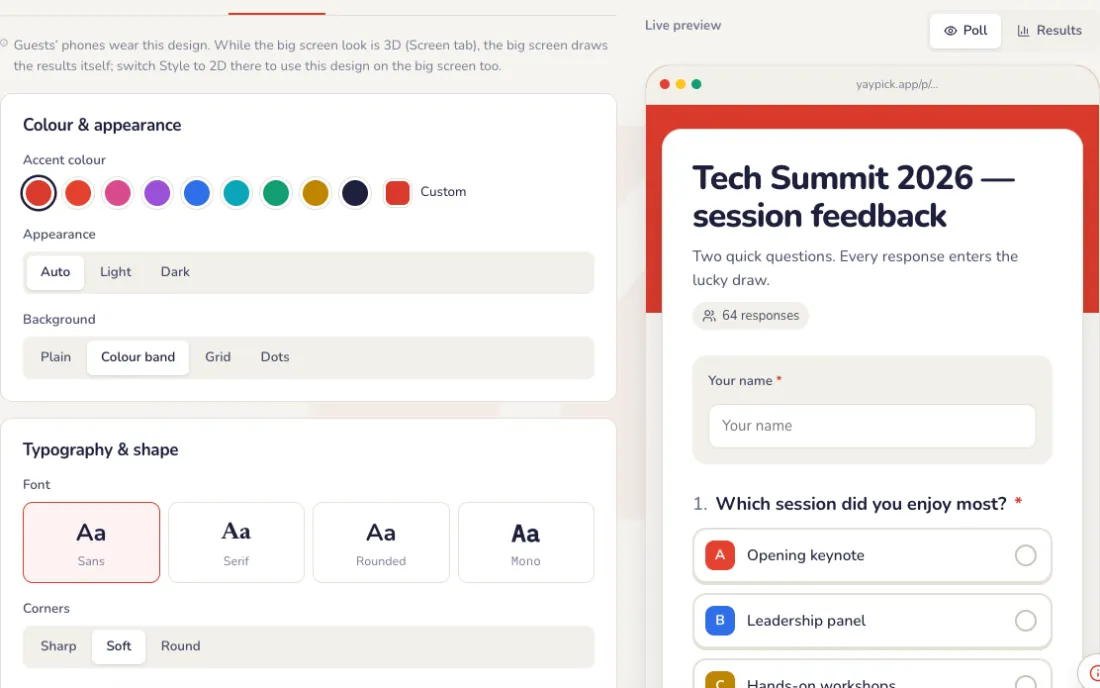
On the Design tab of Edit poll.
- Accent colour, light, dark or auto, and a plain, colour band, grid or dots background.
- Font (sans, serif, rounded or mono), corners, and bars or a donut for the results.
- An icon or short label above the title, and a cover image.
Share the poll
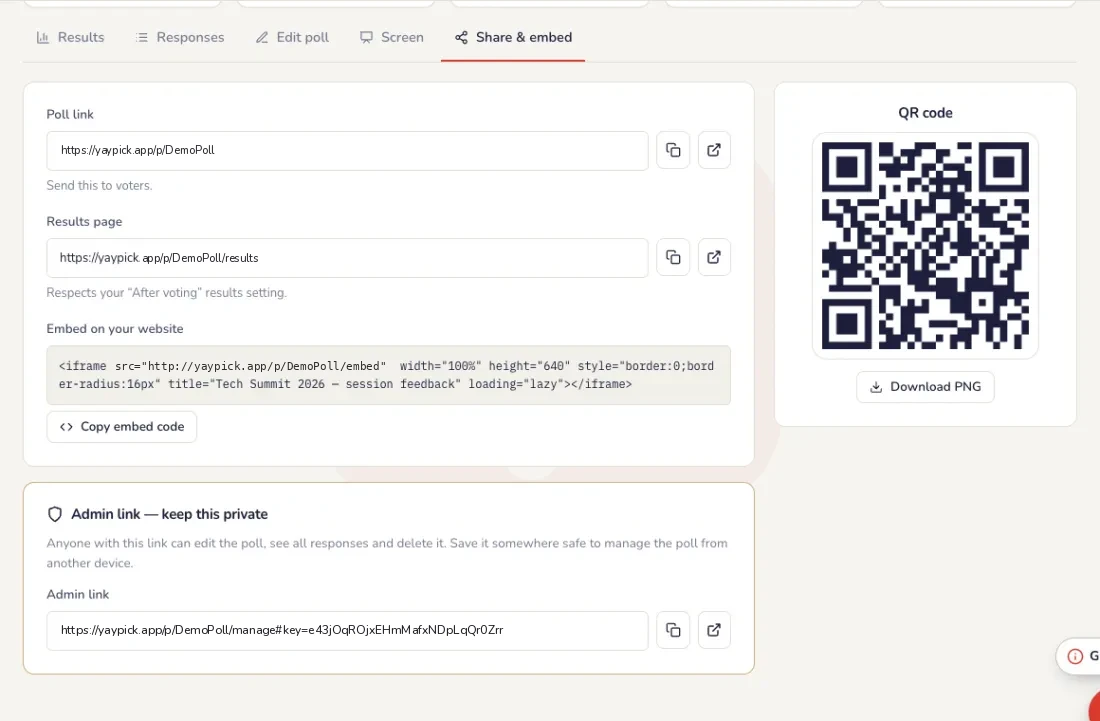
On the Share & embed tab: the poll link and its QR code for guests (Download PNG to print it), the results page link, and an embed code to put the poll on your website. In an event, guests also reach it with the event code.
- The admin link lets anyone who has it edit the poll and see every response. Keep it private; use it to manage the poll from another device.
The big screen
Big screen theme and holding screen
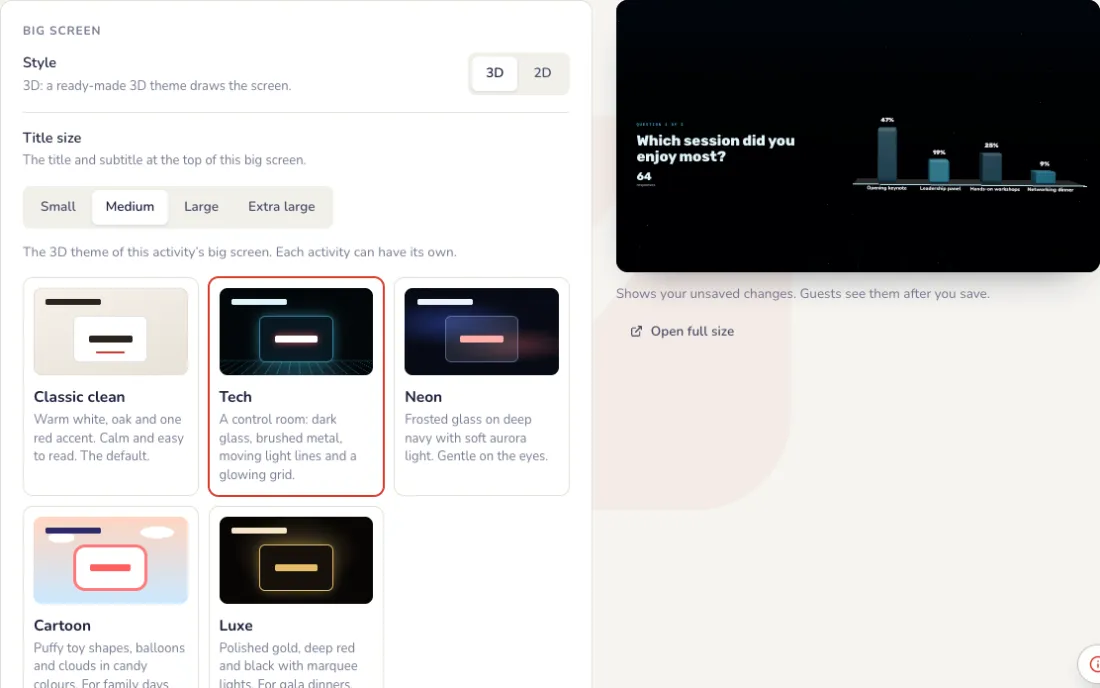
On the Screen tab, beside a live preview of the big screen. Every change shows in the preview first; the big screen changes only when you press Save.
- Theme: Classic clean (warm white, one red accent), Tech (a control room with moving light lines), Neon (frosted glass, soft aurora), Cartoon (puffy toy shapes, balloons) or Luxe (gold, deep red and black). Classic clean is on every event; the other themes and the 3D spin wheel come with a pass.
- Holding screen: a full-screen image, such as your company’s design with the event name, shown instead of the live screen while it is on. Choose Fill the screen or Show all of it.
- The image can be PNG, JPG or WebP, up to 1 MB, best at 1920 × 1080. Video holding screens are coming soon.
- Turn Holding screen on to show it, and off to go back to the live screen.
On the night
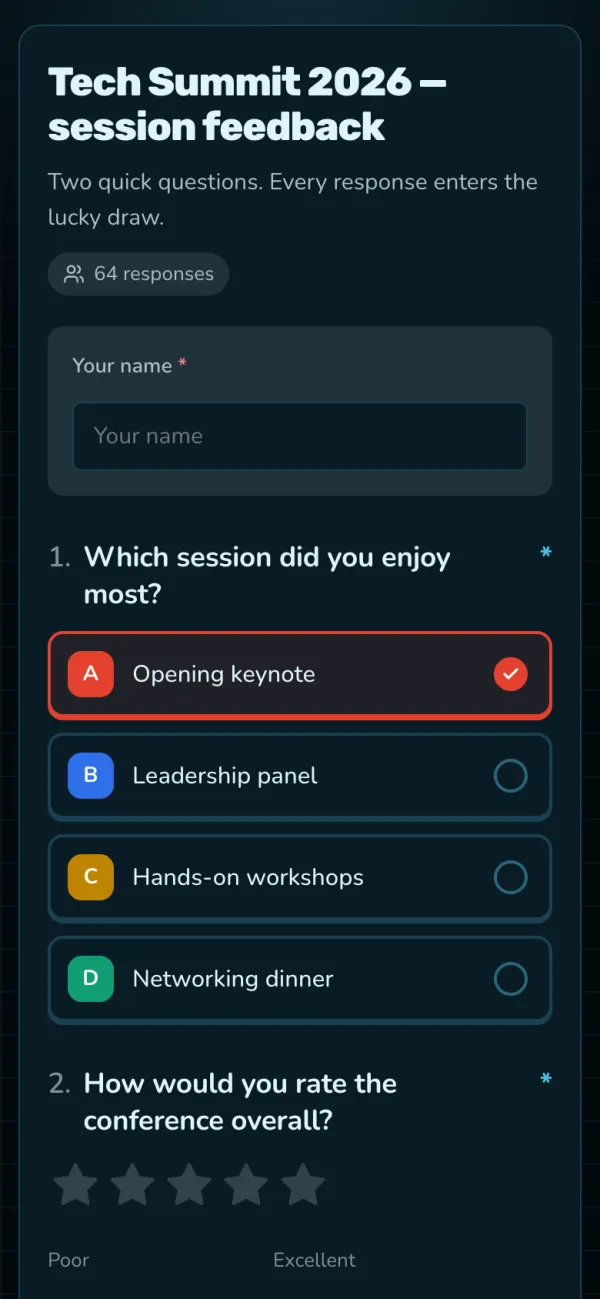
Guests answer on their phone
No app and no sign-up: they scan the QR code and tap.
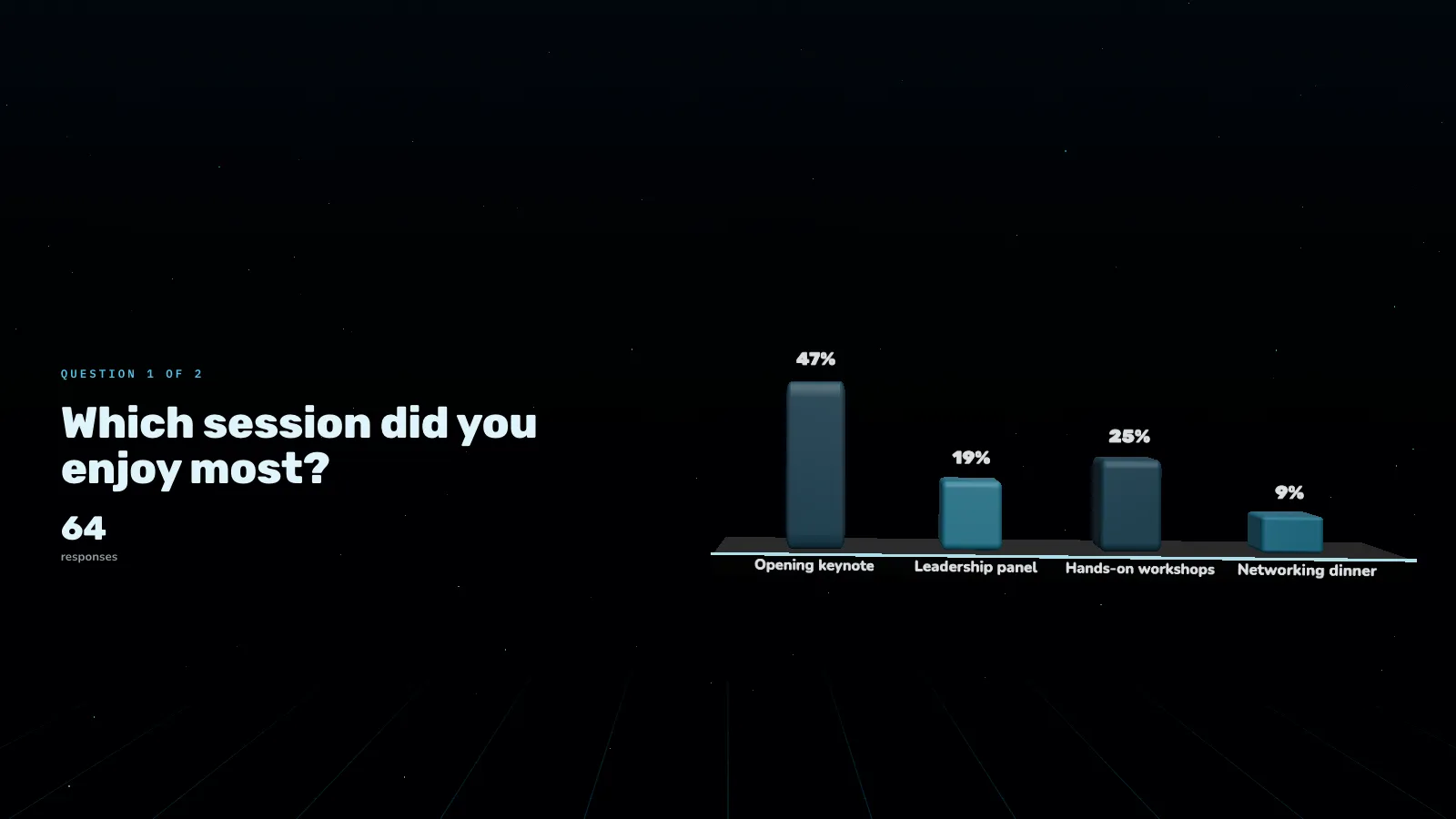
Results move live
Press Present on the laptop connected to the projector. The arrow keys change the question and F is full screen.
Close or reopen voting
Press Close voting when the question is done; guests then see the results, if your Results setting allows it. Reopen voting brings it back. Reset votes clears every answer and keeps the poll, for example after a rehearsal.

After the event
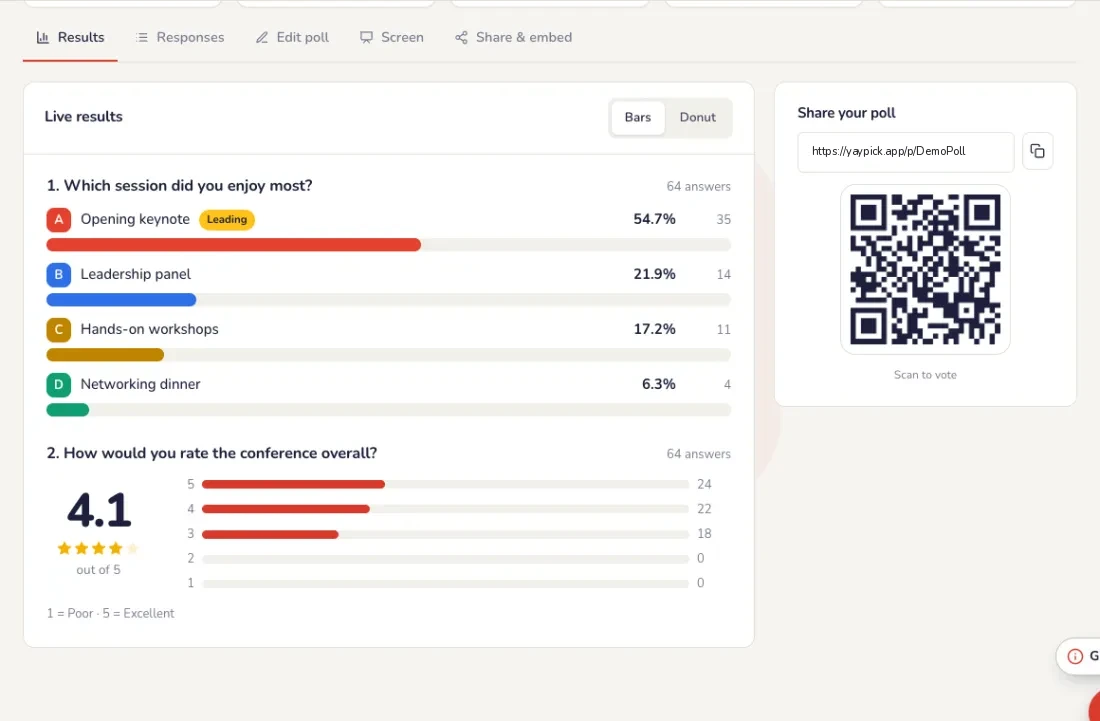
Read the results
On the Results tab: the live results for every question, as bars or a donut. The Responses tab lists every individual response. The event report has the highlights, with NPS scores.
Common problems
- Someone voted more than once.
- In Settings, set Duplicate vote protection to one vote per browser, or one per browser and network. For stricter control, let only people on the event guest list join.
- I don’t want guests to see the results.
- In Settings, under Results, choose who can see them: everyone, after voting, after the poll closes, or only you.
- Can the poll close by itself?
- Yes. Under Schedule and limits, close it at a set time or after a number of responses.
- How do I move to the next question on the projector?
- Press Present on the laptop connected to the projector. The arrow keys change the question and F is full screen.
- We tested the poll and want to start clean.
- Press Reset votes. Every answer is deleted and the poll stays as it is.
Quiz
Questions, answers and teams, then the night: players join, answer on their phones, leaderboard and podium.
Set up
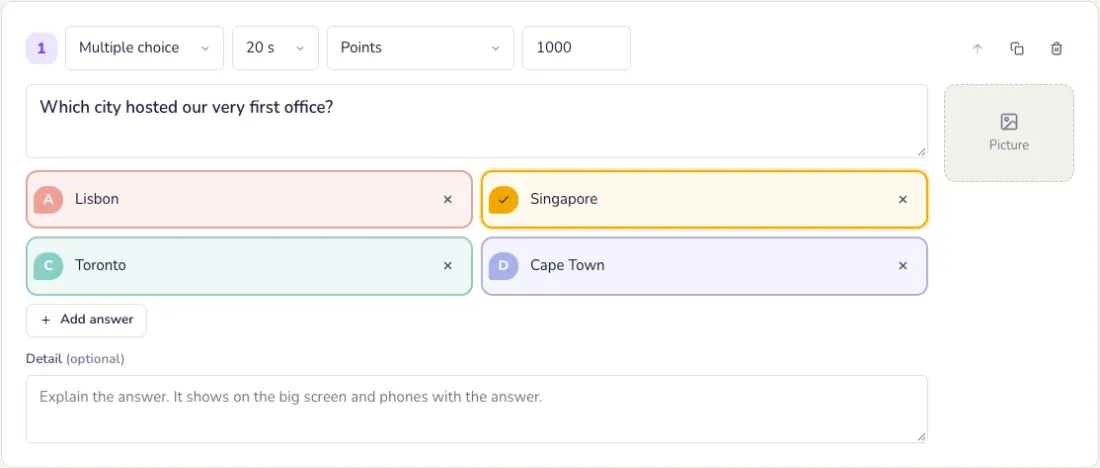
Write the questions
Multiple choice, true or false, closest number or type the answer, or paste them from Excel.
Choose the quiz settings
On the Settings tab. Press Save settings when you are done.
- Subtitle on the big screen, and who can join: anyone, or only people on the event’s guest list.
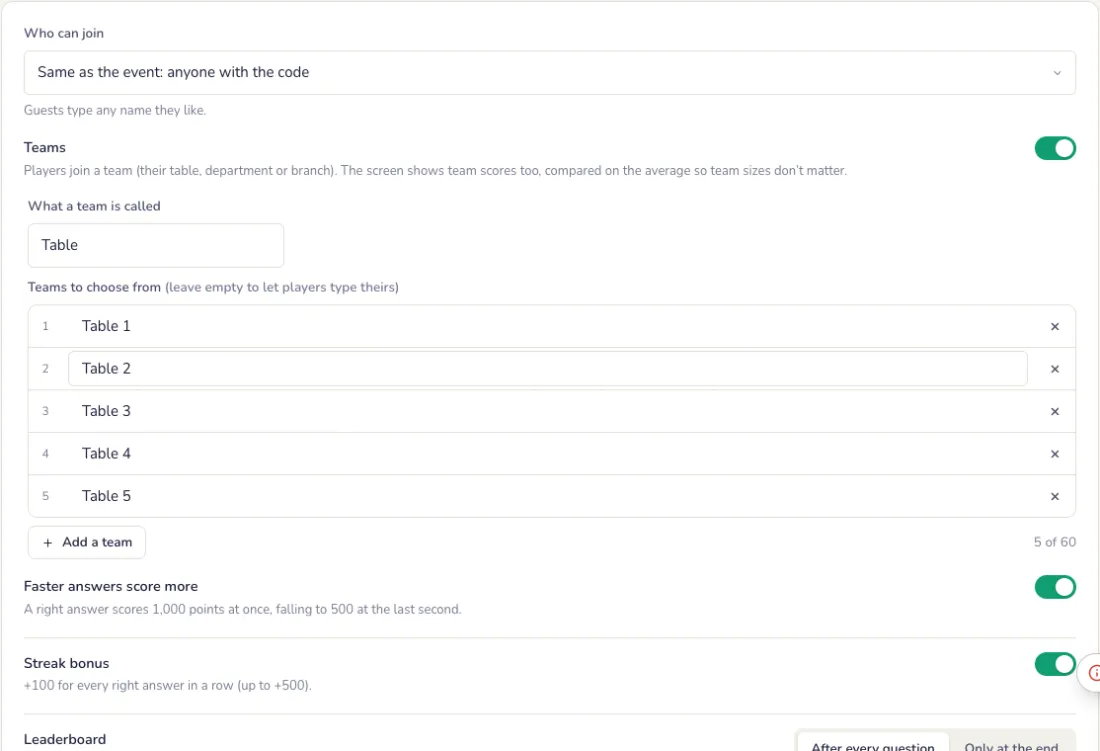
- Teams: players join their table, department or branch. Team scores are compared on the average, so team sizes don’t matter.
- Scoring: faster right answers score more (1,000 points falling to 500), and a streak bonus of +100 for every right answer in a row.
- Leaderboard after every question or only at the end, showing the top 5 or top 10.
- Big screen dark or light, the accent colour, and the rude-word filter for typed answers.
The big screen
Big screen theme and holding screen
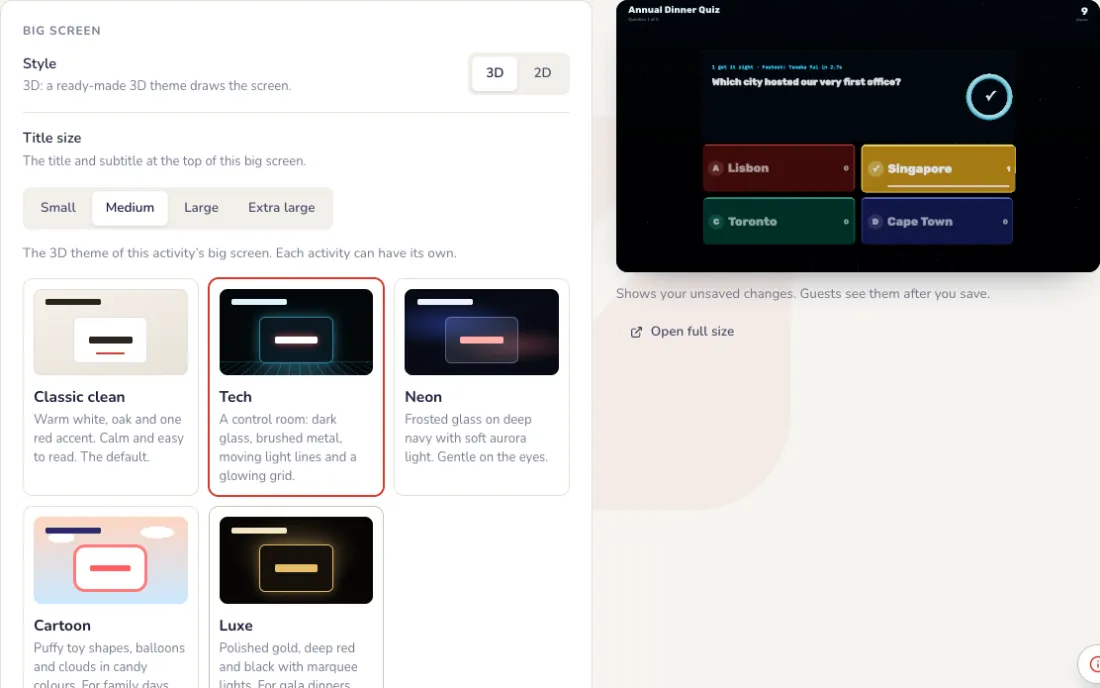
Under the settings, beside a live preview of the big screen. Every change shows in the preview first; the big screen changes only when you press Save.
- Theme: Classic clean (warm white, one red accent), Tech (a control room with moving light lines), Neon (frosted glass, soft aurora), Cartoon (puffy toy shapes, balloons) or Luxe (gold, deep red and black). Classic clean is on every event; the other themes and the 3D spin wheel come with a pass.
- Holding screen: a full-screen image, such as your company’s design with the event name, shown instead of the live screen while it is on. Choose Fill the screen or Show all of it.
- The image can be PNG, JPG or WebP, up to 1 MB, best at 1920 × 1080. Video holding screens are coming soon.
- During the event, the Holding screen button on the controller switches it on and off.
On the night
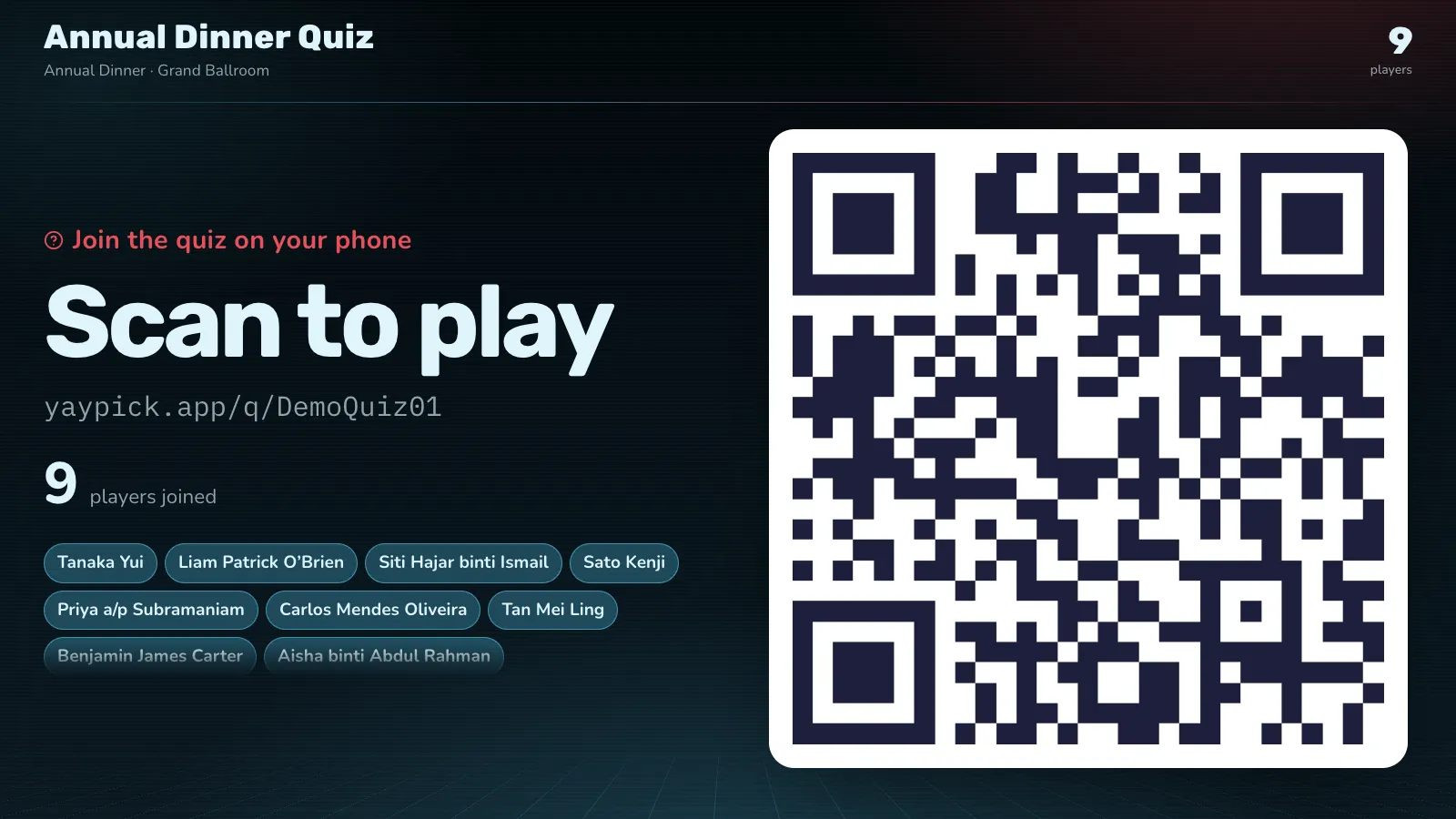
Players join from their table
Their names pop up on the big screen as they join.
Answer on the phone
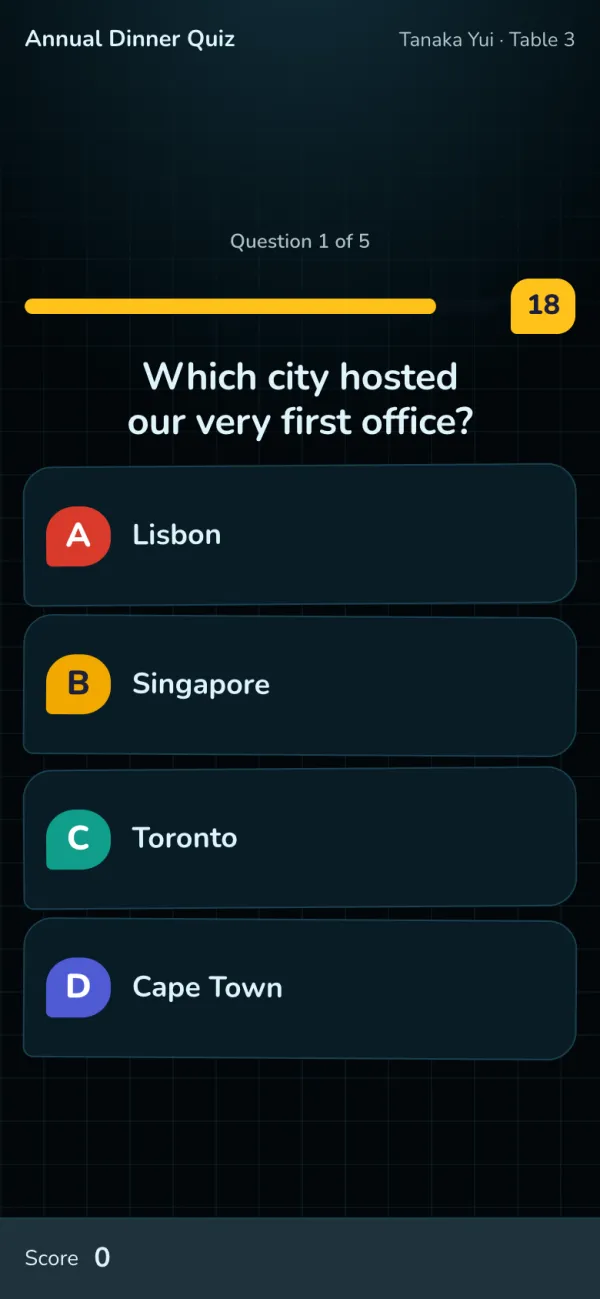
Colour tiles and a countdown. Faster right answers score more.
Run the quiz from the controller
Open the controller on your phone or laptop: start the quiz, show the answer, move to the next question and the leaderboard. The big screen follows every press.
- During a question: +10 seconds gives more time, End now ends it. The controller shows how many have answered and the right answer, which only you see.
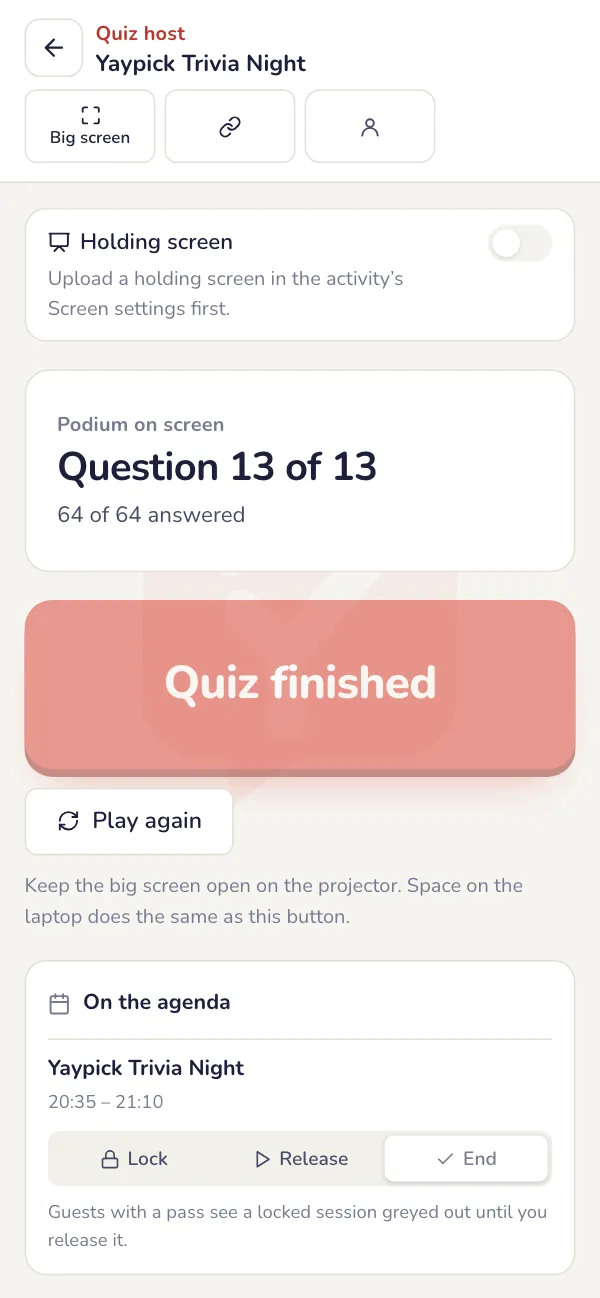
- After the last question: Show the winners puts the podium on the big screen. Play again starts over with the same players.
- Reset scores puts every score back to zero and the big screen back on the join page. Players stay joined.
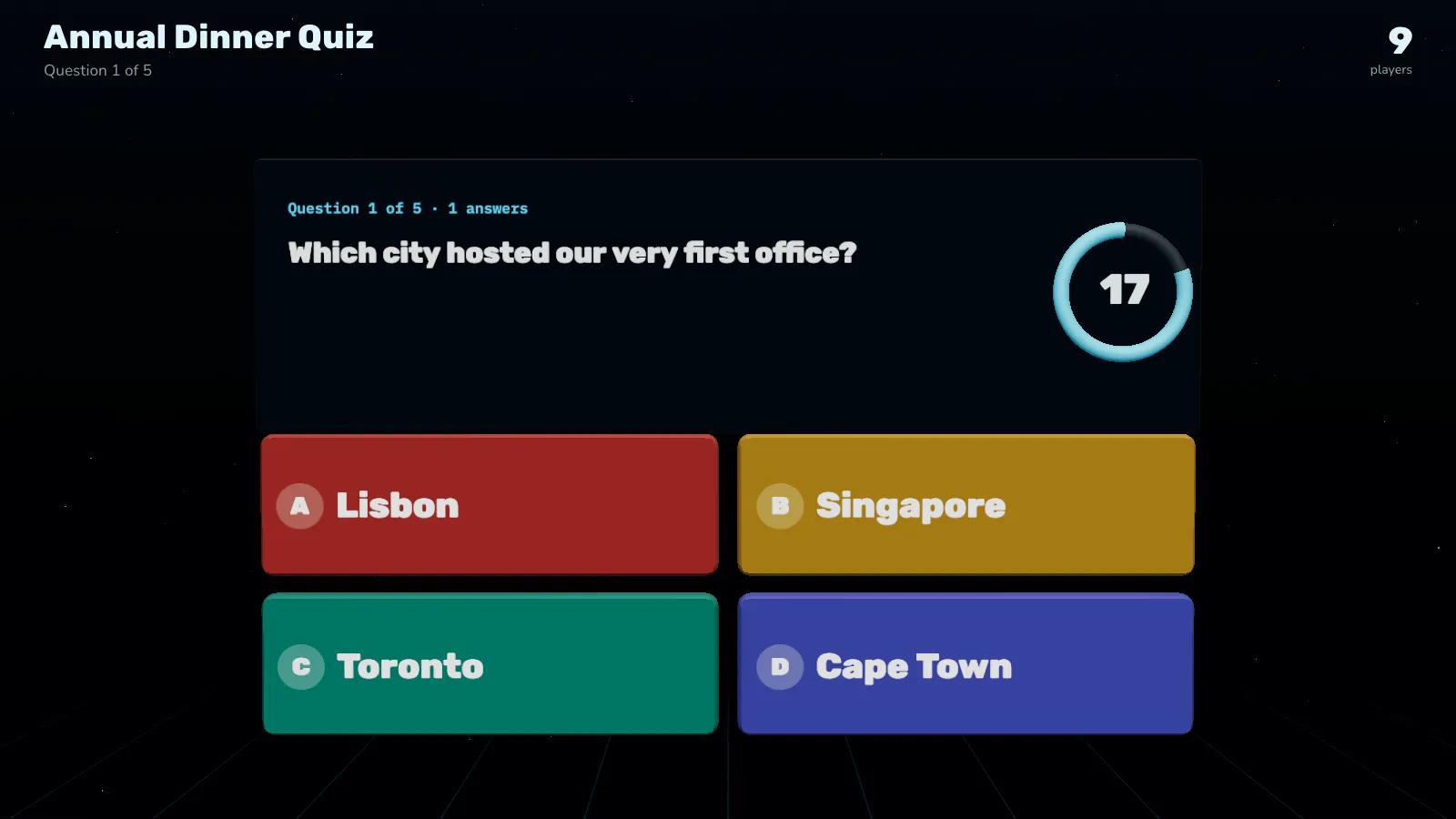
The question on the big screen
Everyone sees the question, the answers and the time left.
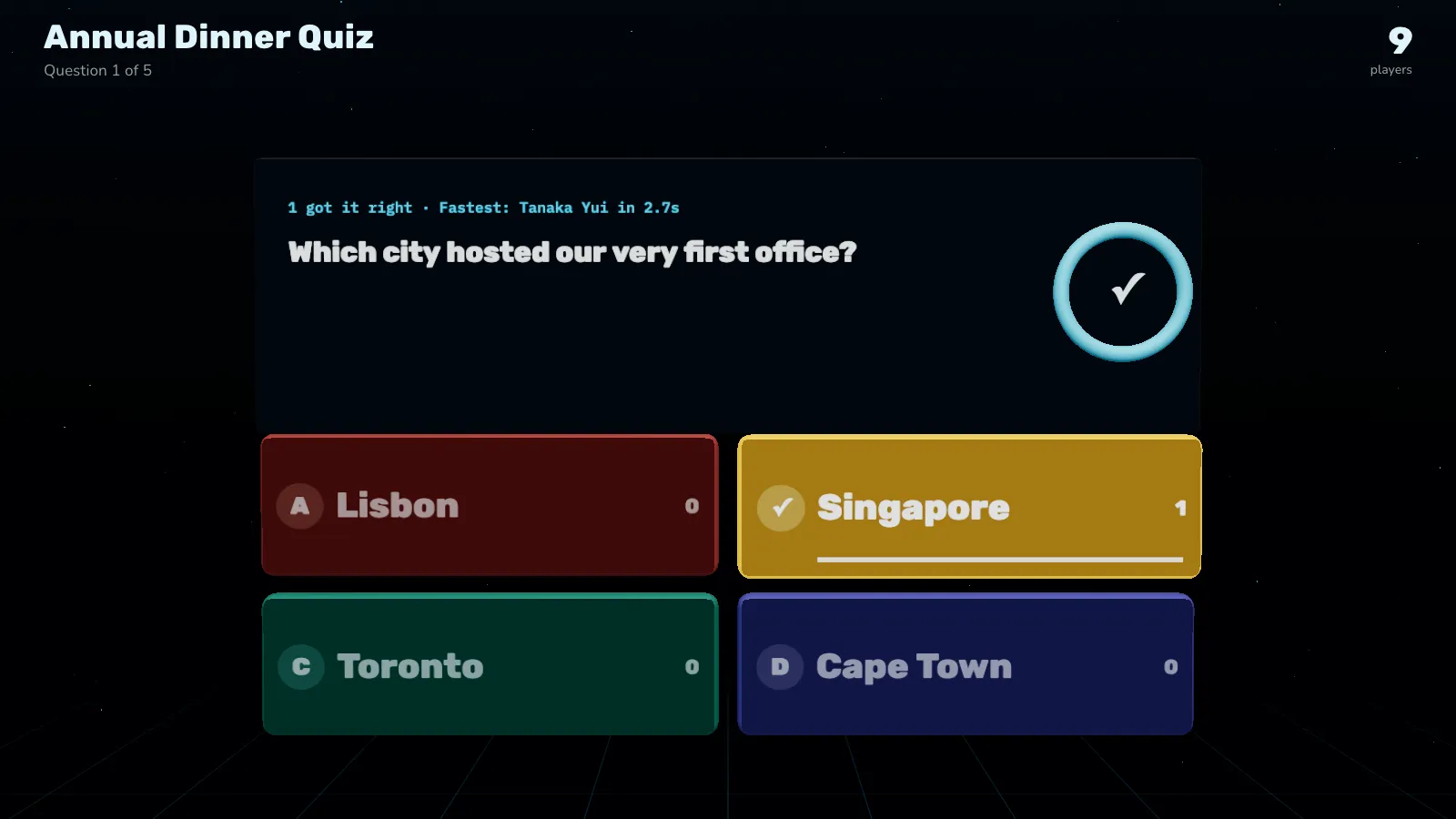
The answer revealed
On the host controller, press Show the answer: how the room answered and who was fastest. Then the leaderboard, the next question and, at the end, the podium.
After the event
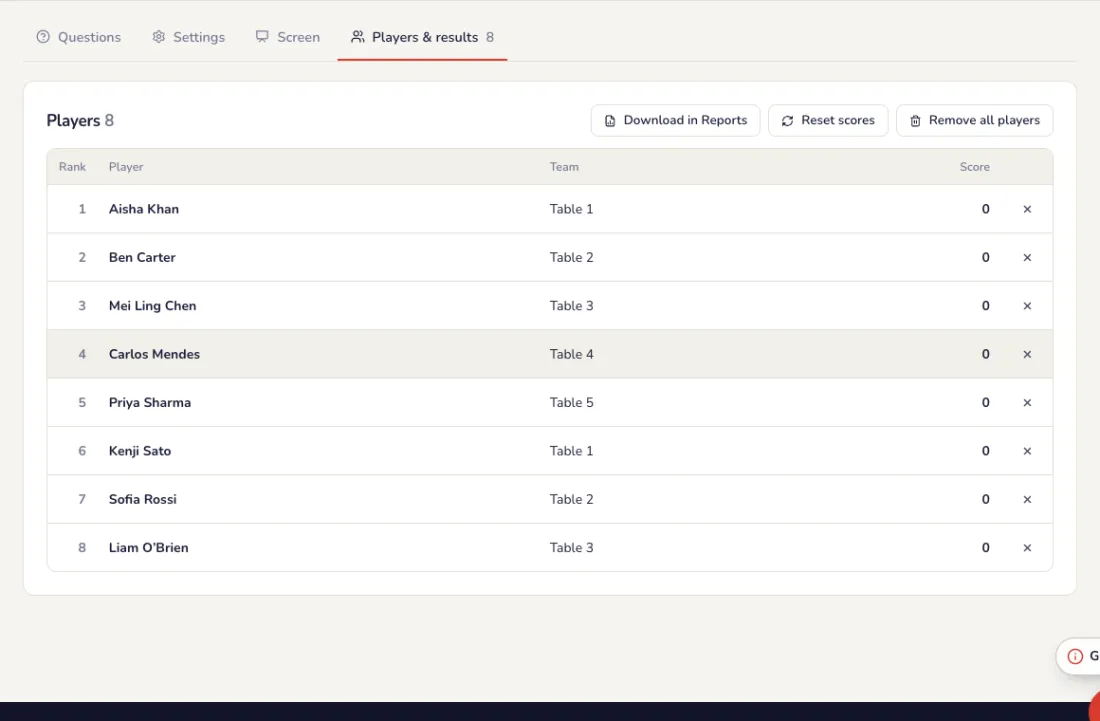
Players and results
Players & results lists every player with their team and points. Download them in Reports; the event report lists the top players. After a rehearsal, Remove all players makes everyone join again.
Common problems
- Our teams are different sizes.
- Team scores are compared on the average, so a big table does not win just by being big.
- How are points given?
- Faster right answers score more, from 1,000 points down to 500, plus a streak bonus of +100 for every right answer in a row.
- Someone typed a rude answer.
- Turn on the rude-word filter in Settings for typed answers.
- The leaderboard slows the quiz down.
- In Settings, show the leaderboard only at the end instead of after every question.
- We rehearsed and want to start clean.
- Press Reset scores: scores go back to zero and players stay joined. To make everyone join again, use Remove all players.
- Players need more time.
- Press +10 seconds on the controller while the question runs.
Q&A forum
Set up a Q&A, approve the questions, let the room upvote and pin one to the big screen.
Set up
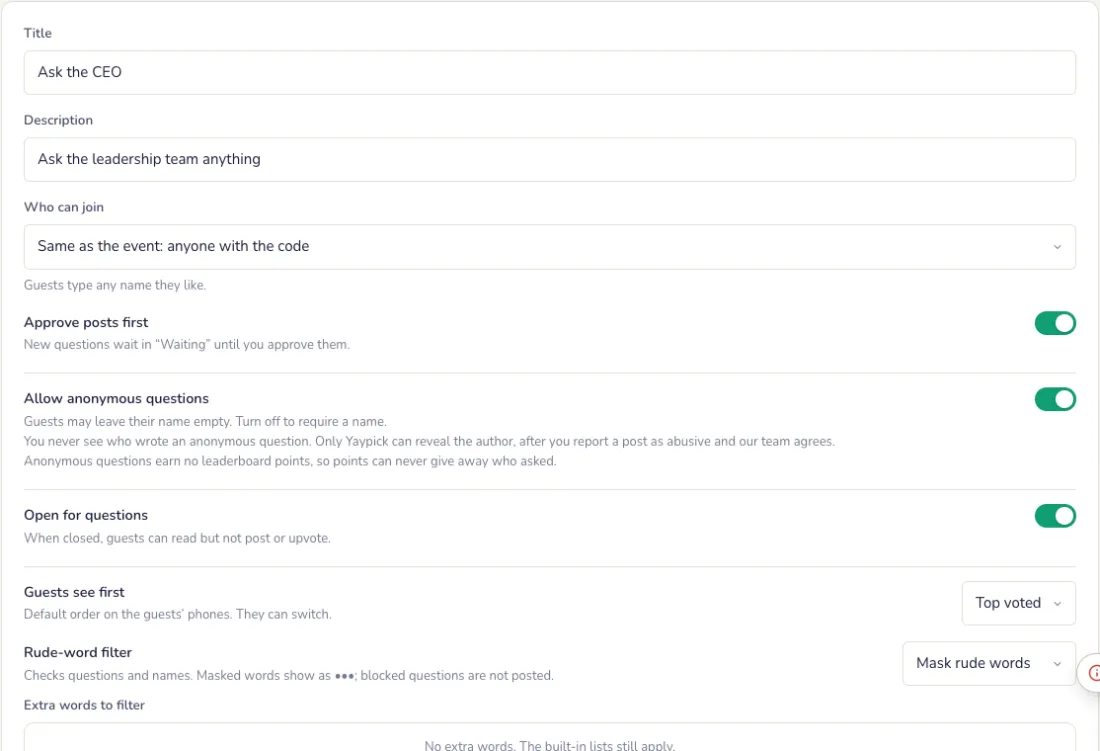
Set up the Q&A
On the Settings tab. Press Save settings when you are done.
- Title, description, and who can join: anyone, or only people on the event’s guest list.
- Approve posts first: new questions wait in Waiting until you approve them.
- Allow anonymous questions, and open or close the Q&A for new questions. Anonymous questions earn no leaderboard points, so a score never gives away who asked.
- What guests see first (top voted or newest), the rude-word filter and the accent colour.
The big screen
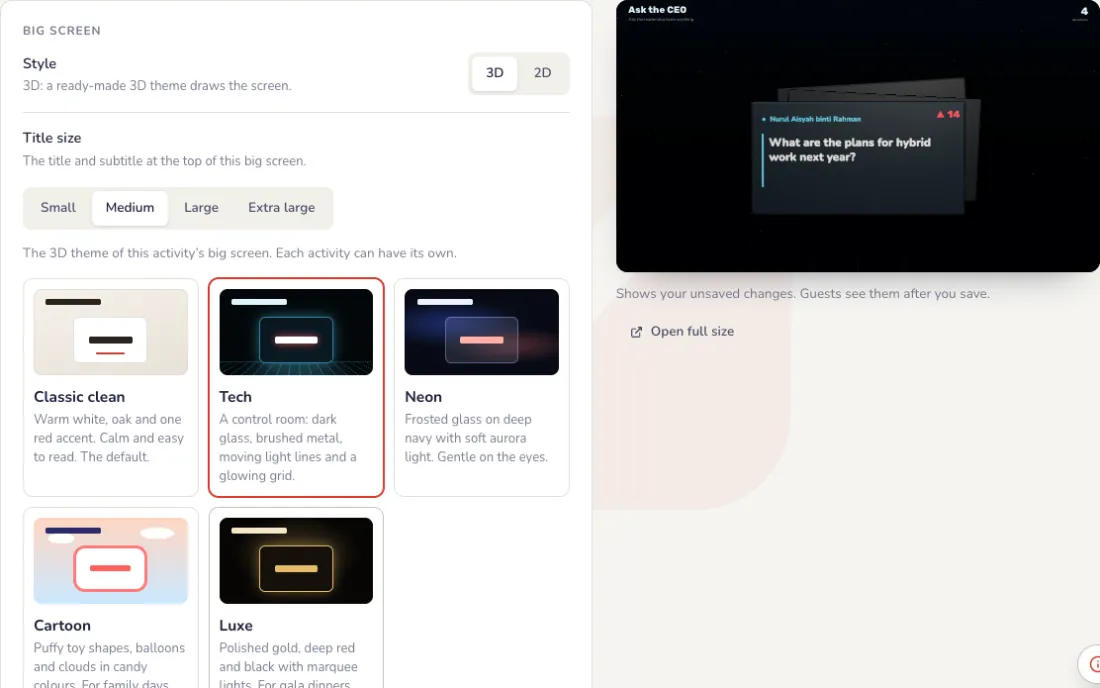
Big screen theme and holding screen
Under the settings, beside a live preview of the big screen. Every change shows in the preview first; the big screen changes only when you press Save.
- Theme: Classic clean (warm white, one red accent), Tech (a control room with moving light lines), Neon (frosted glass, soft aurora), Cartoon (puffy toy shapes, balloons) or Luxe (gold, deep red and black). Classic clean is on every event; the other themes and the 3D spin wheel come with a pass.
- Holding screen: a full-screen image, such as your company’s design with the event name, shown instead of the live screen while it is on. Choose Fill the screen or Show all of it.
- The image can be PNG, JPG or WebP, up to 1 MB, best at 1920 × 1080. Video holding screens are coming soon.
- Turn Holding screen on to show it, and off to go back to the live screen.
On the night
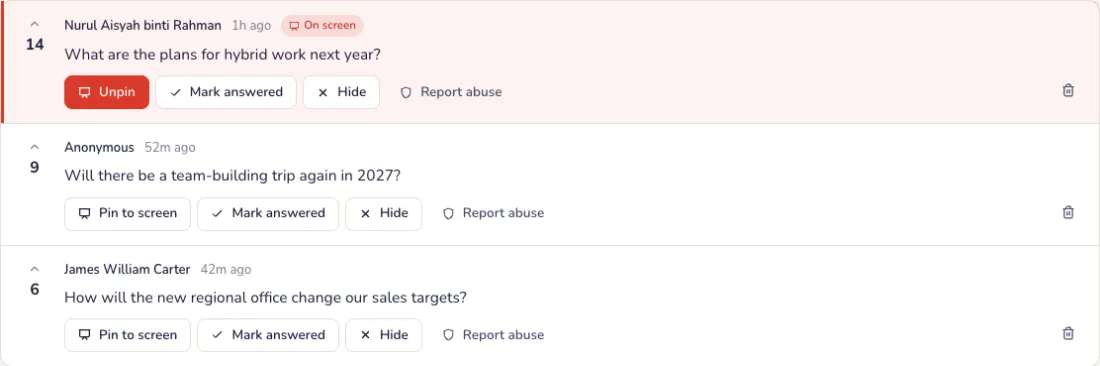
Approve and pin questions
Questions wait for you. Mark them answered, or pin one to the screen. A post that is abusive? Press Report abuse: it is hidden at once and our team reviews it.
- Waiting: new questions to approve, when Approve posts first is on.
- Live: what guests see, with the upvotes. Pin to screen shows one large on the big screen; Unpin goes back to the top questions.
- Answered: questions you marked answered. Hidden: questions you hid; guests never see them, and Show again brings one back.
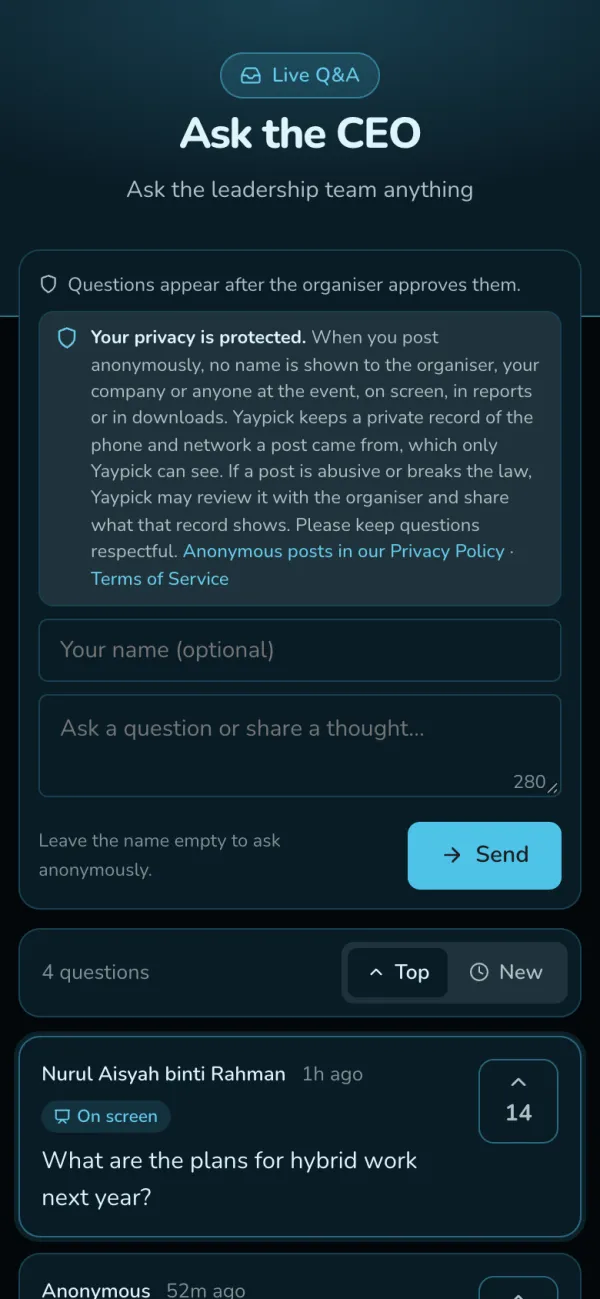
Guests ask and upvote
From their seat, with their name or without. An anonymous question stays anonymous for you everywhere: on the screen, in reports and in downloads. Only Yaypick keeps a sealed record of who asked, opened only when a post is abusive.
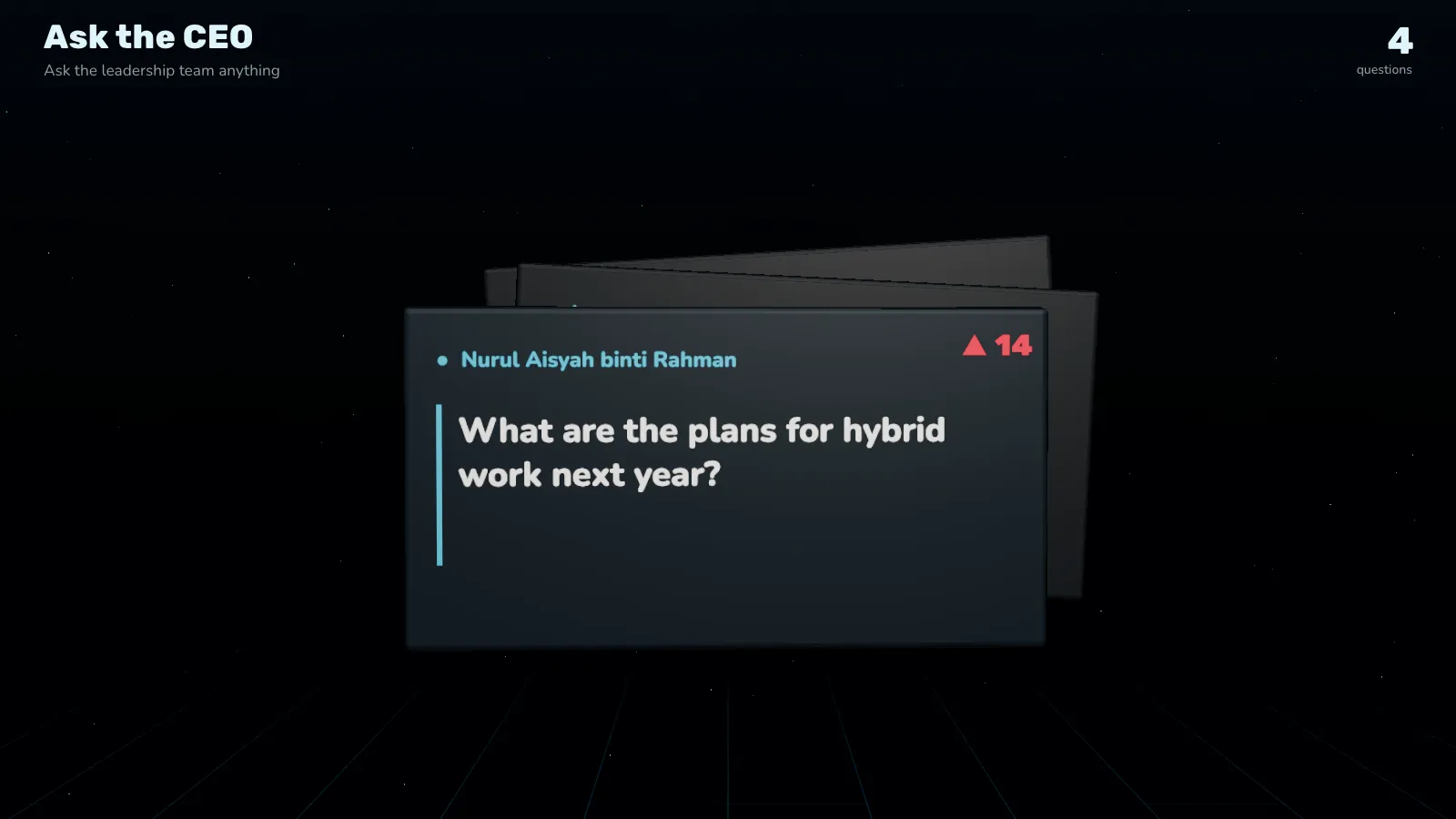
The top questions on the big screen
The most upvoted questions, or the pinned one shown large.
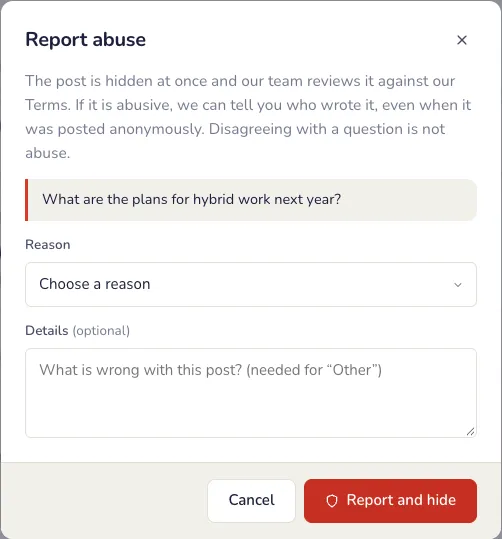
Report an abusive post
Press Report abuse on the post and choose the reason, such as harassment, hate speech or threats. The post is hidden while our team reviews it. If our team upholds the report, we email you who wrote it.
Close the Q&A
Press Close the forum when the session ends: guests can still read the questions but not post or upvote. Reopen the forum to take questions again.

After the event
After the session
Download every question, with guests’ names and upvotes, in Reports. The event report lists the top questions; anonymous ones stay anonymous there too.
Common problems
- An abusive question was posted.
- Press Report abuse. It is hidden at once and our team reviews it.
- I want to check questions before they show.
- Turn on Approve posts first. New questions wait in Waiting until you approve them.
- Are anonymous questions really anonymous?
- Yes. You never see who asked: not on the screen, in reports or in downloads. Yaypick keeps a sealed record, opened only when a post is abusive.
- The session is over but questions keep coming.
- Close the Q&A for new questions in Settings. The questions already asked stay.
- I hid a question by mistake.
- Open Hidden and press Show again.
Photo & greetings wall
Guests send photos and wishes from their phones; you approve them and they play on the big screen.
Set up
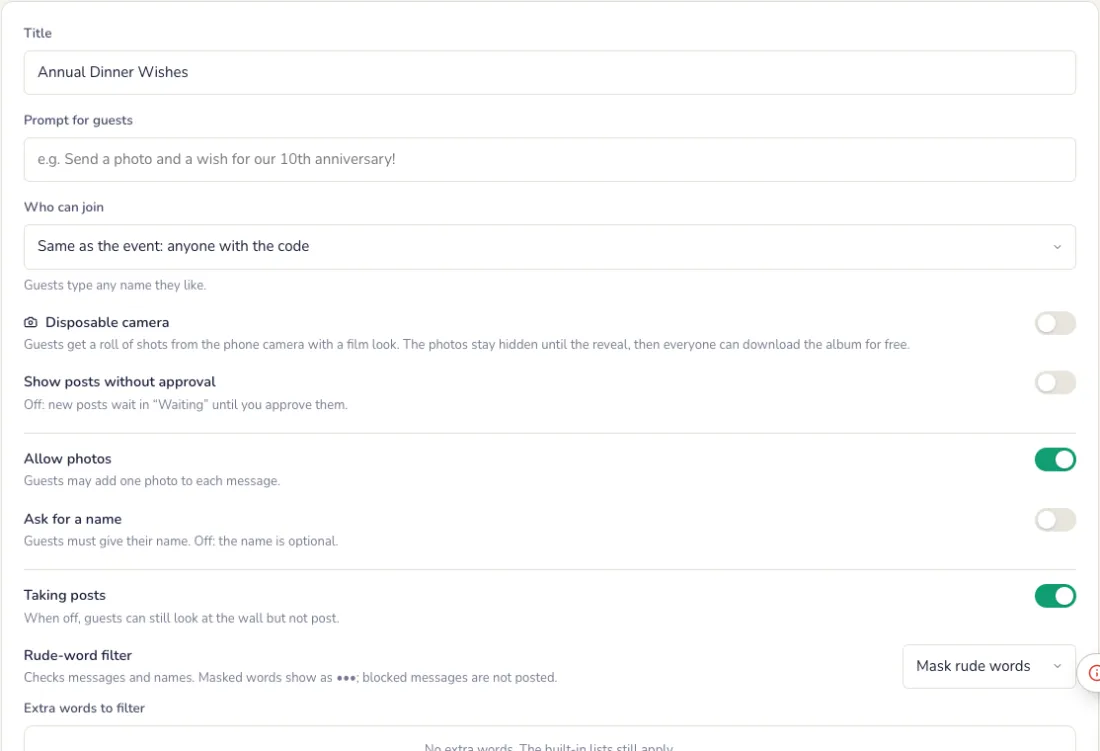
Set up the wall
On the Settings tab. Press Save settings when you are done.
- Title, the prompt for guests, and who can join: anyone, or only people on the event’s guest list.
- Show posts without approval, ask for a name, allow photos, and taking posts on or off.
- The rude-word filter for messages and names.
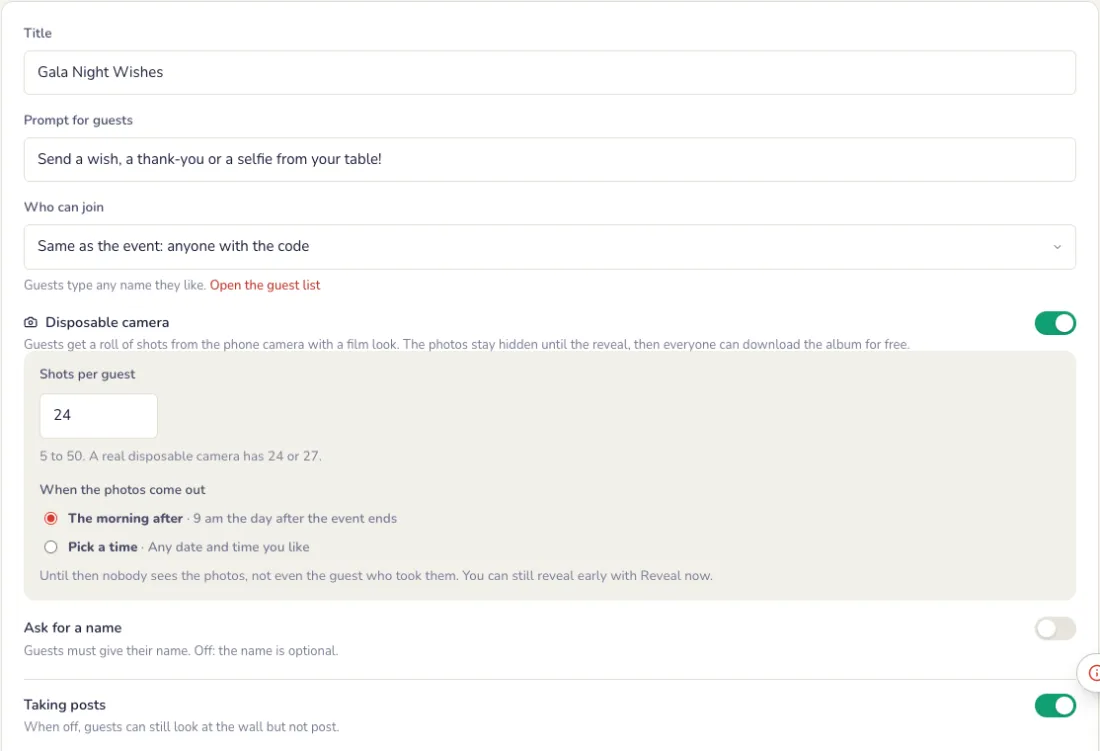
Or a disposable camera
Turn on Disposable camera: guests get a roll of shots from their phone camera, with a film look. Nobody sees the photos until the reveal, not even the guest who took them.
- Shots per guest: 5 to 50. A real disposable camera has 24 or 27.
- When the photos come out: the morning after (9 am the day after the event ends), or any date and time you pick. Reveal now brings it forward.
- Guests can download the album for free once the photos are out.
The big screen
How the wall plays
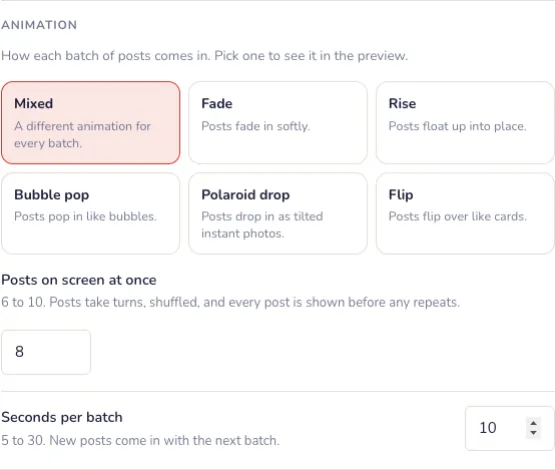
On the Screen tab, pick the Style. 3D uses a ready-made 3D theme. With 2D, your own look, you also choose how the posts come in:
- Posts on screen at once: 6 to 10, in a mosaic of big and small tiles. Photos get the big ones.
- Seconds per batch: 5 to 30, 8 by default. New posts come in with the next batch.
- How posts come in: pick an animation and watch it in the preview. More animations come with a pass.
- Dark or light, and the accent colour.
Big screen theme and holding screen
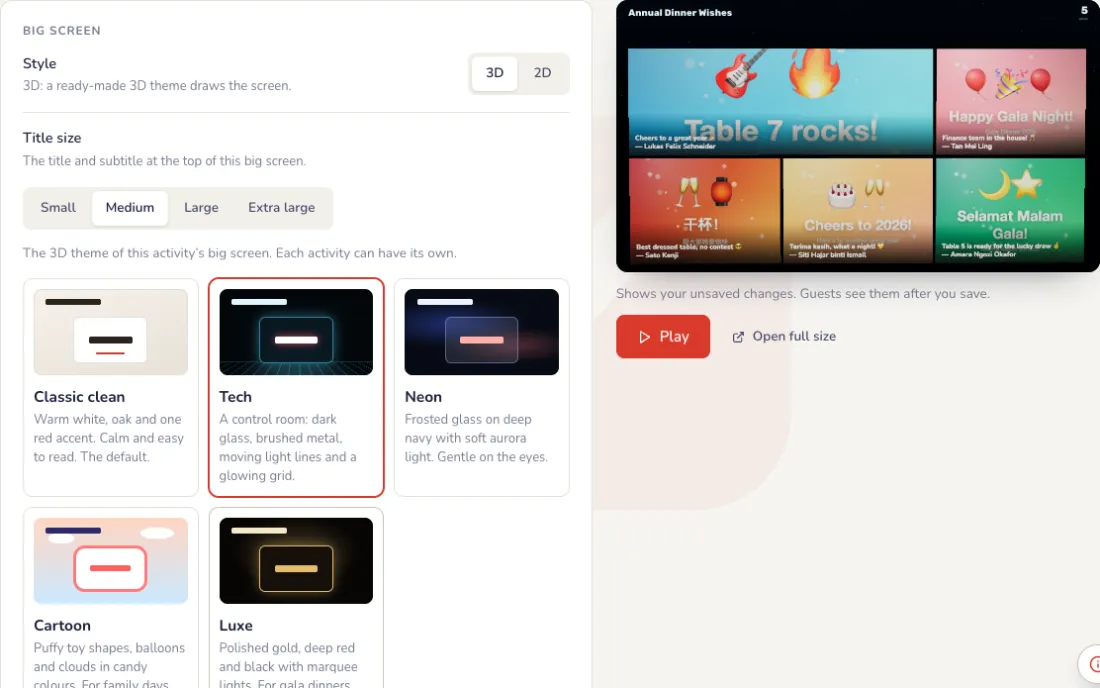
Under the settings, beside a live preview of the big screen. Every change shows in the preview first; the big screen changes only when you press Save.
- Theme: Classic clean (warm white, one red accent), Tech (a control room with moving light lines), Neon (frosted glass, soft aurora), Cartoon (puffy toy shapes, balloons) or Luxe (gold, deep red and black). Classic clean is on every event; the other themes and the 3D spin wheel come with a pass.
- Holding screen: a full-screen image, such as your company’s design with the event name, shown instead of the live screen while it is on. Choose Fill the screen or Show all of it.
- The image can be PNG, JPG or WebP, up to 1 MB, best at 1920 × 1080. Video holding screens are coming soon.
- Turn Holding screen on to show it, and off to go back to the live screen.
On the night
Approve what goes on screen
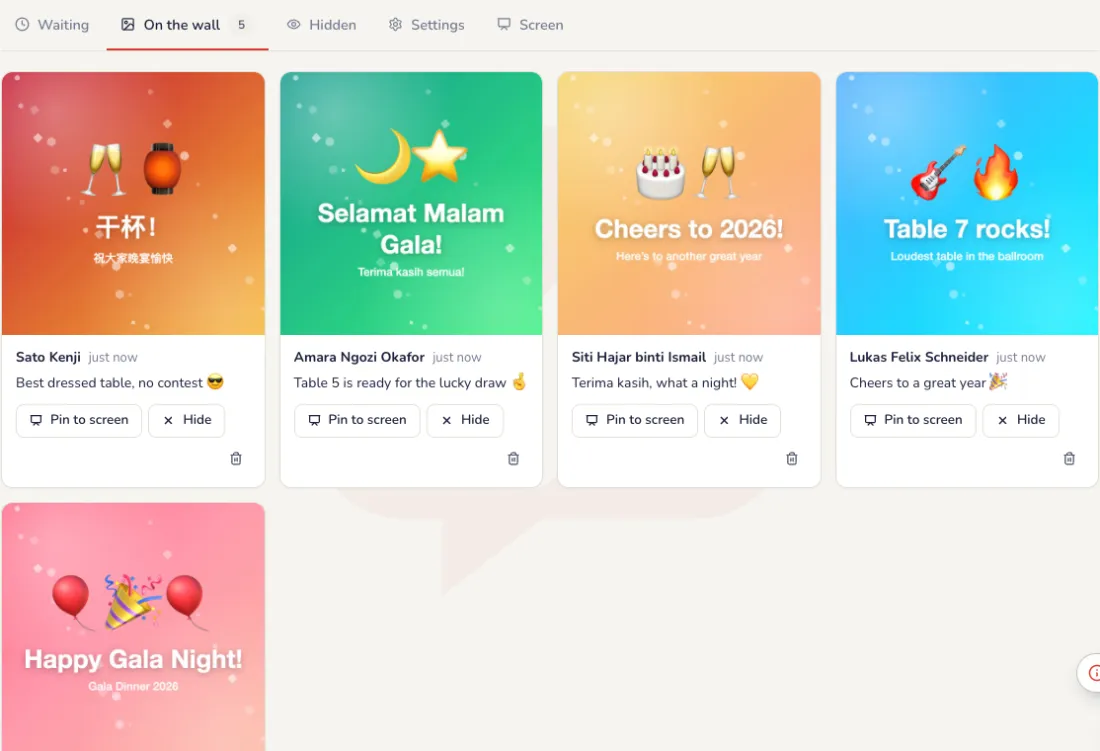
Posts wait until you approve them. Pin a favourite to keep it on screen.
- Waiting: new posts to approve, one by one or with Approve all.
- On the wall: what the big screen plays. Hide takes a post off; Delete removes it for everyone.
- Stop taking posts closes the wall to new posts; guests can still look at it.
Guests send a photo and a wish
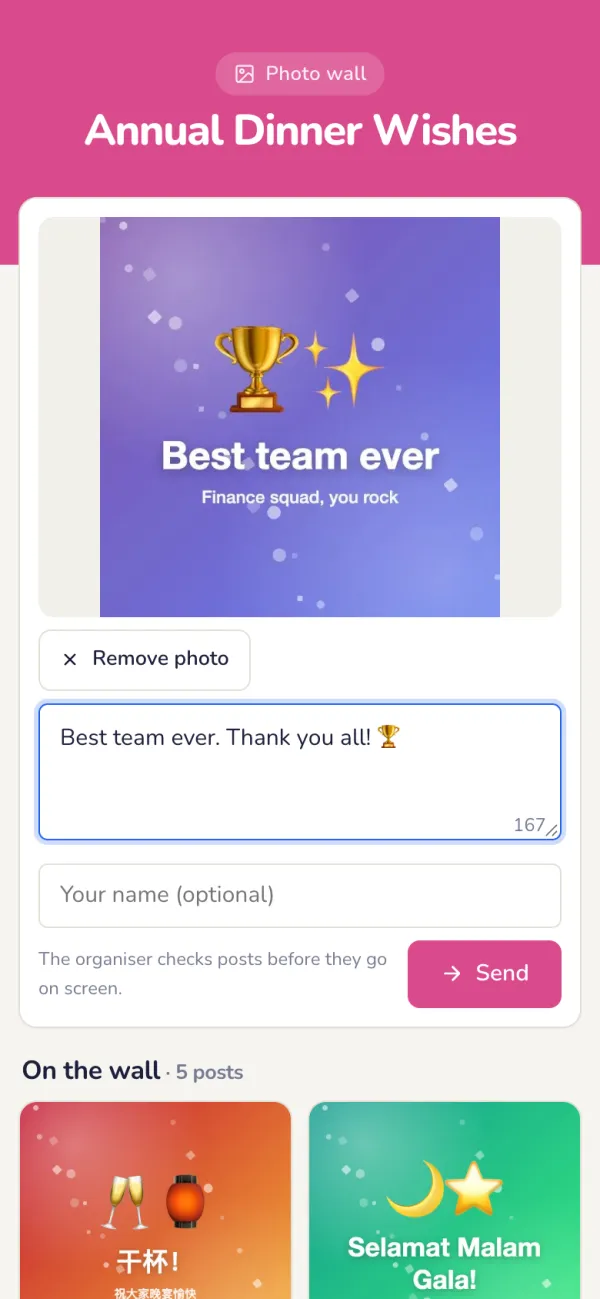
A selfie, the team, the cake, with a short message.
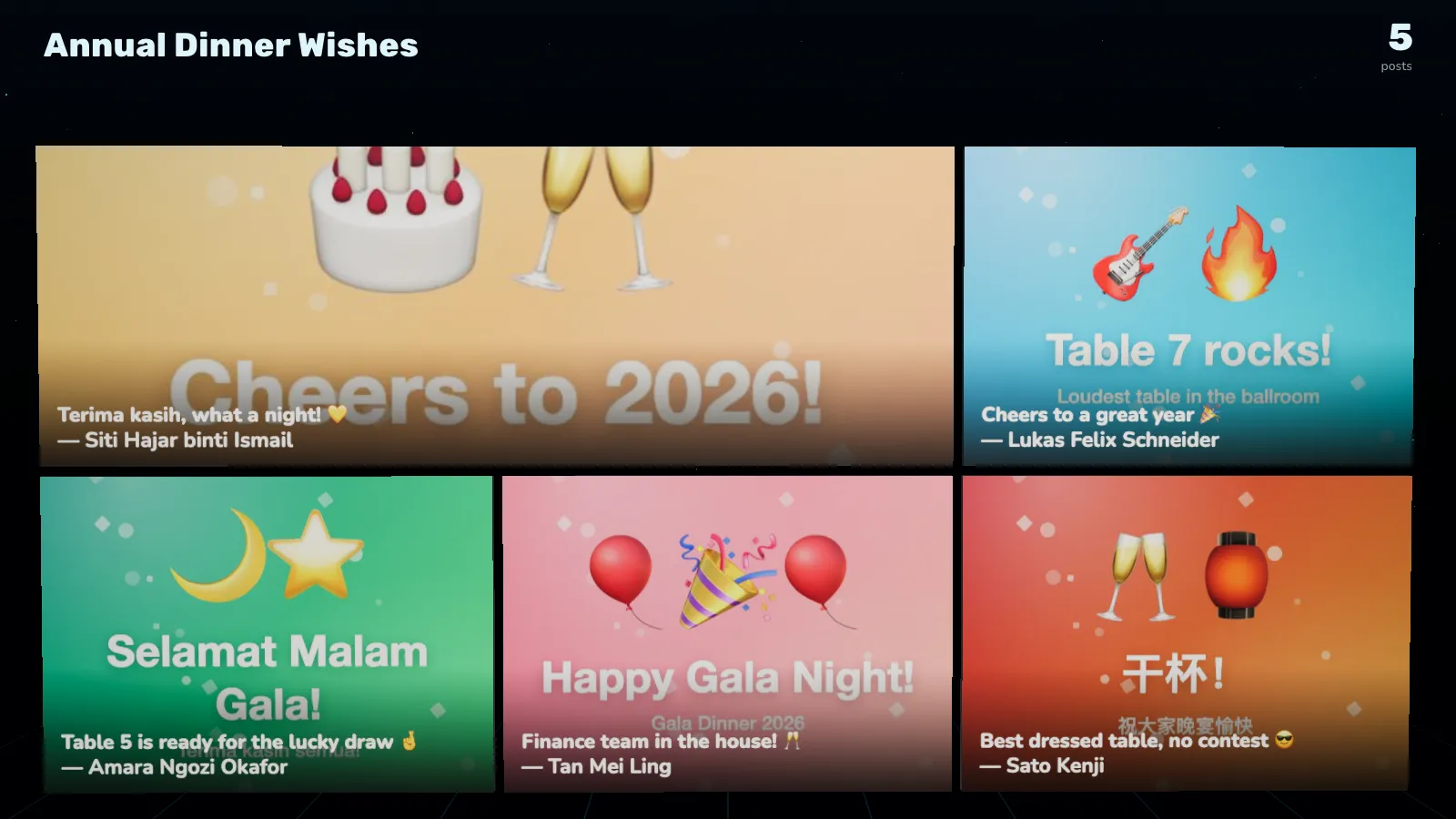
The wall on the big screen
Up to 10 posts at a time in a mosaic. Every few seconds the next ones flip in, until every post has been shown.
After the event
Keep the photos
Download every message and photo in Reports. With the disposable camera, guests download the album themselves after the reveal.
Common problems
- I am worried about unsuitable photos.
- Leave Show posts without approval off: every post waits until you approve it. The rude-word filter checks messages and names.
- Posts change too fast.
- These are 2D settings: on the Screen tab, set Seconds per batch higher, up to 30, or show fewer posts at once.
- I want one photo to stay on screen.
- Pin it. It stays on the big screen until you unpin it.
- Can we reveal the disposable camera photos early?
- Yes. Press Reveal now. Everyone sees the whole album at once and the camera closes; this cannot be undone.
Bingo
Your own bingo items, a card on every phone, and BINGO! on the big screen.
Set up
Numbers, or your own items
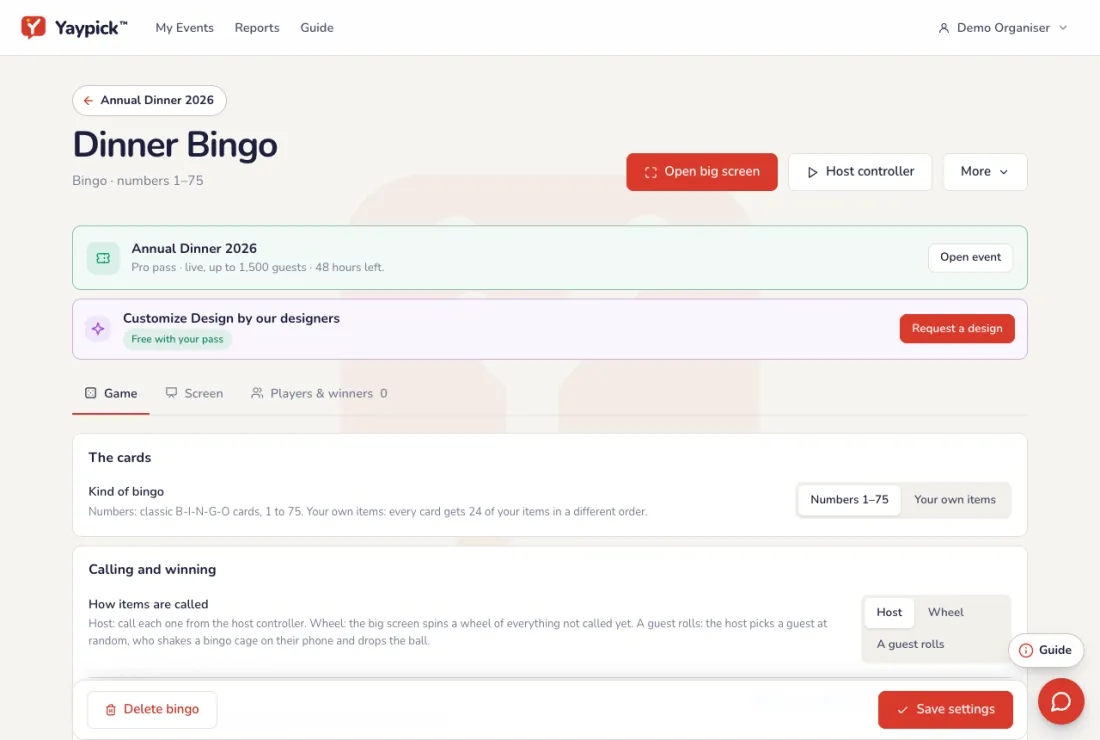
On the Game tab, choose classic numbers 1 to 75, or write things that will happen tonight: every card gets them in a different order. Press Save settings when you are done.
- Your own items: what the CEO says, who dances first, department names, song titles. Each card shows 24 of them, so add at least 24; Paste items adds one per line.
- Numbers 1 to N fills your items with numbers, such as 1 to 25.
- Subtitle on the big screen, dark or light, and the accent colour.
Calling and winning
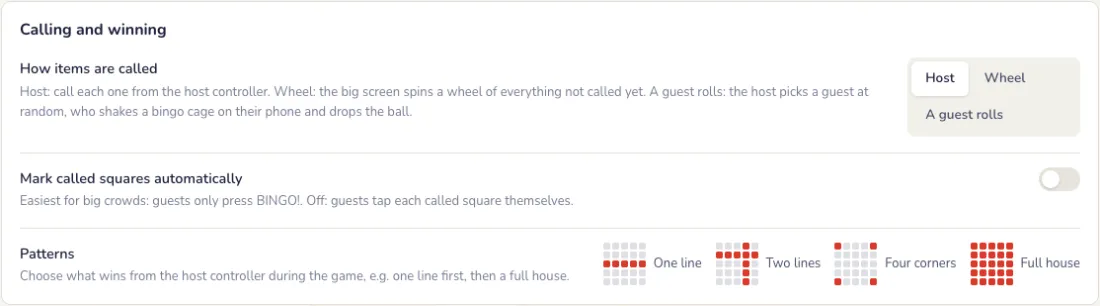
Choose how items are called, and how cards are marked.
- Host: you tap each item as it happens, or call the next one at random.
- Wheel: the big screen shows a wheel of everything not called yet, and each spin from the host controller calls one at random. Space on the laptop spins it too.
- A guest rolls: a guest picked at random shakes a bingo cage on their phone; the big screen shows the same cage turning with every swipe, then the ball drops out with the number. Swipes to roll sets how many times they swipe before it drops.
- Mark called squares automatically, or let guests tap each one themselves.
- Patterns, such as one line and then a full house, are chosen on the host controller during the game.
Tables or teams
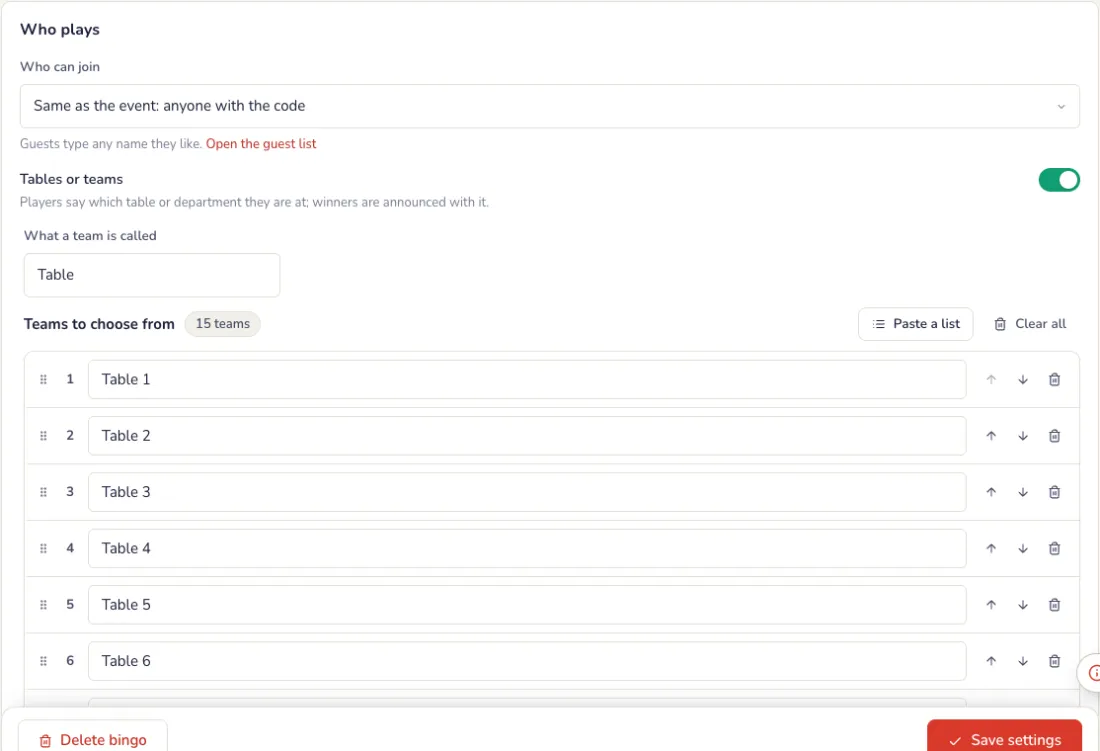
Players say which table or department they are at, and winners are announced with it. Add the teams to choose from, or paste a list; leave it empty to let players type their own.
The big screen
Big screen theme and holding screen
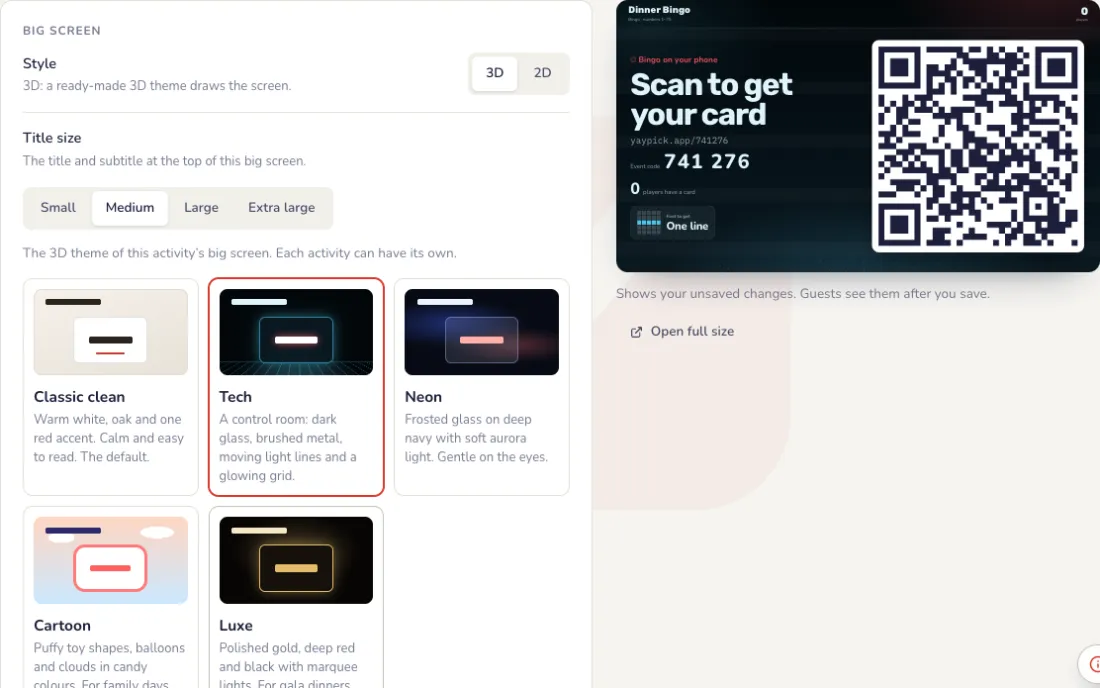
On the Game tab, beside a live preview of the big screen. Every change shows in the preview first; the big screen changes only when you press Save.
- Theme: Classic clean (warm white, one red accent), Tech (a control room with moving light lines), Neon (frosted glass, soft aurora), Cartoon (puffy toy shapes, balloons) or Luxe (gold, deep red and black). Classic clean is on every event; the other themes and the 3D spin wheel come with a pass.
- Holding screen: a full-screen image, such as your company’s design with the event name, shown instead of the live screen while it is on. Choose Fill the screen or Show all of it.
- The image can be PNG, JPG or WebP, up to 1 MB, best at 1920 × 1080. Video holding screens are coming soon.
- During the event, the Holding screen button on the controller switches it on and off.
On the night
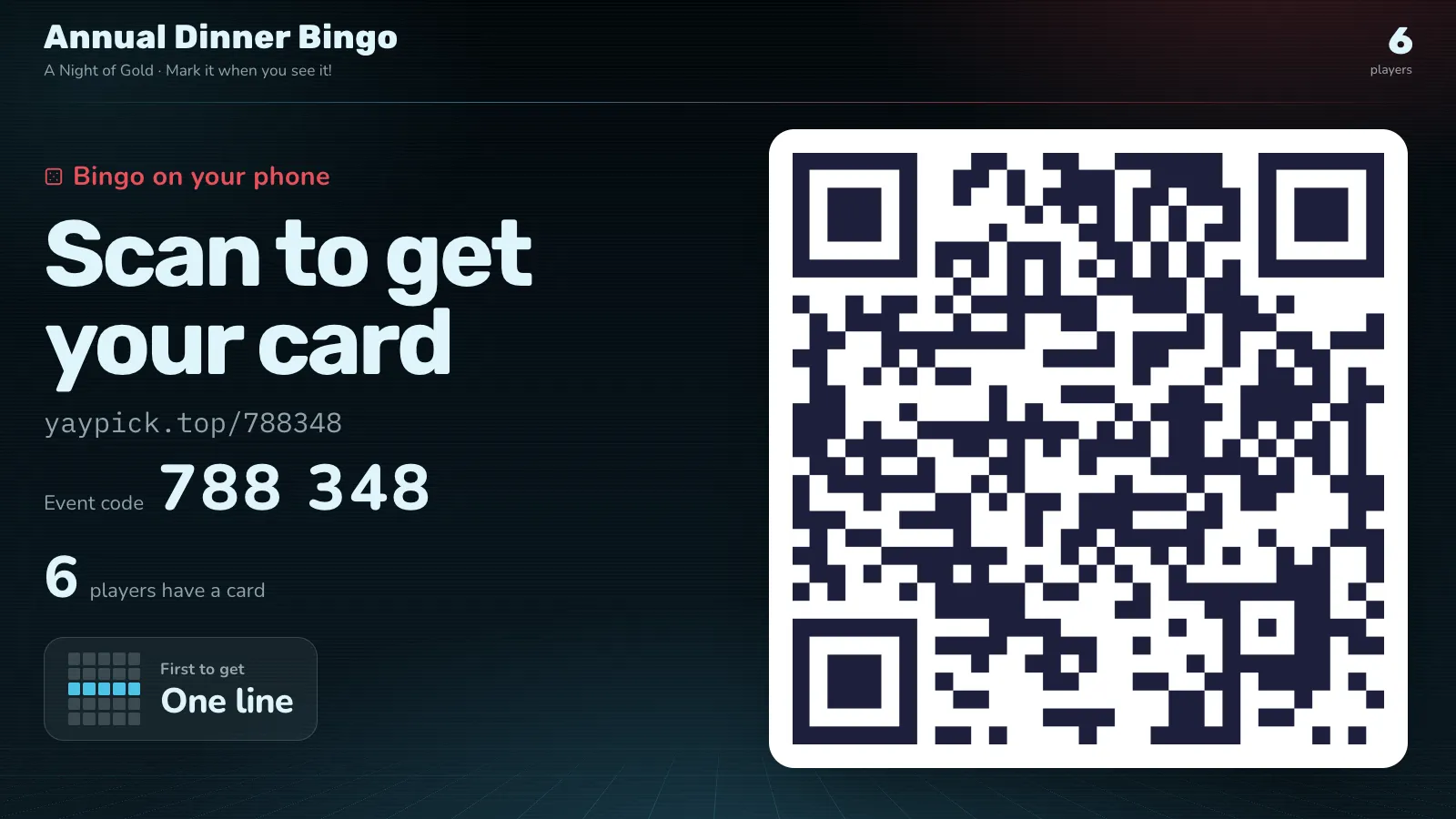
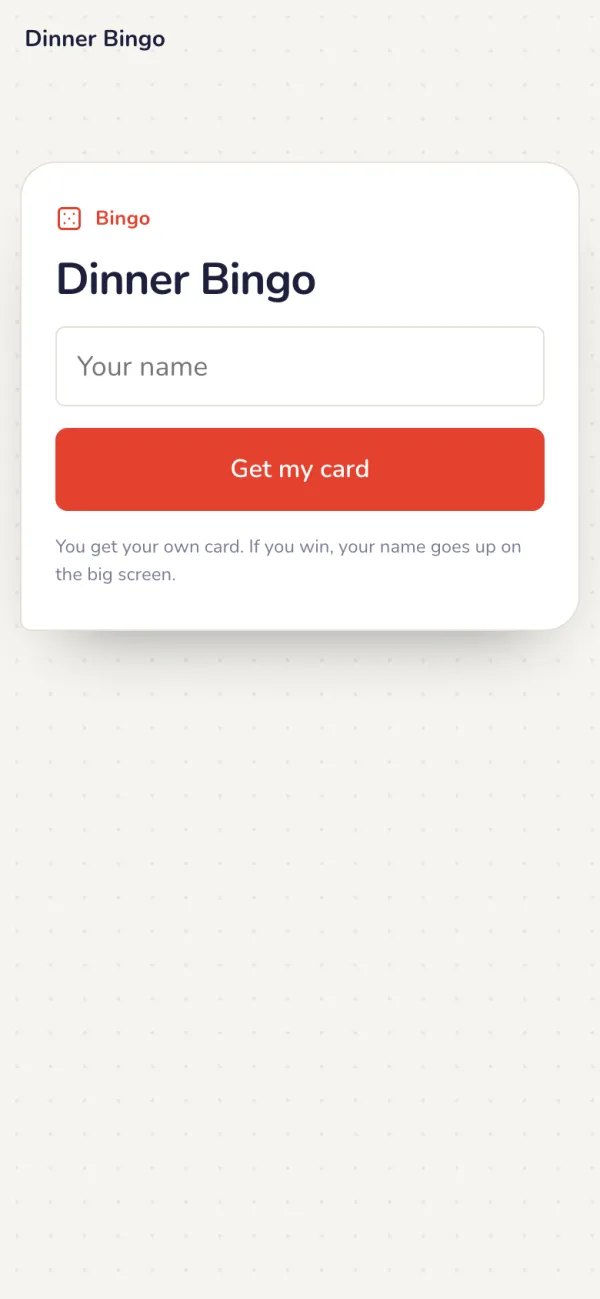
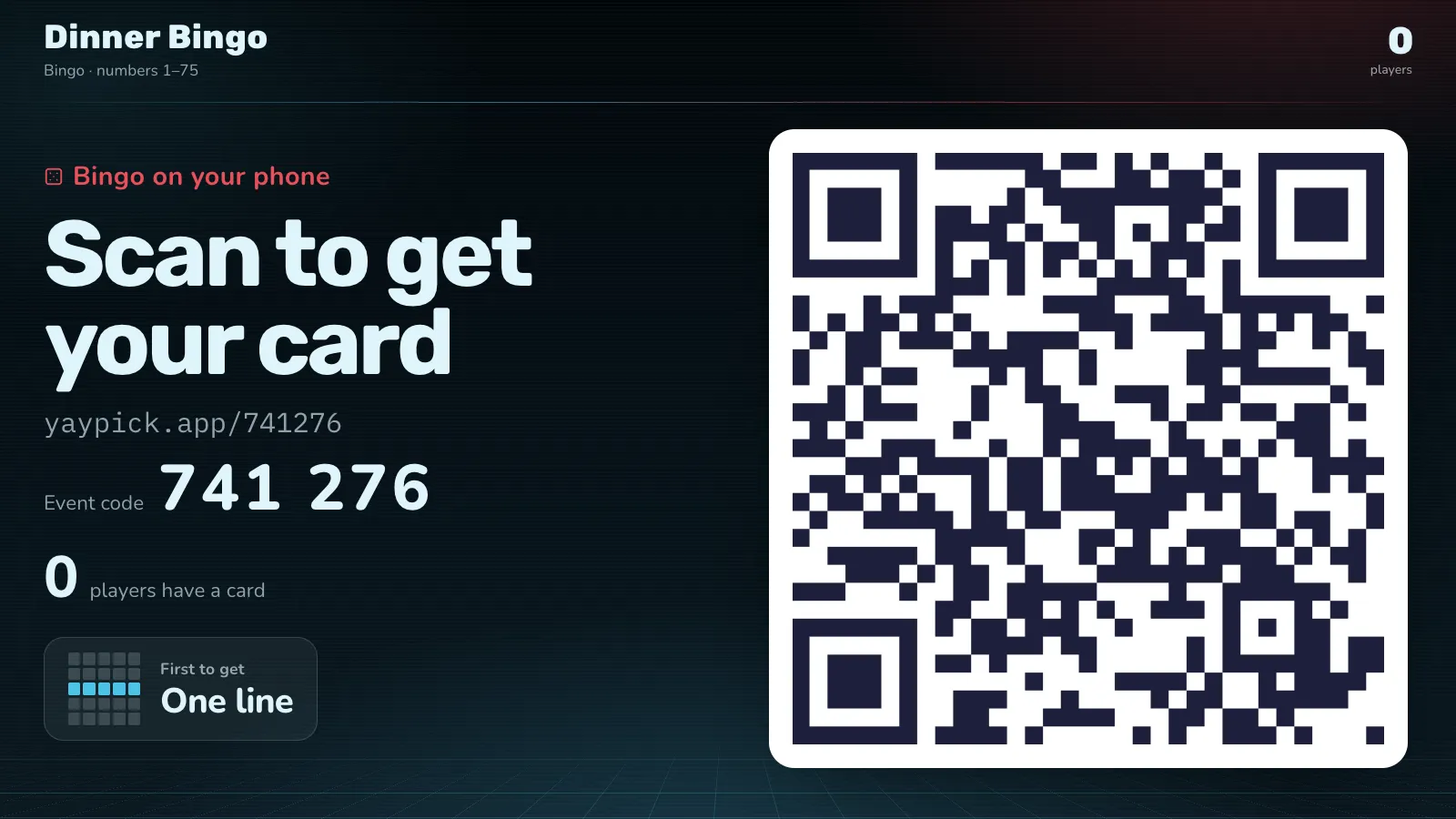
Guests scan to get a card
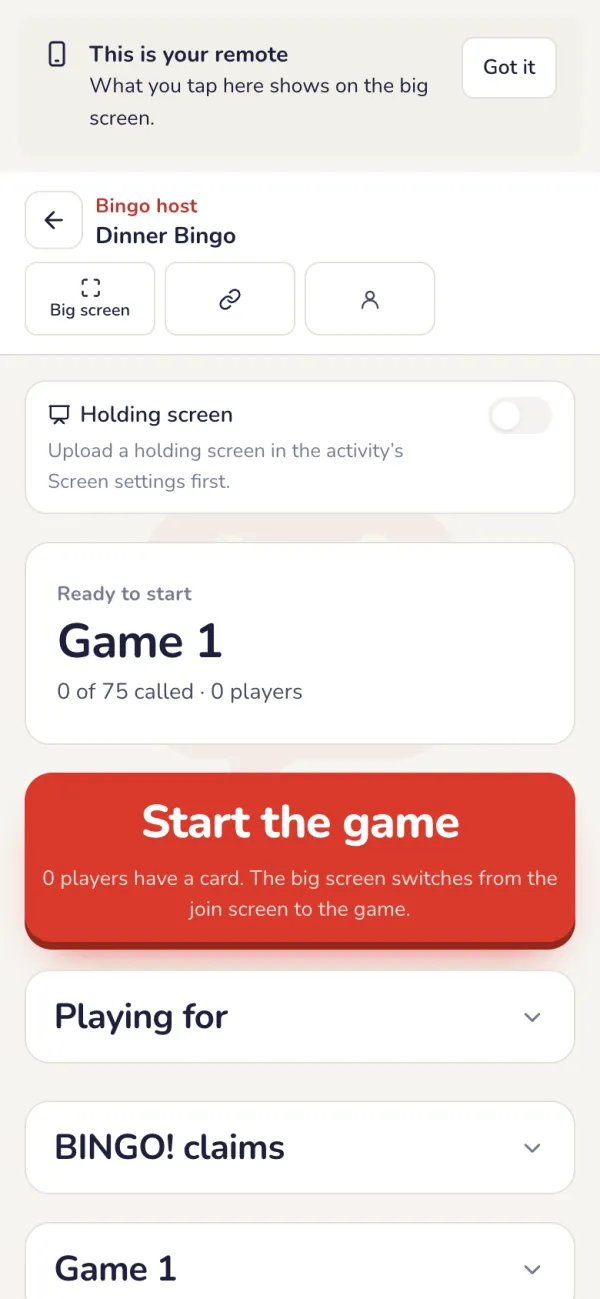
The big screen shows the QR code and the event code until you press Start the game on the controller. You can show it again any time for late guests.
On the night
A card on every phone
Called squares light up, and BINGO! lights up for a full line.
A guest rolls the ball
With A guest rolls, the controller picks a guest at random. Their phone shows the bingo cage: they swipe up and down to turn it.
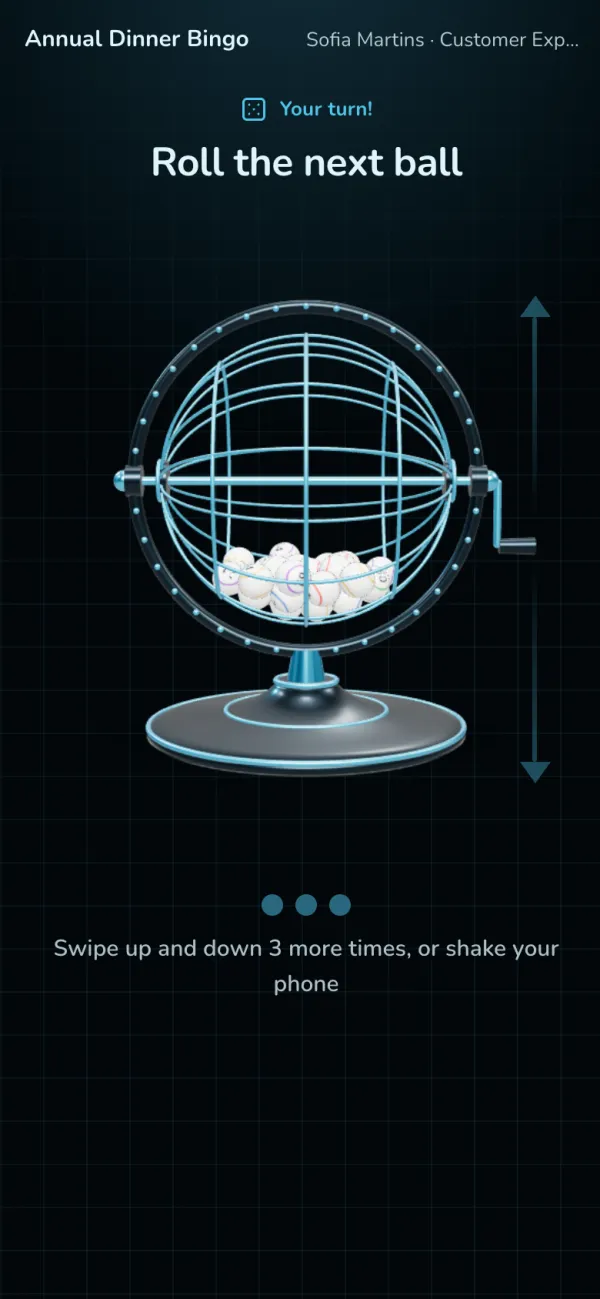
The cage on the big screen
The same cage comes to the middle of the big screen and turns with every swipe. The ball drops out with the number, then the cage goes back.
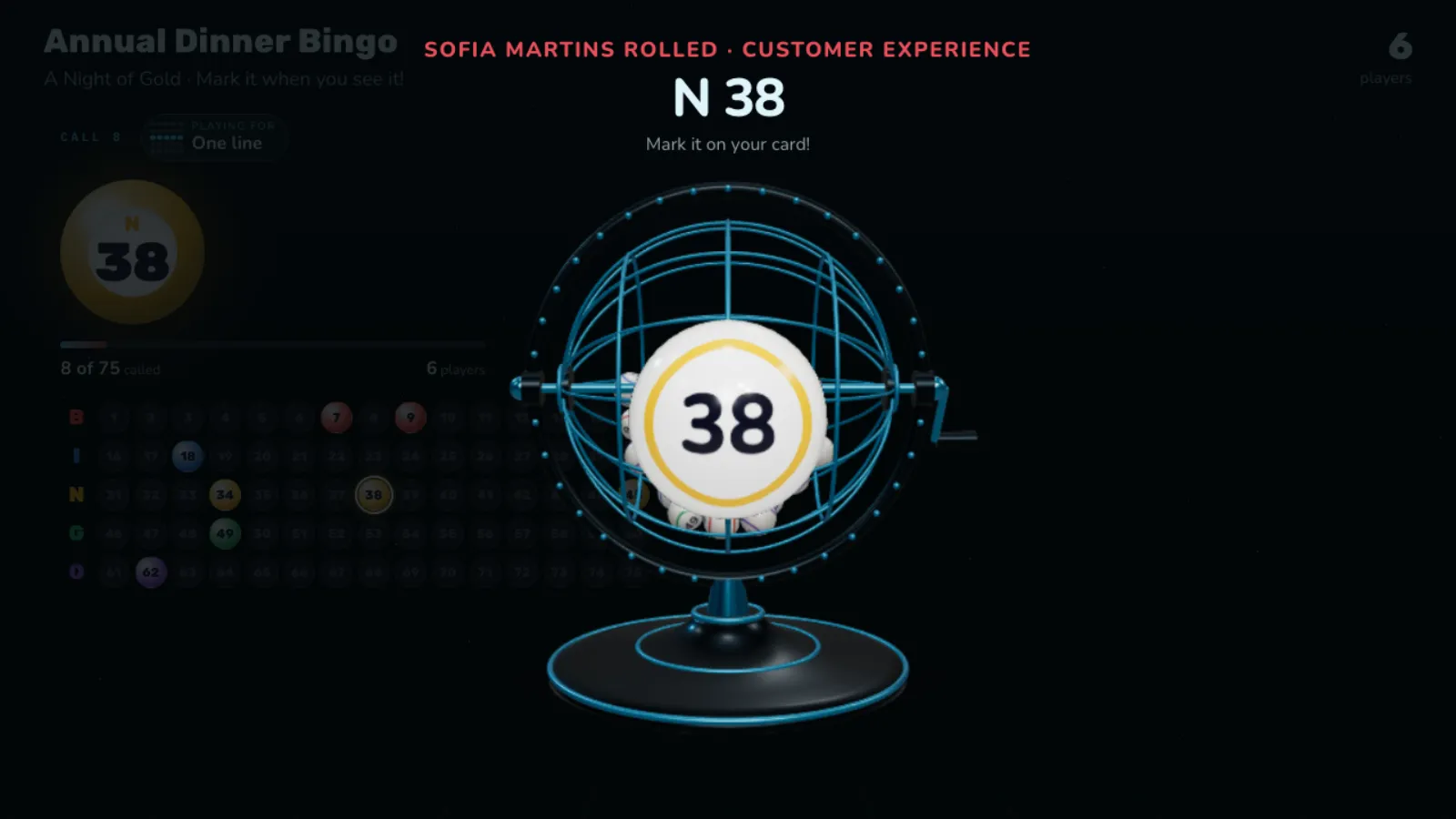
The calls on the big screen
The latest ball, every number from 1 to 75 with the called ones lit, the pattern being played and the winners.
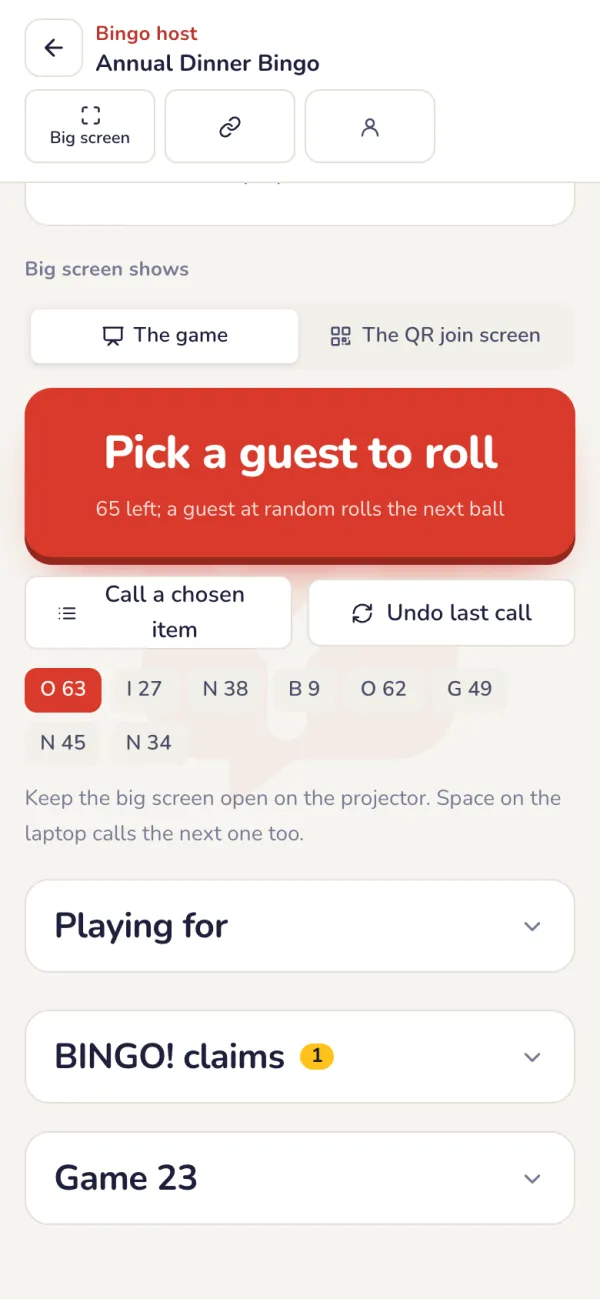
Run it from your phone
Call the next item and confirm BINGO! claims on the host controller.
- Choose the pattern before you start, and change it during the game, for example one line first, then a full house.
- Undo last call puts an item back into the pool; claims that needed it are dropped.
Confirm the winners
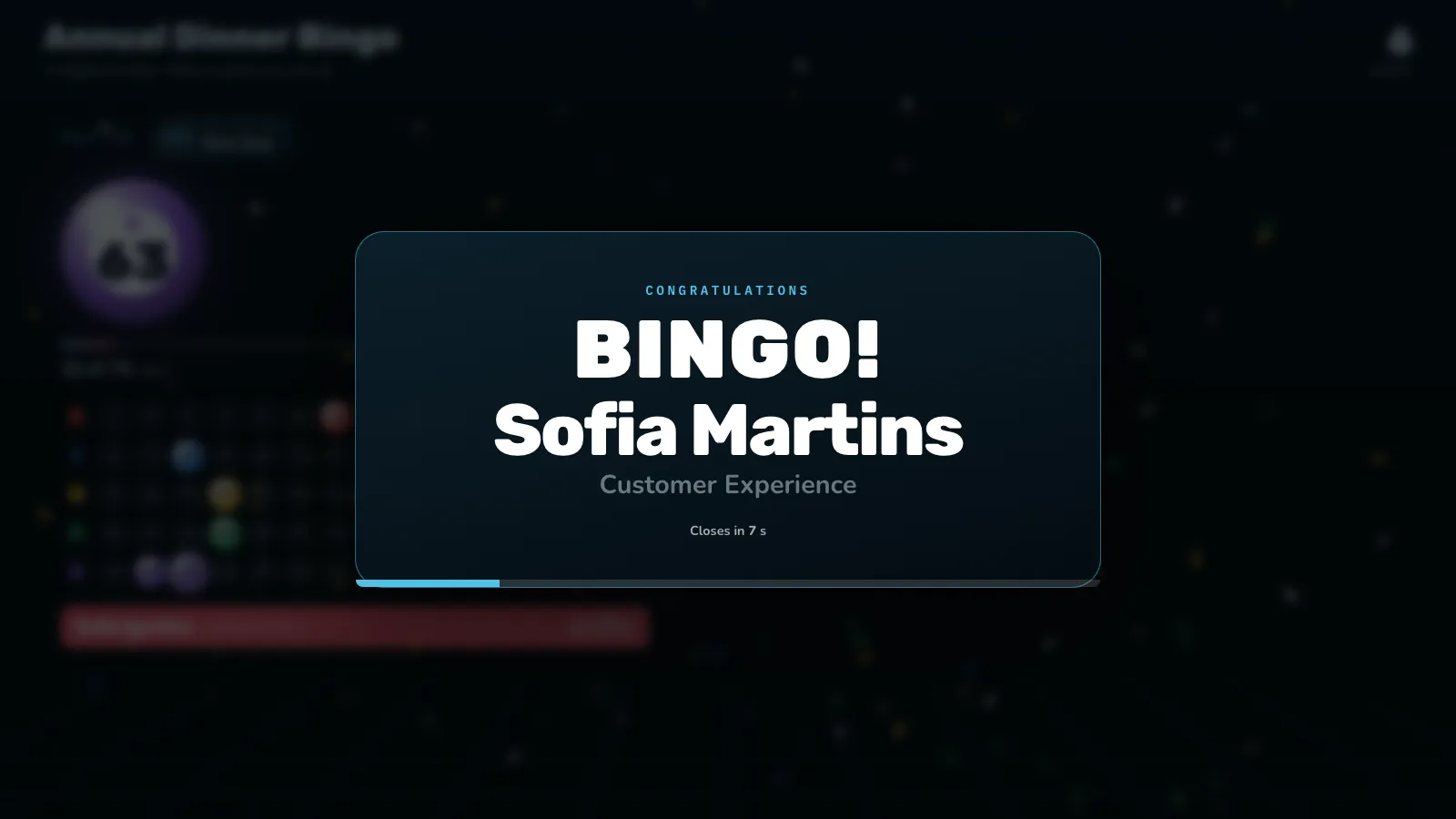
A claim appears the moment a guest presses BINGO!, with their card already checked. Press Confirm to announce the winner on the big screen, or Reject.
- End game: guests can’t claim any more, and the winners stay on the big screen.
- New game: everyone gets a new card and the calls start again. Winners so far stay in the results.
The winner card
Everyone who won on the same call, with what you chose to show (name, team, what they won), for the seconds you set in the settings.
After the event
Players and winners
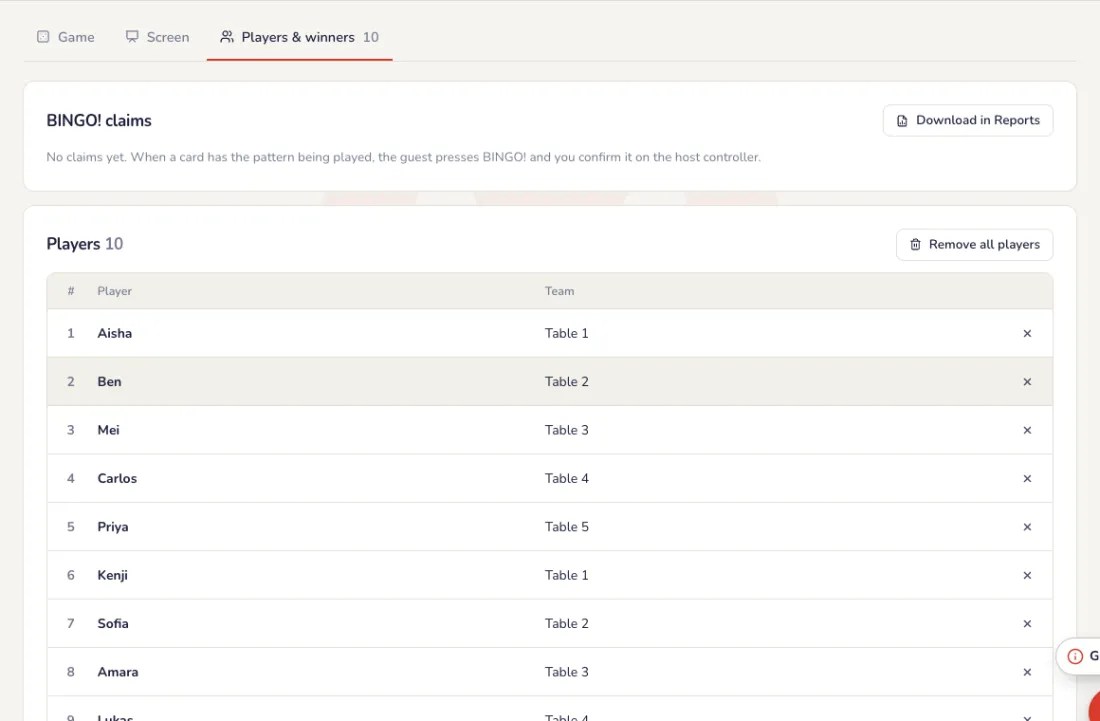
The Players & winners list shows everyone who joined and who won each game, with their table. Download it in Reports; the event report lists the bingo winners. After a rehearsal, Remove all players makes everyone join again for a clean start.
Common problems
- How do I change the winning pattern?
- Patterns, such as one line and then a full house, are chosen on the host controller during the game.
- I want the calls to be random.
- Choose Wheel: the big screen shows a wheel of everything not called yet, and each spin from the host controller calls one at random.
- An item was called by mistake.
- Press Undo last call. It goes back into the pool, and claims that needed it are dropped.
- I can’t change the items any more.
- While a game is being called, the items are locked. Start a new game from the host controller to change them.
Stamp rally
Stations around the venue, a stamp on every guest’s phone for each one, and a lucky draw for the finishers.
Set up
Add the stations
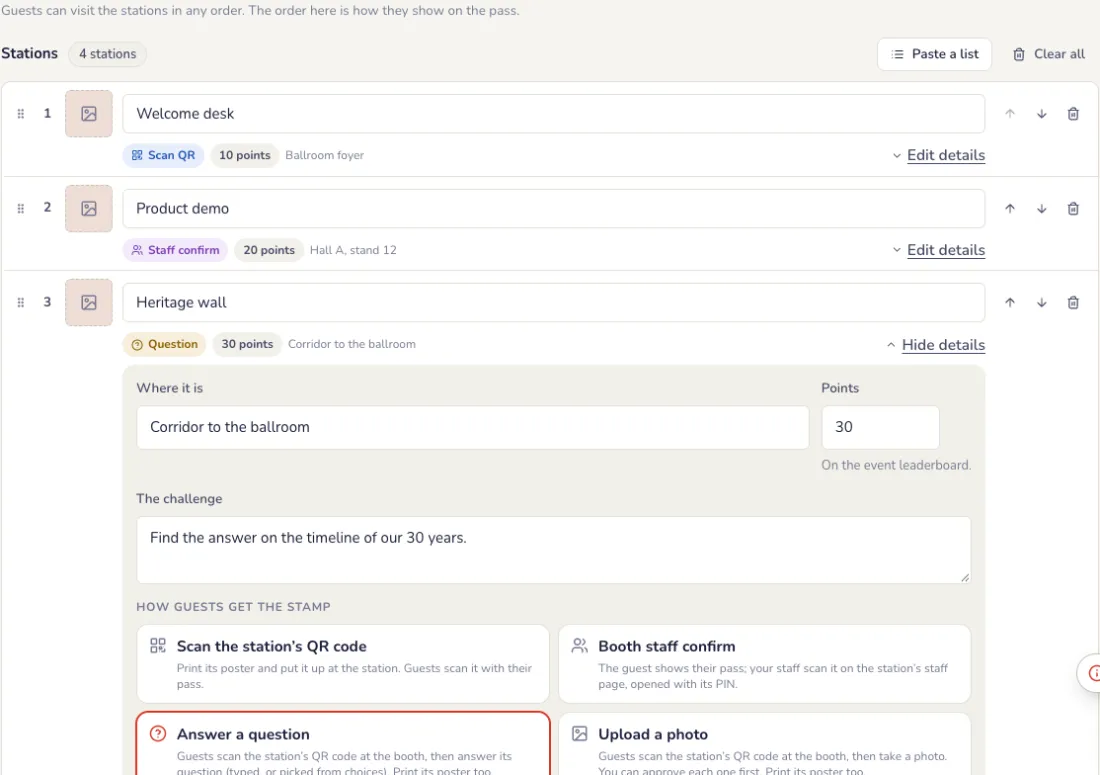
A booth, a corner or a place to visit: give each one a name, where it is and the challenge. Open Edit details to choose how guests get its stamp.
- Scan the station’s QR code: download its poster and put it up at the station.
- Booth staff confirm: the guest shows their pass, and your staff scan it on the station’s staff page, opened with its PIN. No account needed.
- Answer a question, or enter a secret word given at the booth: typed, or picked from choices.
- Upload a photo, stamped at once or after you approve it.
Choose the rules and the reward
On the Settings tab. Each choice saves at once.
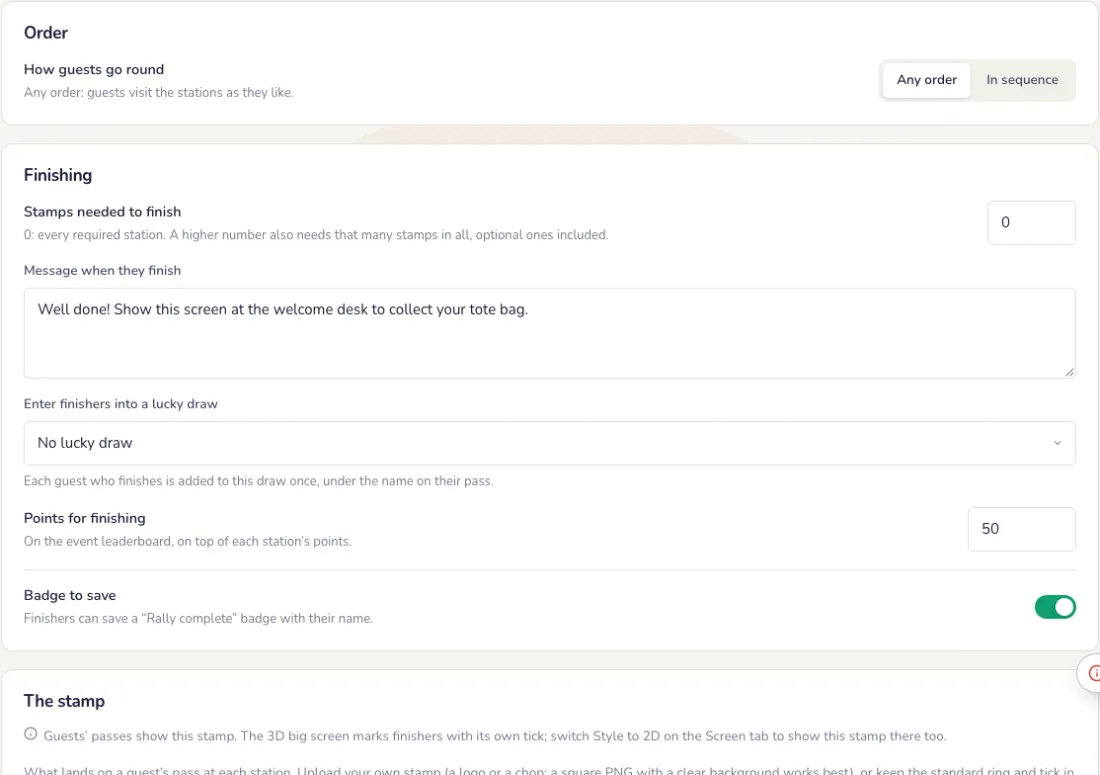
- Order: any order, or in sequence, where each station opens once the required ones before it are stamped.
- Finishing: every required station, or a number of stamps. Optional stations add stamps and points.
- The reward: a message on the phone, an automatic entry into one of the event’s lucky draws, leaderboard points and a badge to save.
- Who can join: anyone, or only people on the event’s guest list, so their pass follows them to another phone.
On the night
A pass on every phone
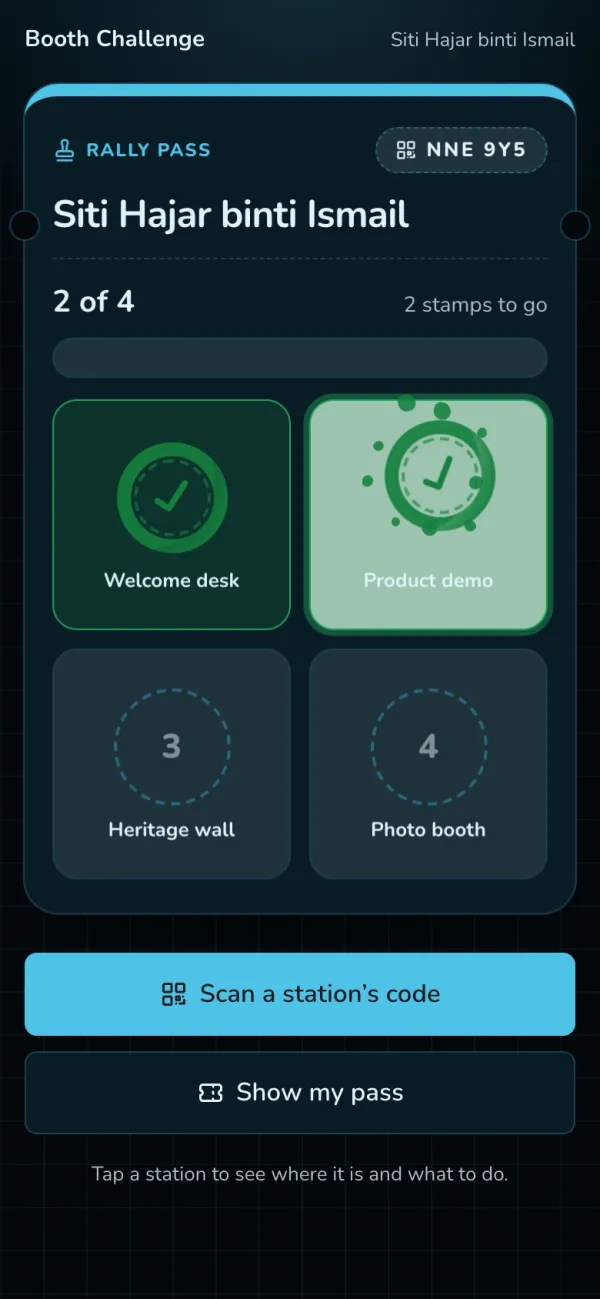
Guests open their rally pass from the event code. Each station is a stamp slot; a new stamp drops onto the pass with a thump, and the slot turns green.
Booth staff stamp the pass
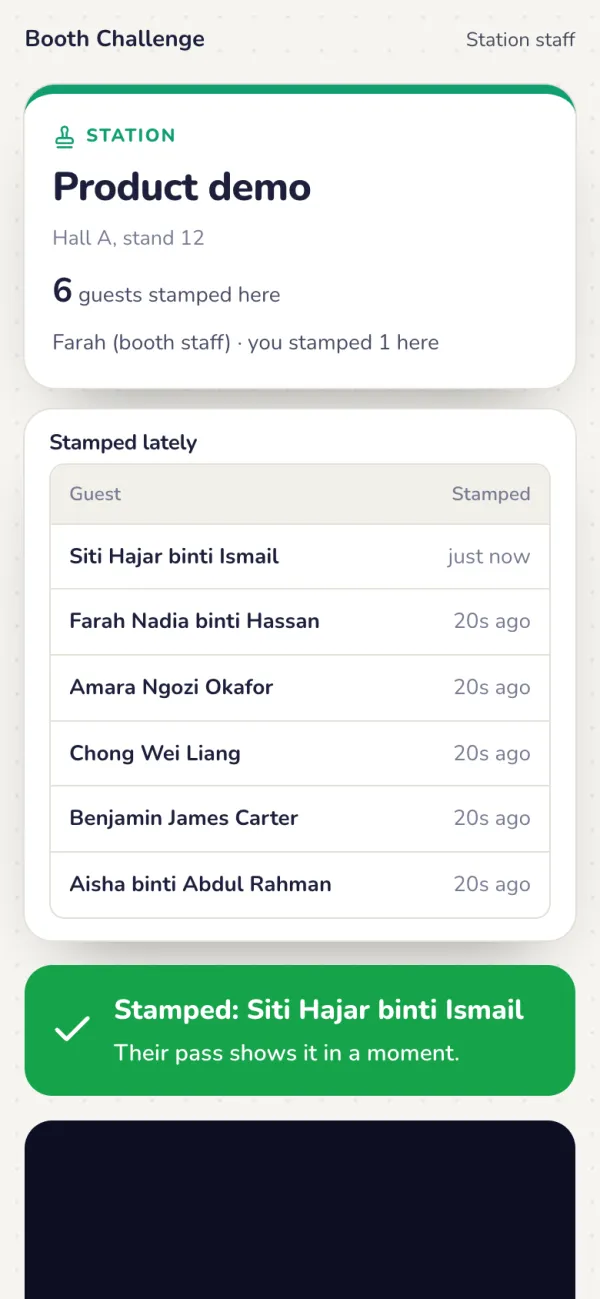
The staff page scans the QR code on the guest’s pass, or takes the 6 characters under it. The stamp appears on the guest’s phone a moment later. This works for any challenge, even a game that is not on Yaypick: the guest finishes it, your staff scan their pass. Follow everyone on the Live tab: approve photos, stamp by hand, download the CSV.
The big screen
Optional: a big screen
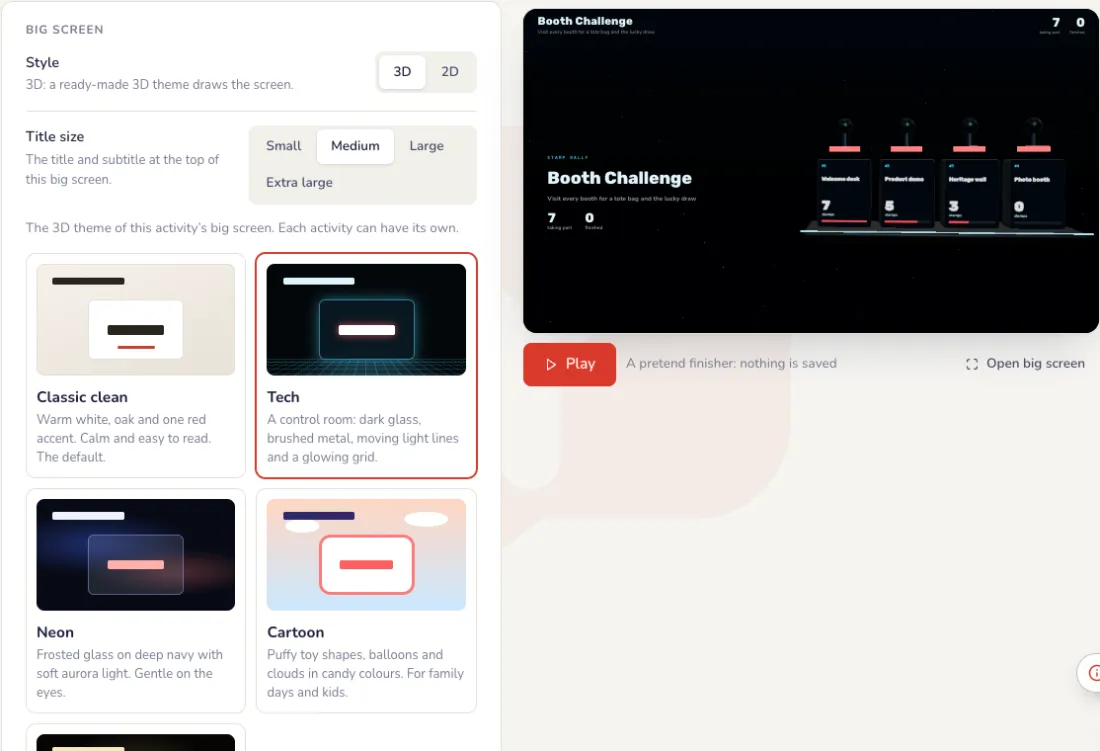
The rally needs no big screen: phones and staff scans are enough. If you want one, the Screen tab sets it up beside a live preview: the subtitle, the colour, finishers’ names on or off, the theme and the holding screen. Press Play for a pretend finisher; the big screen changes only when you press Save.
Optional: the live board
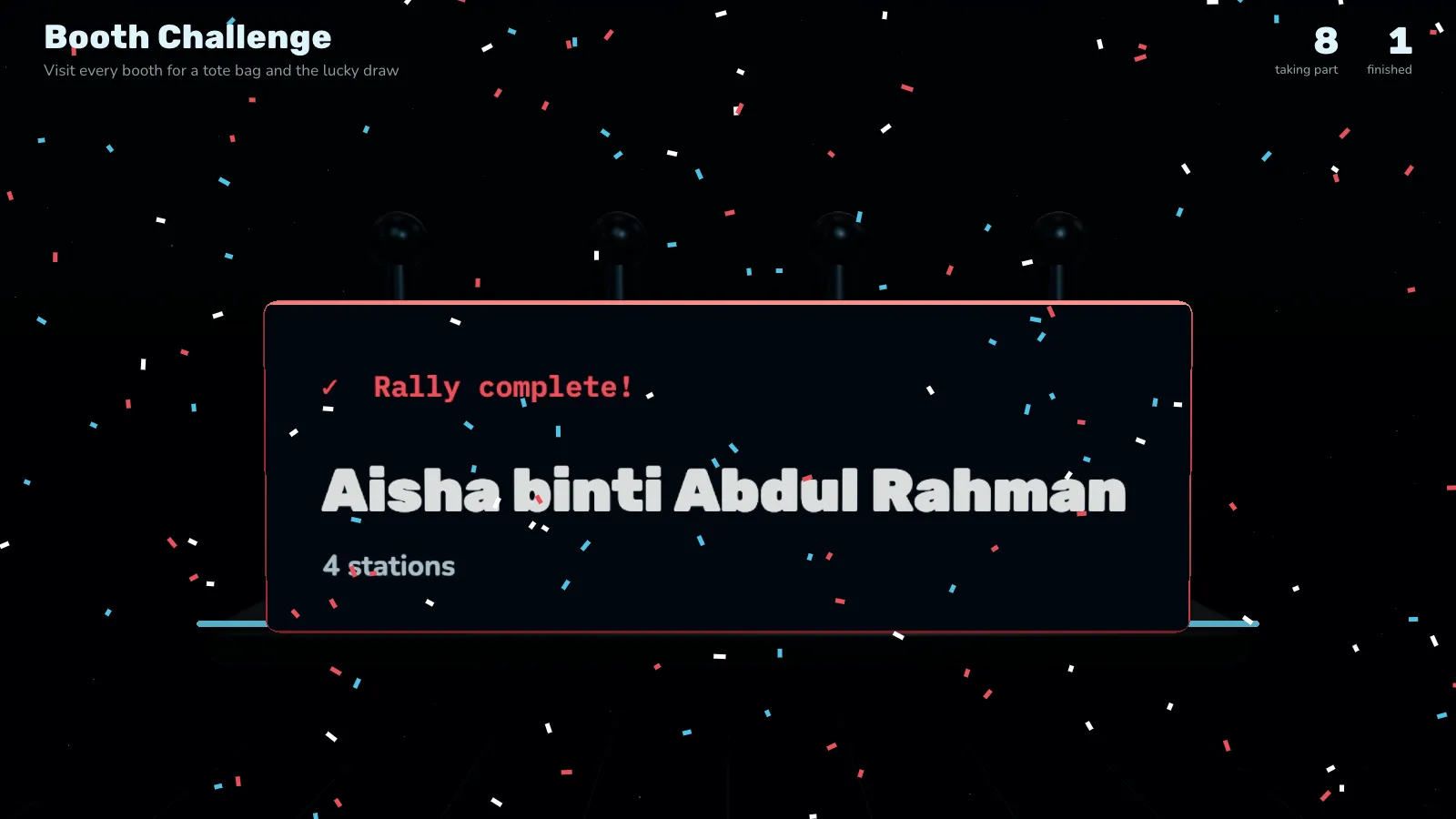
On a big screen: every station with its stamps so far, and each guest who finishes, with confetti.
After the event
Who finished
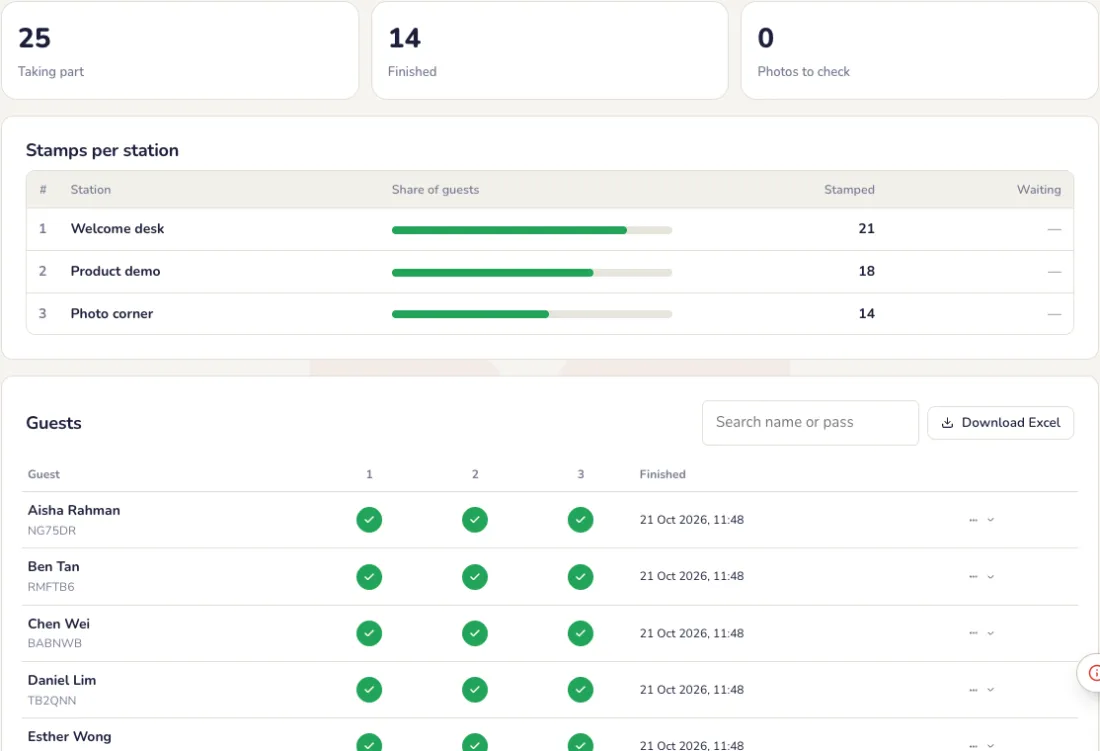
The Live tab shows how many took part and finished, the stamps per station and every guest’s stamps. Download it as Excel; the event report has the stamp rally too.
Common problems
- A station has no staff.
- Use Scan the station’s QR code and put its poster up at the station, or ask a question or a secret word instead.
- A guest changed phones.
- Let only people on the event guest list join. Their pass then follows them to another phone.
- How do finishers get a reward?
- In Settings, choose the reward: a message on the phone, an automatic entry into one of the event’s lucky draws, leaderboard points and a badge.
- Do I need a big screen?
- No. Phones and staff scans are enough. Add a big screen only if you want to show the stamps and finishers.
Auction & pledges
A charity auction and pledges: silent lots on guests’ phones, a live auction on stage and a pledge target on the big screen.
Set up
Add the lots
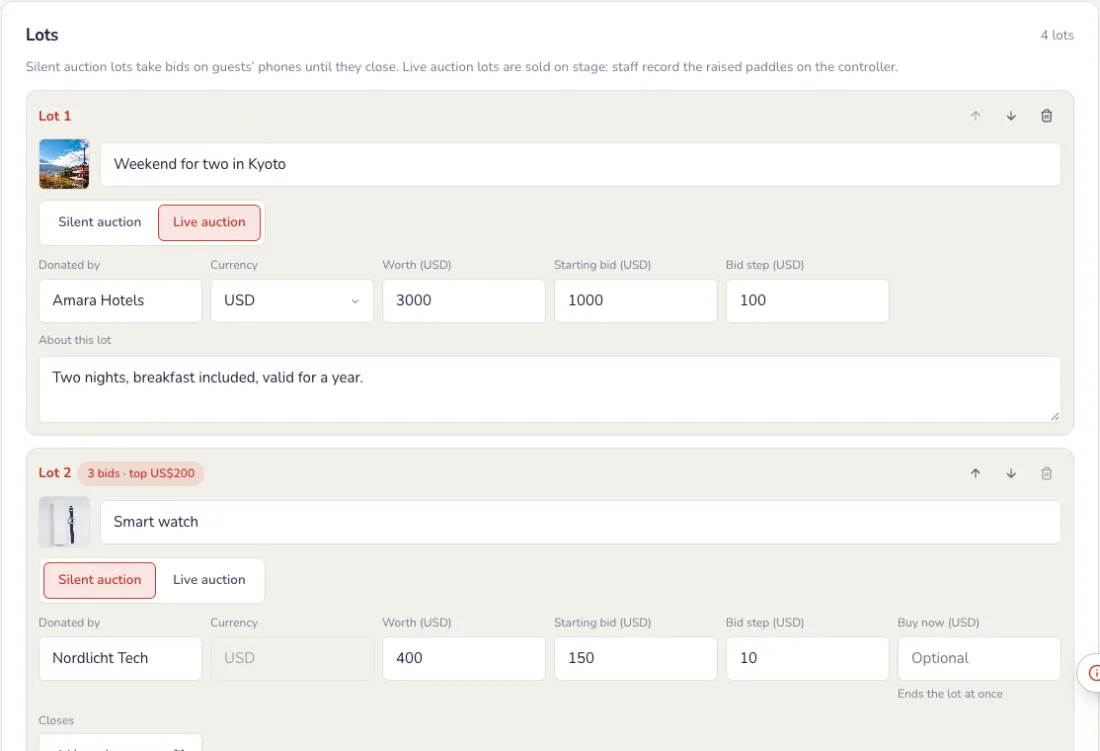
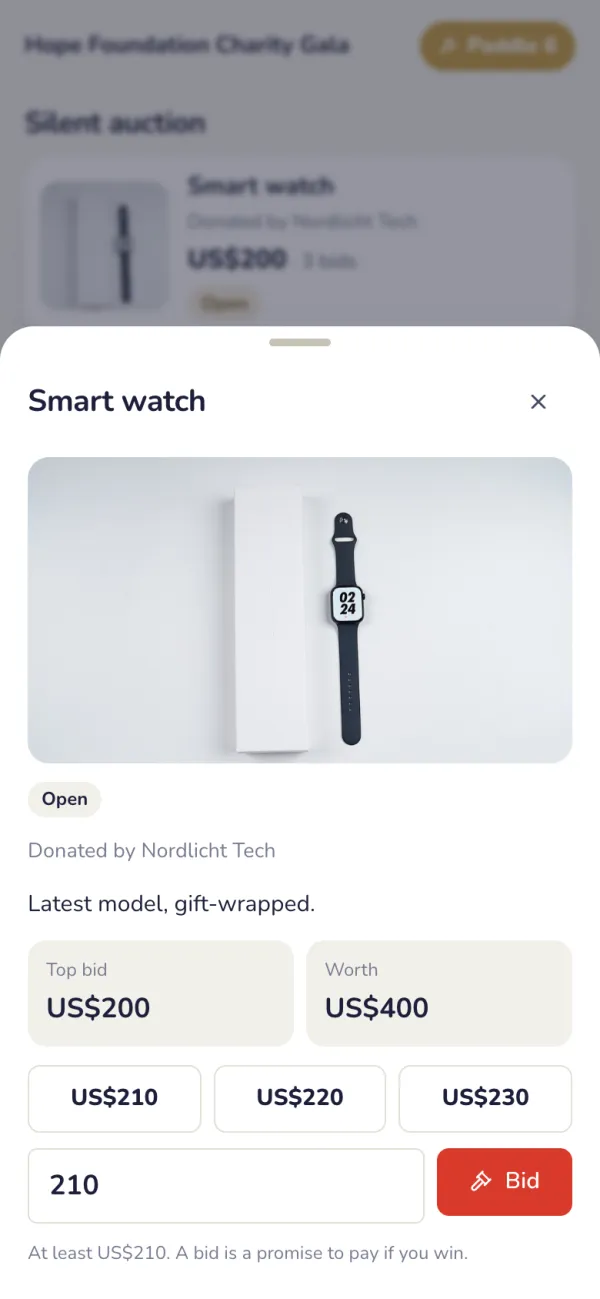
Add each donated item or experience: its name, the donor, what is included, a picture, what it is worth and the starting bid. Mark each lot Silent, for bids on phones until it closes, or Live, sold on stage by the auctioneer.
- Currency: each lot has its own, so a lot donated abroad can take bids in its own money. Totals show per currency; nothing is converted. Once a lot has bids, its currency is locked.
Choose how bidding works
On the Settings tab. Press Save when you are done.
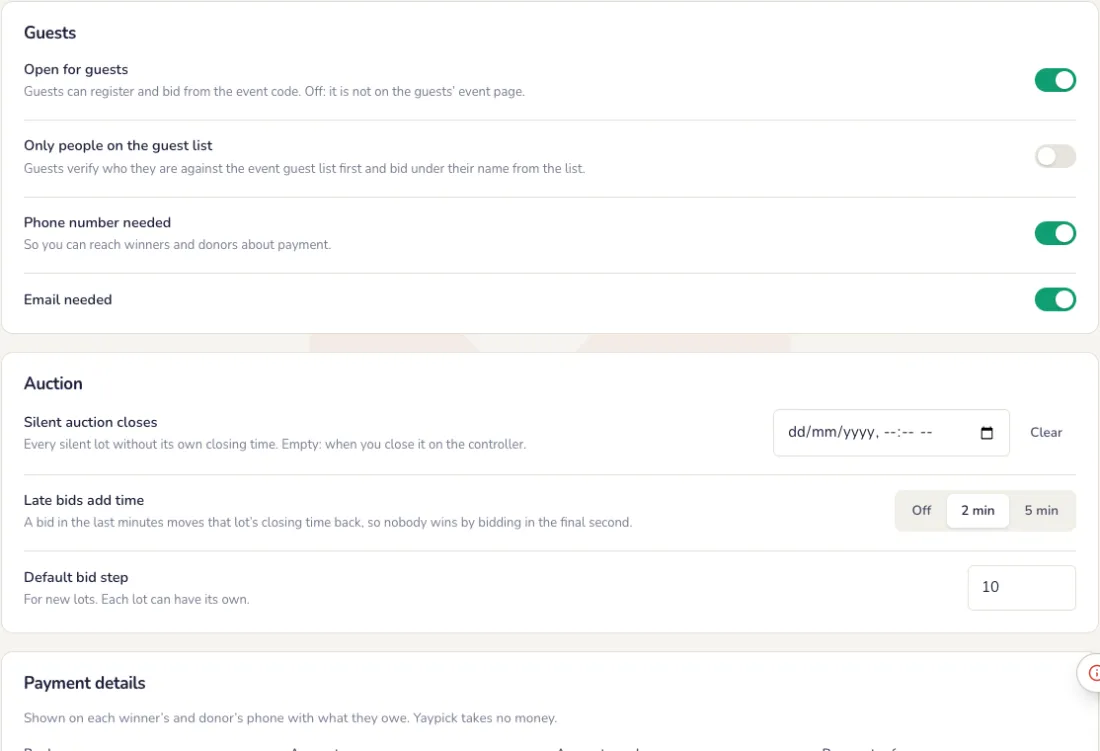
- Bid step: how much each bid goes up. Set a default for new lots; each lot can have its own, and a Buy now price that ends the lot at once.
- Silent auction closes: the time every silent lot without its own closing time closes. Leave it empty to close it from the controller.
- Late bids add time: a bid in the last minutes moves that lot’s closing time back, so nobody wins by bidding in the final second.
- Who can bid: anyone with the event code, or only guests on the event guest list, who then bid under their name from the list.
- What you ask bidders for: an email or a phone number, so you can reach winners and donors about payment.
Add your payment details
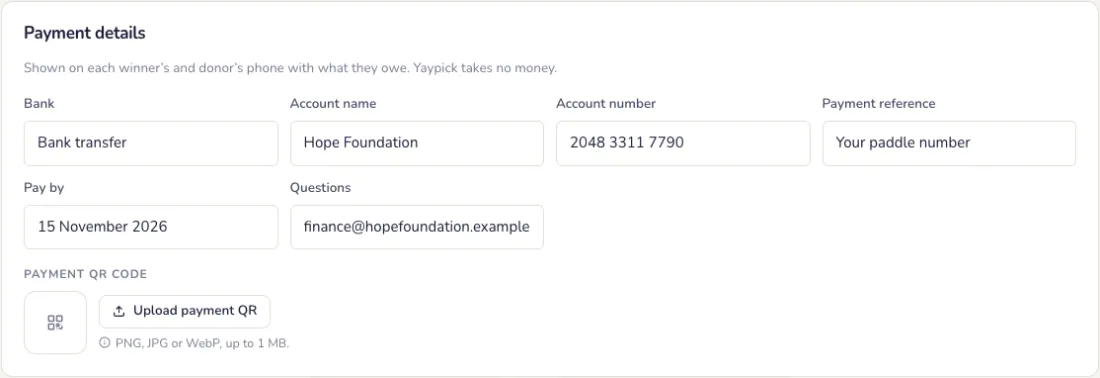
Bank, account name and number, a payment reference and your payment QR code. They show on each winner’s and donor’s phone with what they owe. Yaypick takes no money.
The big screen
The big screen
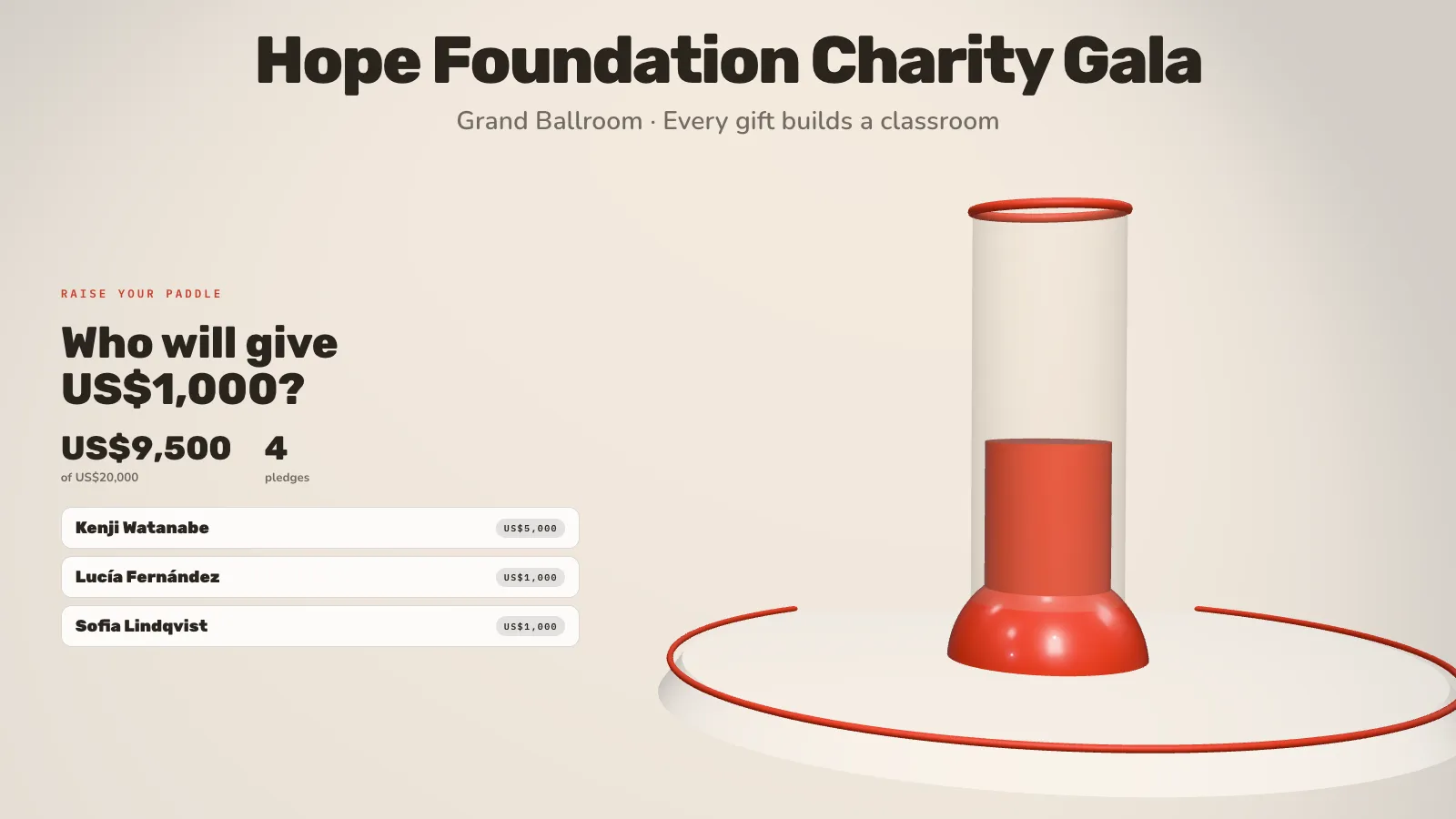
On the Screen tab, like every other activity: 3D or 2D, a theme, a holding screen and a live preview. It shows the lot on stage, the top bids on open lots and the pledge target bar as it climbs.
- Headline and subtitle, such as your charity and the venue.
- On the Pledges tab: the pledge currency, the target the bar fills up to (0 hides it) and the amounts to call.
- Donors on the big screen: show names as pledges come in. Guests can keep their own name off the screen.
- Theme and colour, the same as every other activity.
On the night
Guests register and bid
Guests scan the event code and register once for a paddle number. They bid on the silent lots from their phones and see straight away when they are outbid. Staff can register guests without a phone on the controller.
Run the live auction
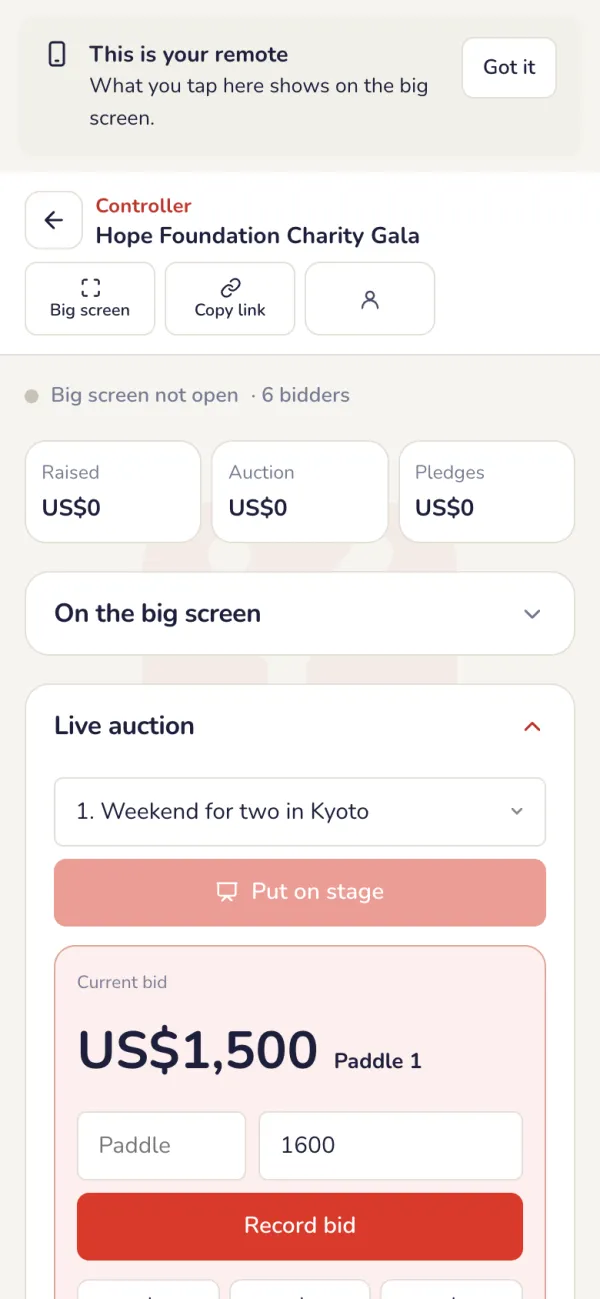
On the controller, choose a live lot and press Put on stage: the big screen shows it. Record each raised paddle with Record bid, then press Sold, or No sale.
The pledge moment
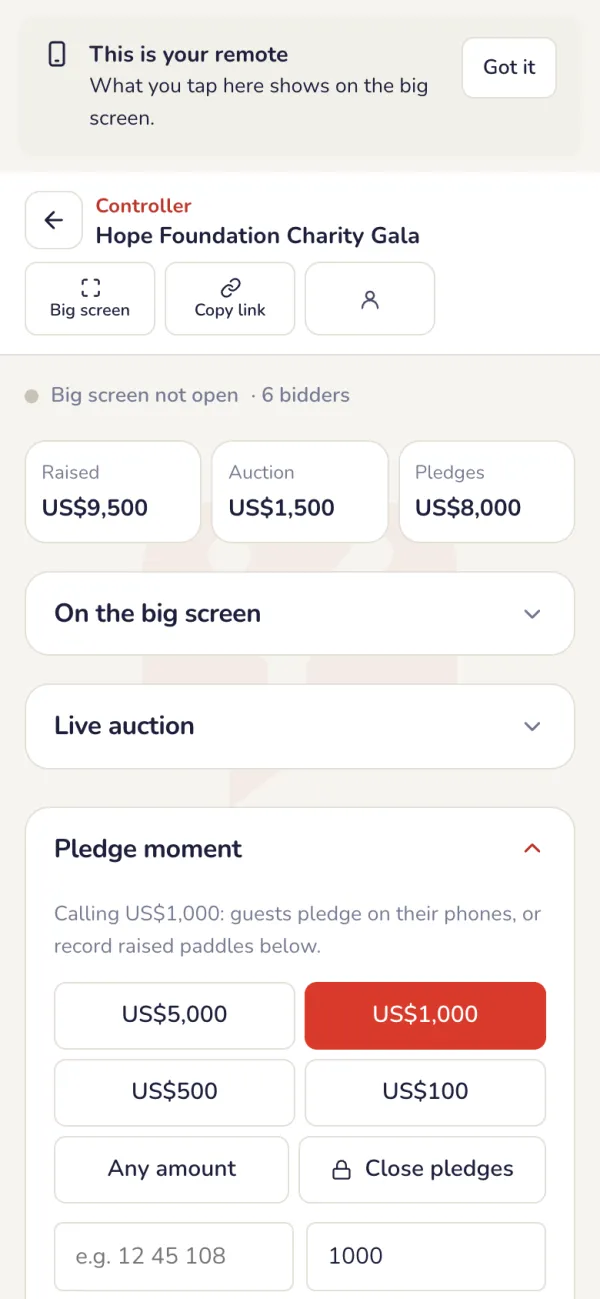
Call an amount to open pledges. Guests pledge on their phones, staff record raised paddles, and the target bar climbs on the big screen. Press Close pledges when you are done. Close the silent auction now closes every open silent lot at its top bid.
After the event
Collect the payments
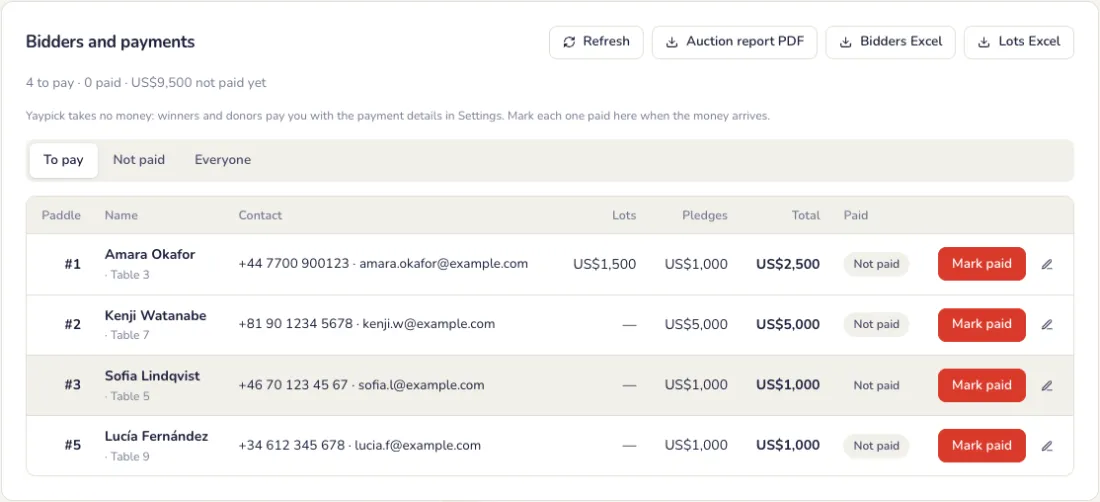
Every winner and donor sees on their phone what they owe and how to pay. Mark each one paid when the money arrives, and download the auction report PDF and the bidders Excel.
Common problems
- Does Yaypick collect the money?
- No. Winners and donors pay you directly with the payment details in Settings. You mark each one paid.
- A guest has no phone.
- Register them on the controller for a paddle number. Staff record their bids and pledges when they raise their paddle.
- A guest does not want their name on the screen.
- When they register, they can choose Keep my name off the big screen. Their pledges still count towards the target.
- Someone bids in the last second.
- Turn on Late bids add time. A late bid moves that lot’s closing time back, so others can answer it.
Agenda & session ratings
Sessions with speakers and rooms, what is on now on every phone, and session ratings.
Set up
Add the sessions
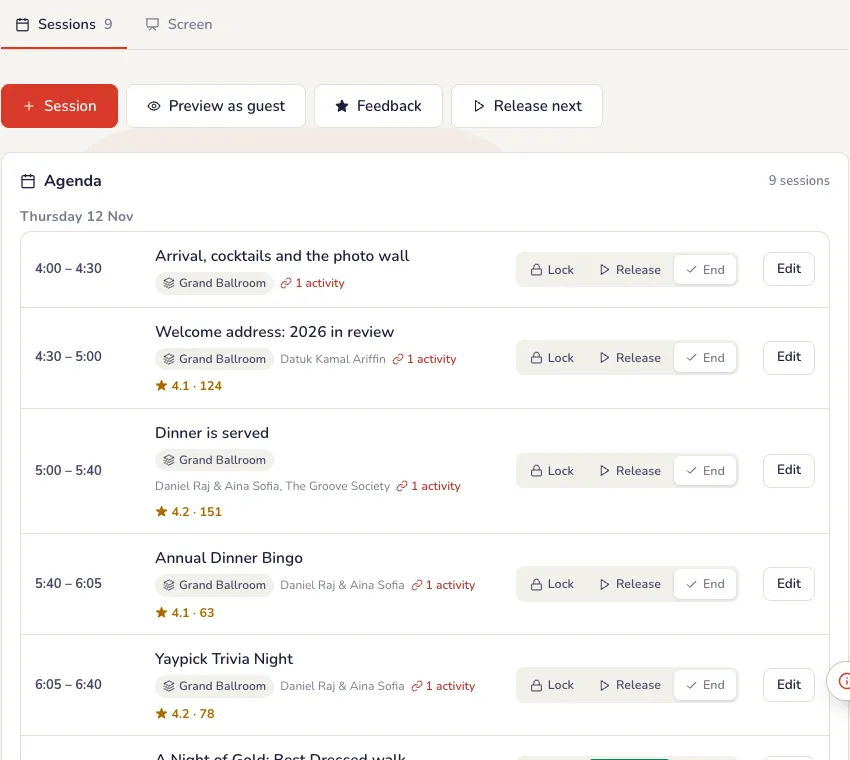
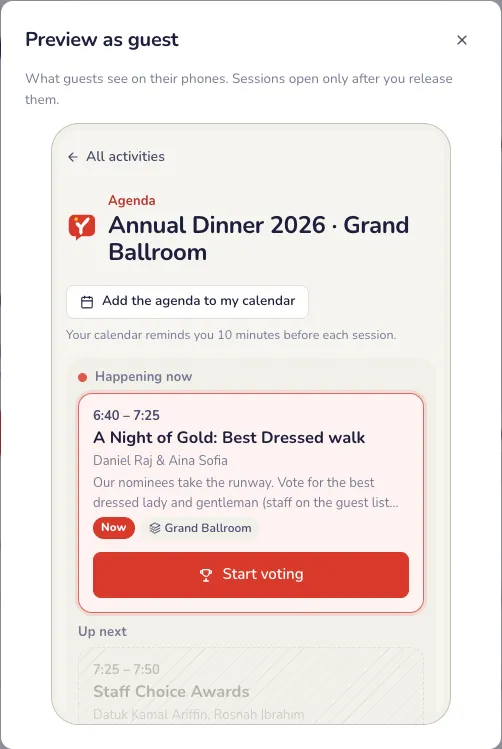
Time, room and speakers for each session, and the Q&A, poll or quiz guests can join from it. Choose who can rate sessions: anyone, or only people on the event’s guest list. Preview as guest shows the guests’ page as it is now.
Each session’s details
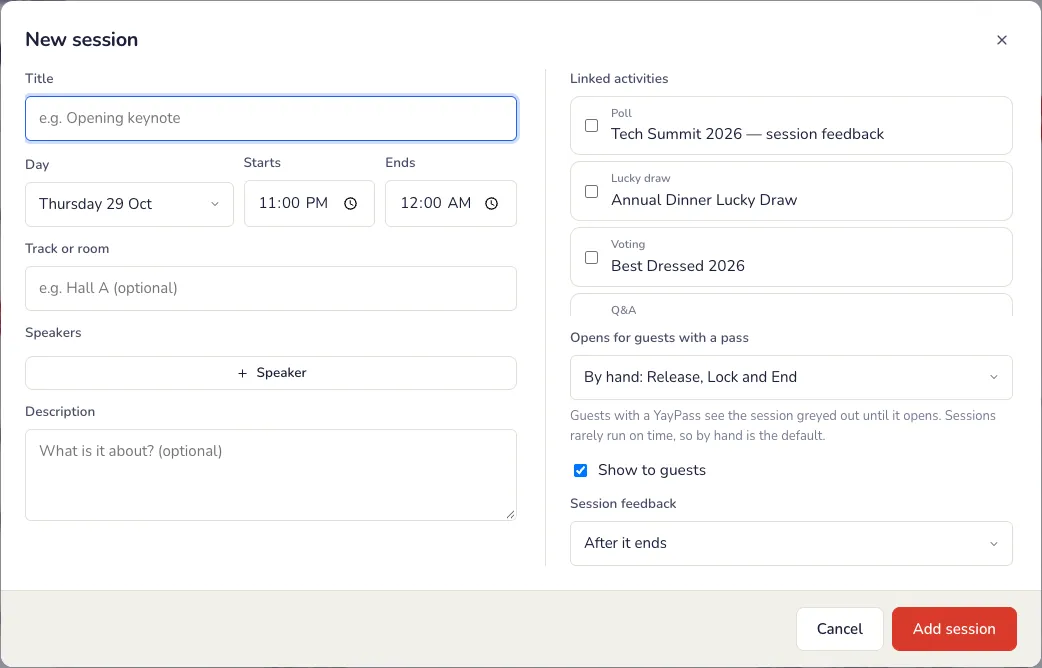
Press Add session, or Edit on a session.
- Title, the day, when it starts and ends, and the track or room, such as Hall A.
- Speakers: a name, and their role and company, as many as you need.
- A description of what it is about (optional).
- Linked activities: the Q&A, poll or quiz guests join from this session. Add them to the event first.
- Opens for guests with a pass: by hand, or Automatic at its start time. Sessions rarely run on time, so by hand is the default.
The big screen
The lobby screen
Open Lobby screen on a screen in the foyer: the programme with what is happening now. Show all rooms or choose which ones, and the time and date at the top.

On the night
Now and next on every phone
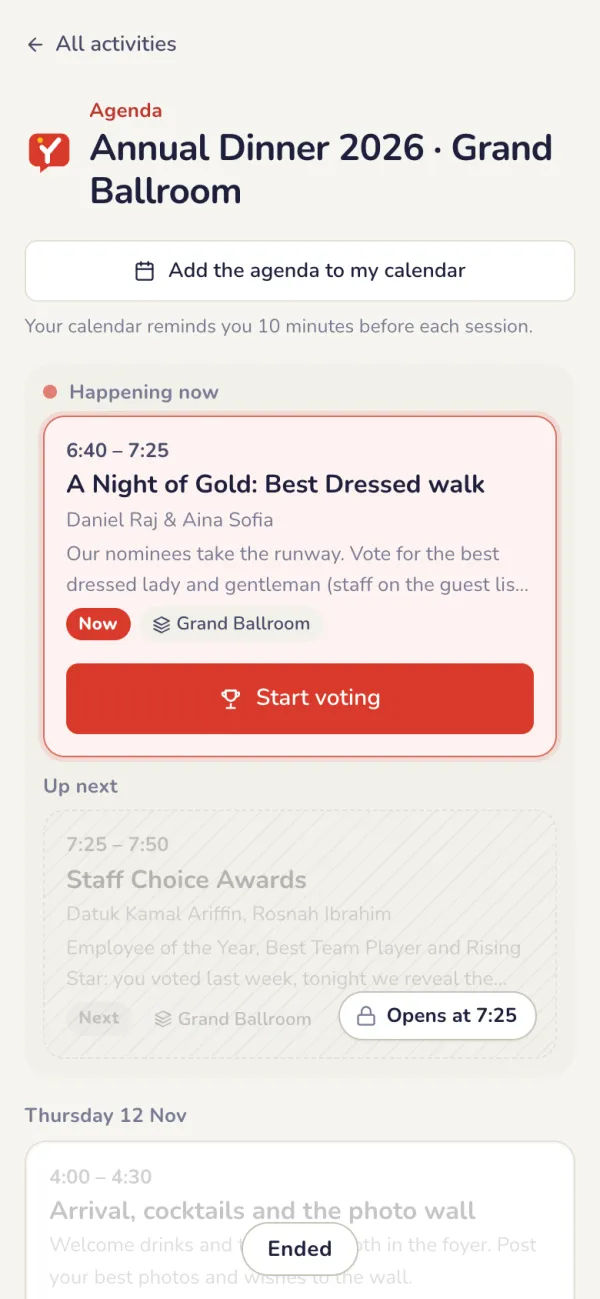
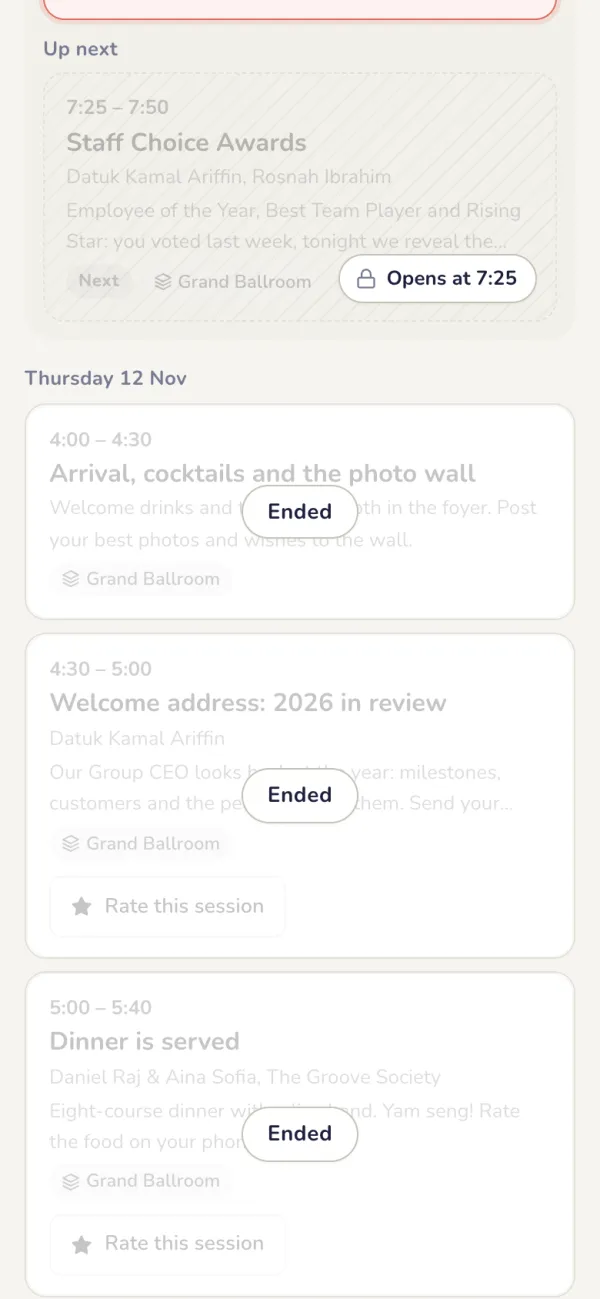
Guests see what is on, with the speakers and rooms. A session’s activity opens only once you release it (see Agenda release).
Rate a session
When a session ends, guests give it stars and a comment.
- The event rating opens when the last session ends. Each guest rates the event once.
After the event
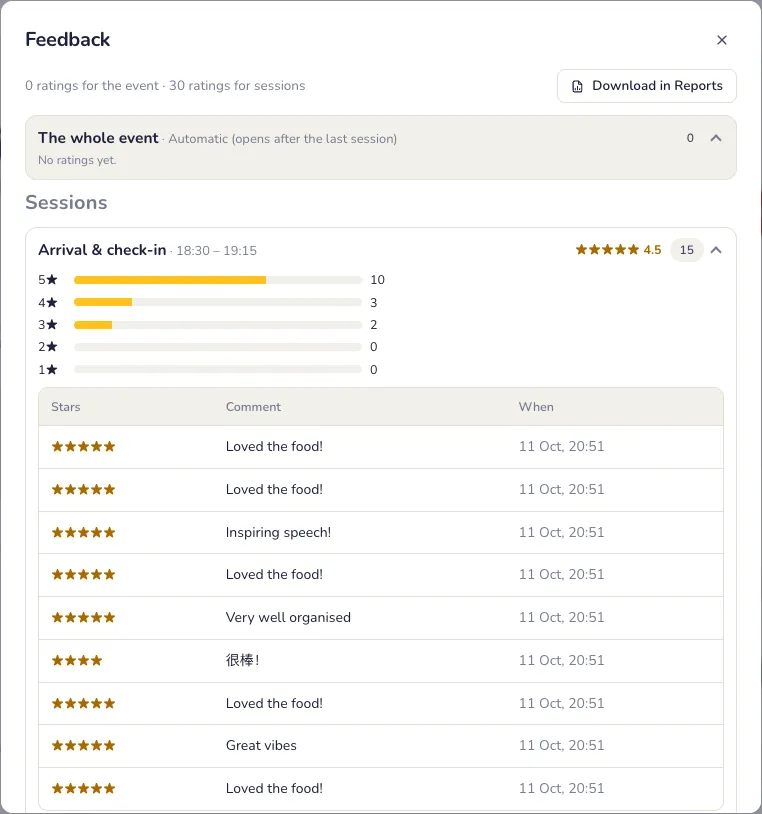
Read the feedback
On the Feedback tab: the average stars for each session and for the event, with every comment. Download it in Reports; the event report has session feedback too.
Common problems
- Guests can’t open a session’s activity.
- A session’s activity opens only once you release it. See the Agenda release guide.
- I want to check the agenda before guests see it.
- Press Preview as guest. It shows the guests’ page as it is right now.
- Only invited guests should rate sessions.
- Choose who can rate sessions: anyone, or only people on the event’s guest list.
- Guests can’t rate the event yet.
- The event rating opens when the last session ends. Add sessions first.
Event report & certificates
The whole event in one PDF report, and a certificate for every guest.
One report for the whole event
Attendance, polls, votes, quiz, winners and Q&A, ready as a PDF.
- Attendance: who came against who was expected, arrivals over time with the peak, check-in warnings and walk-ins.
- Each activity that ran: voting winners per category, lucky draw winners, quiz top players, poll highlights with NPS, top Q&A questions, bingo winners, stamp rally, Prize Rain and card deck results.
- Session feedback and the event rating, when the event has an agenda.
- Download PDF for the whole report, Attendance as Excel, or every download in one place. On the free trial, print the page from your browser instead.
Certificates
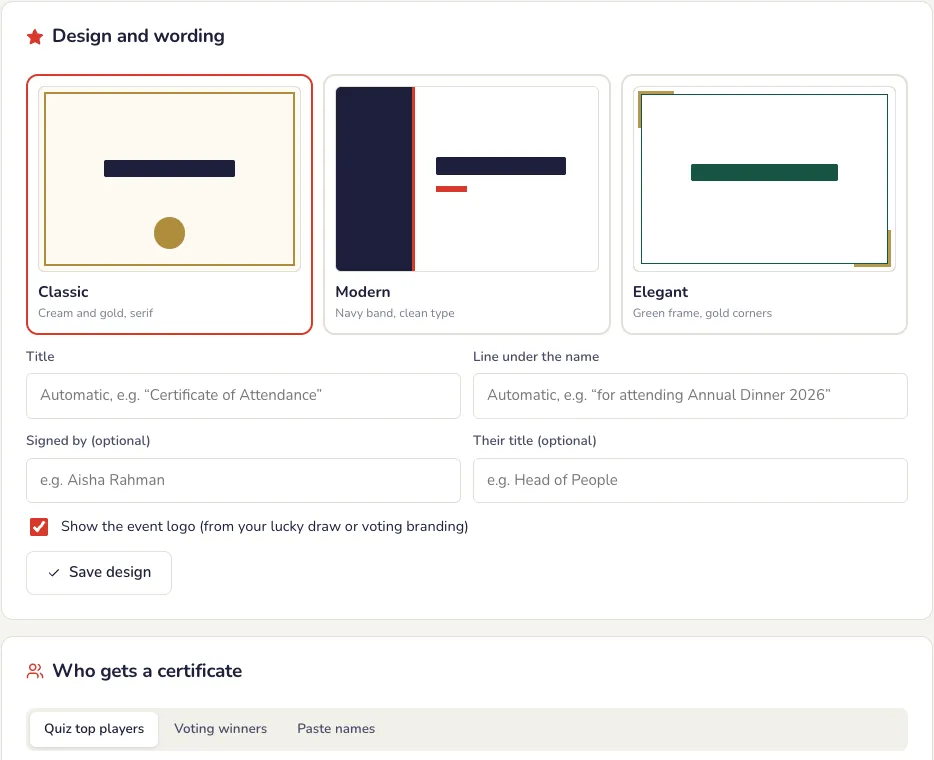
Pick a design and the wording, and who gets one.
- Design and wording: the title, the line under the name, who signs it and their title, and your event logo.
- Who gets one: everyone who checked in, winners only, or names you paste, one per line.
- Tip: add names in Latin letters too, such as “김민준 (Kim Min-jun)”.
One PDF for everyone
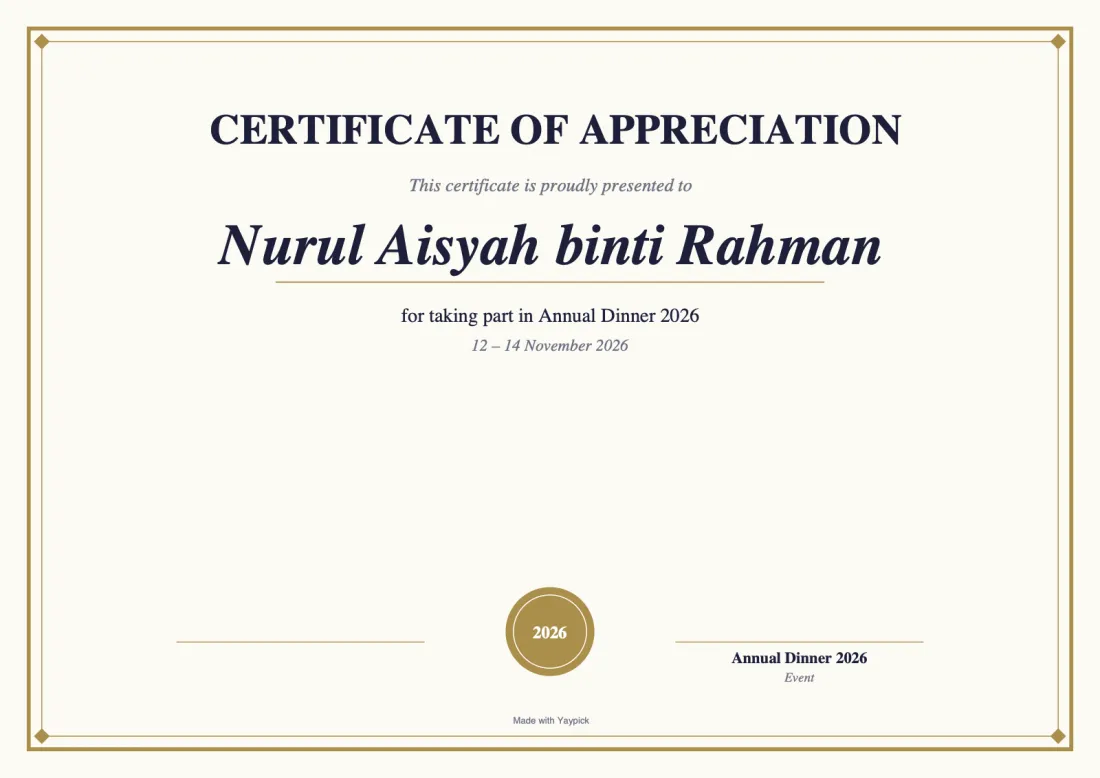
A certificate per guest, ready to print or send.
- One A4 landscape page per person, all in one PDF. On the free trial you get a preview of the first few, marked PREVIEW.
Guests download their own
Turn on guest downloads, and a Download my certificate button appears on the check-in page for guests who checked in on their phone. Each guest only gets their own.

Common problems
- What is in the report?
- Attendance, polls, votes, quiz results, winners, Q&A and session ratings in one PDF, plus Excel exports.
- Can I give certificates only to winners?
- Yes. Choose who gets one: your winners, top players or any list of names.
- Guests can’t find their certificate.
- Guest downloads need a guest check-in in the event: guests who check in on their phone then see Download my certificate.
Customize Design
Send your brief and logo; our designers give the whole event one style (batik, traditional, AI art or any look) on the big screen and the guests’ phones of every activity. You preview it on your real screens and approve. Your own control panel and controllers keep Yaypick’s look.
Set up
Send your brief
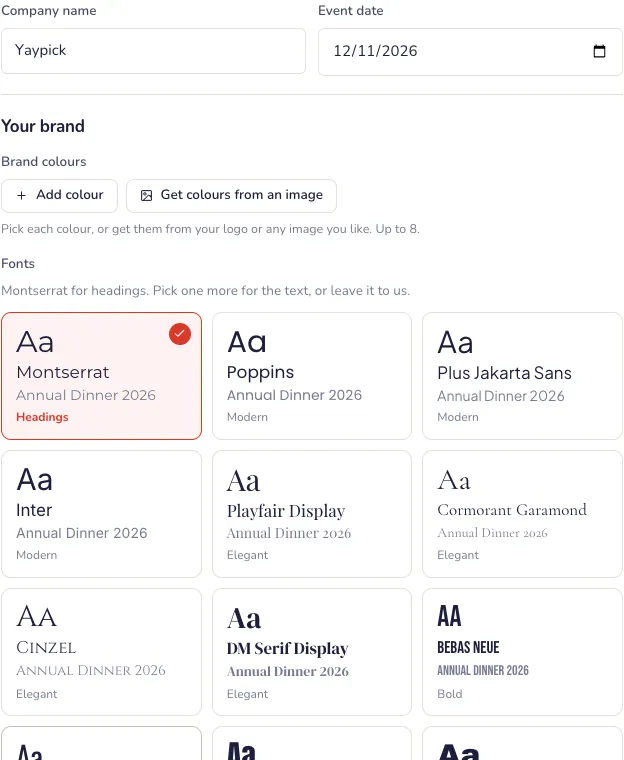
Company name, brand colours, fonts, what you would like, and your logo.
- Brand colours: pick up to 8, or take them from your logo or any image.
- Files: your logo (a PNG with a transparent background is best), your brand guide and reference images, up to 1 MB each.
- Your WhatsApp number and email, so our designers can reach you.
Free with Pro and Ultra
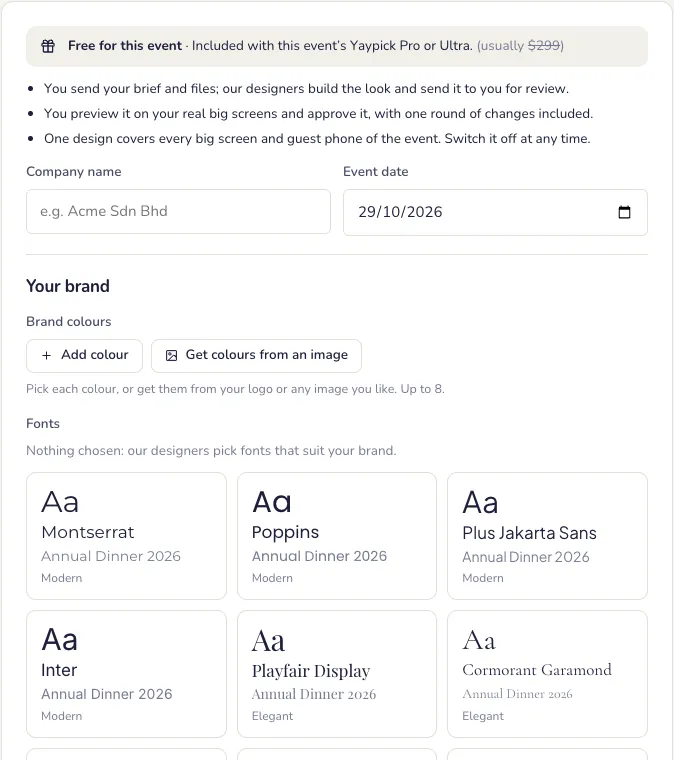
Customize Design is included with a Yaypick Pro or Ultra pass for the event. Otherwise it is a one-off price per event; our designers start as soon as the payment arrives, usually within one business day.
Review the design
Preview it on your real big screens, ask for one round of changes, then approve.
- We contact you on WhatsApp and email when it is ready for review. Messages with our designers stay on the page.
- Approve and go live: every big screen of the event shows the design. Big screens already open pick it up when they are reloaded.
The big screen
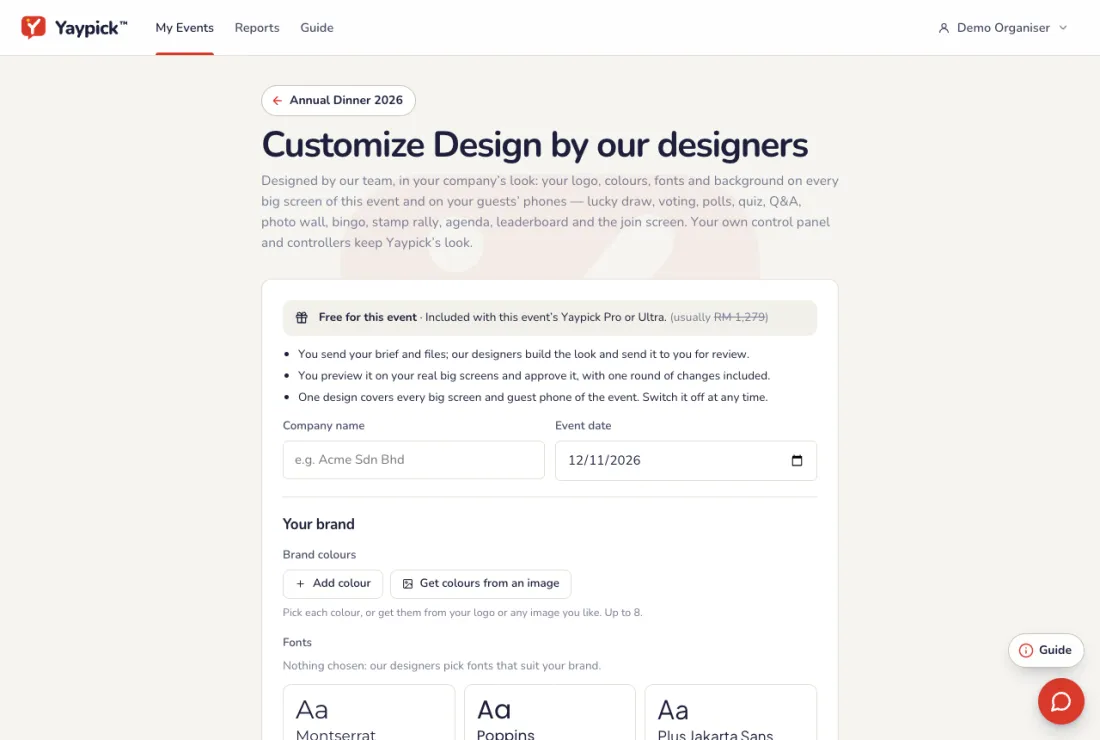
The standard look
Every big screen works well out of the box.
Your company’s look
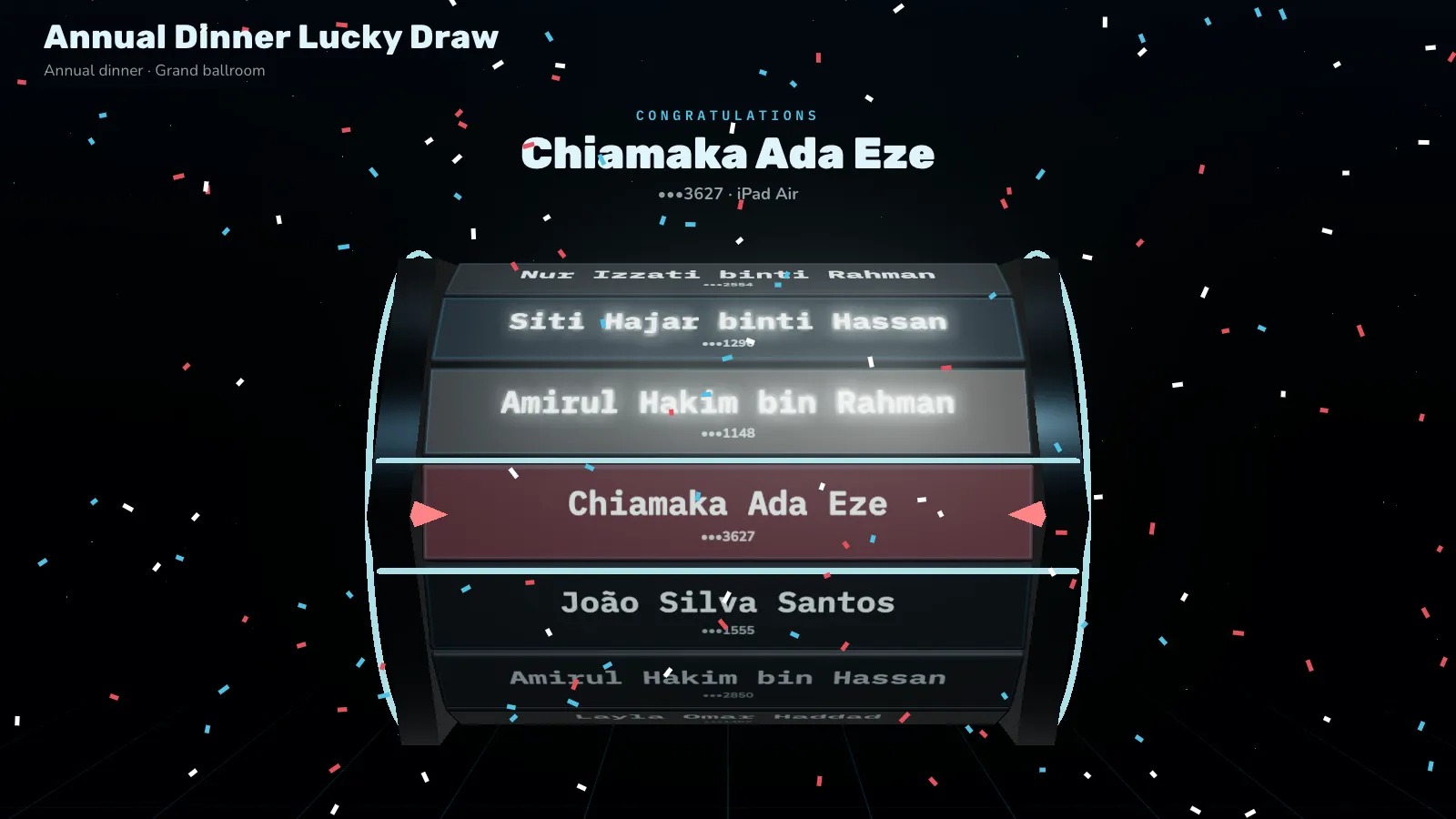
Your logo, colours and fonts on every big screen of the event.
- One design covers every big screen and guest phone of the event: the join screen, lucky draw, voting, polls, quiz, Q&A, photo wall, bingo, agenda and leaderboard.
- Switch it off at any time to go back to the normal look.
Common problems
- Does it change my control panel?
- No. The design is for the big screens and guests’ phones. Your control panel and controllers keep Yaypick’s look.
- What if I don’t like the design?
- Preview it on your real big screens and ask for one round of changes before you approve.
- A big screen still shows the old look.
- Reload it. Big screens that were already open pick up the design when they are reloaded.
YayPass & guest list
Your guest list from three sources, a personal pass email for every guest, and entry and agenda tied to each guest.
Your guest list, from three sources
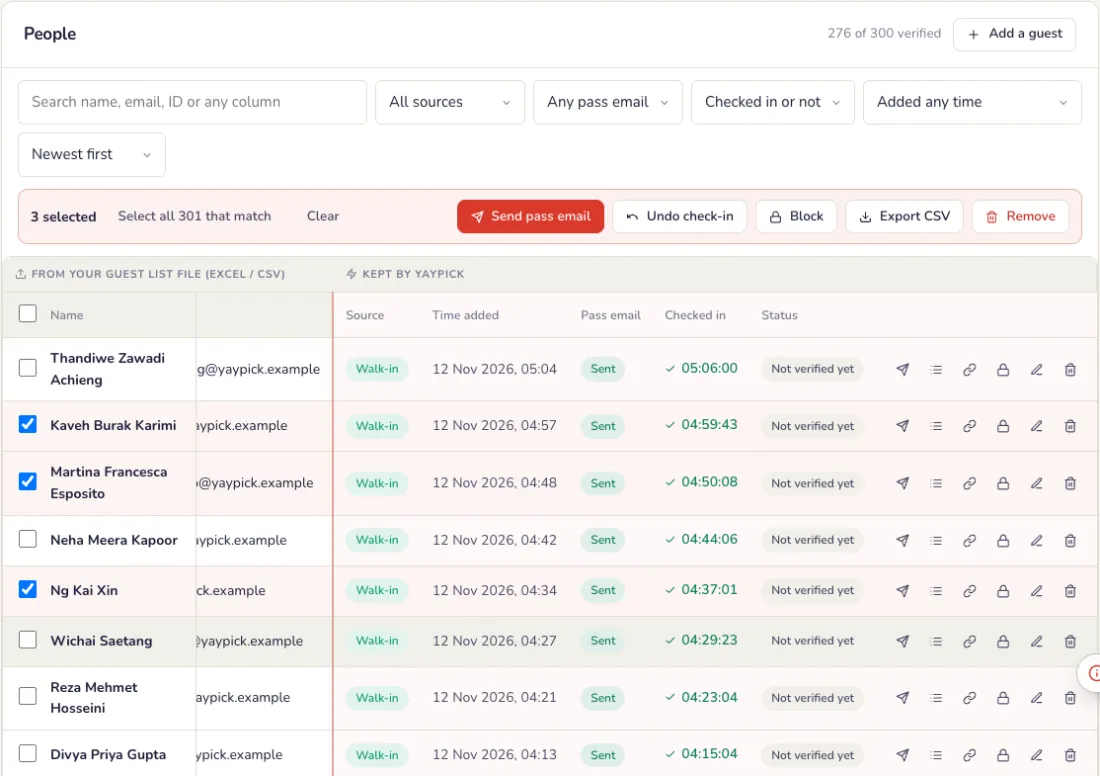
On the event, open Guests, then the guest list. Each guest shows where they came from, their pass email and whether they have arrived.
- Imported: an Excel or CSV file of your guests, or rows pasted into the sheet. A new file updates the guests already on the list.
- Added by hand: one guest at a time with Add a guest, for someone missing from the file.
- Walk-in: guests who registered at the door with your walk-in form.
- Filter by source, by pass email (not sent, queued, sent, bounced or failed) and by checked in or not, or search by name, email, staff ID or any column.
- Tick guests, or select every guest that matches, then send the pass email, mark them as checked in, block, remove or export them.
Send every guest their pass
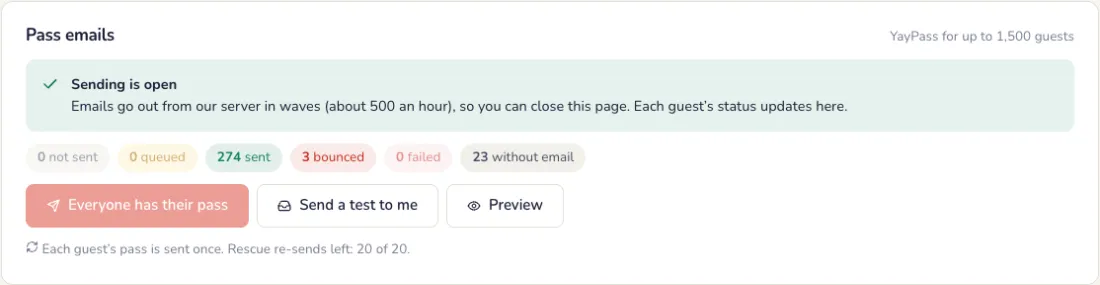
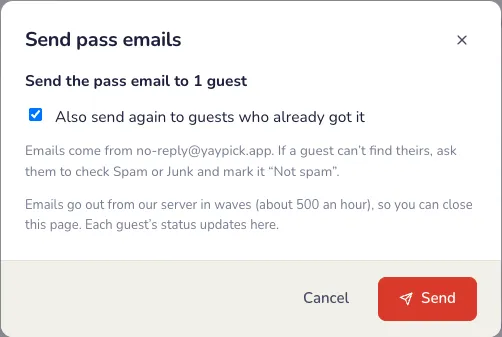
On the Pass emails tab, press Send pass emails. Our server sends them in waves (about 500 an hour), so you can close the page, and each guest’s status updates as it goes.
- Delivery prepared by our team: after you add YayPass, the tab says Preparing email delivery while we check the guest count, the email domains and the date, so your emails don’t land in spam. Sending opens once we release it, usually within 1 working day.
- While you wait, import your list, preview the email and send a test to yourself.
- An email that bounced shows in the Bounced filter: correct the address and send it again.
- Copy pass link on a guest, to send their pass another way, such as WhatsApp.
Choose what the email says
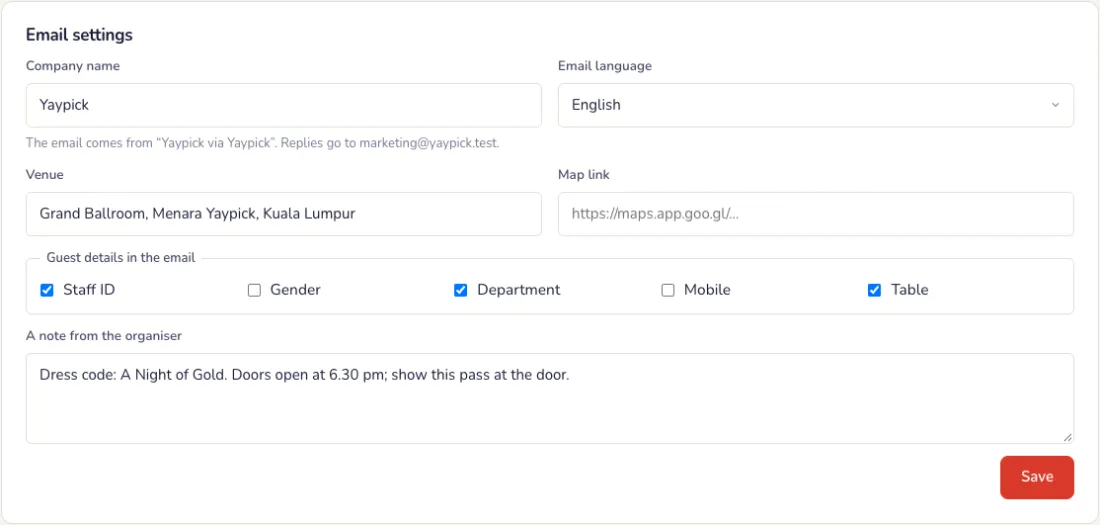
Under Email settings: the company the email comes from, its language, the venue and a map link, the guest details it shows (such as staff ID, department and table), your colour and a note. Replies come to you.
Each guest’s own pass
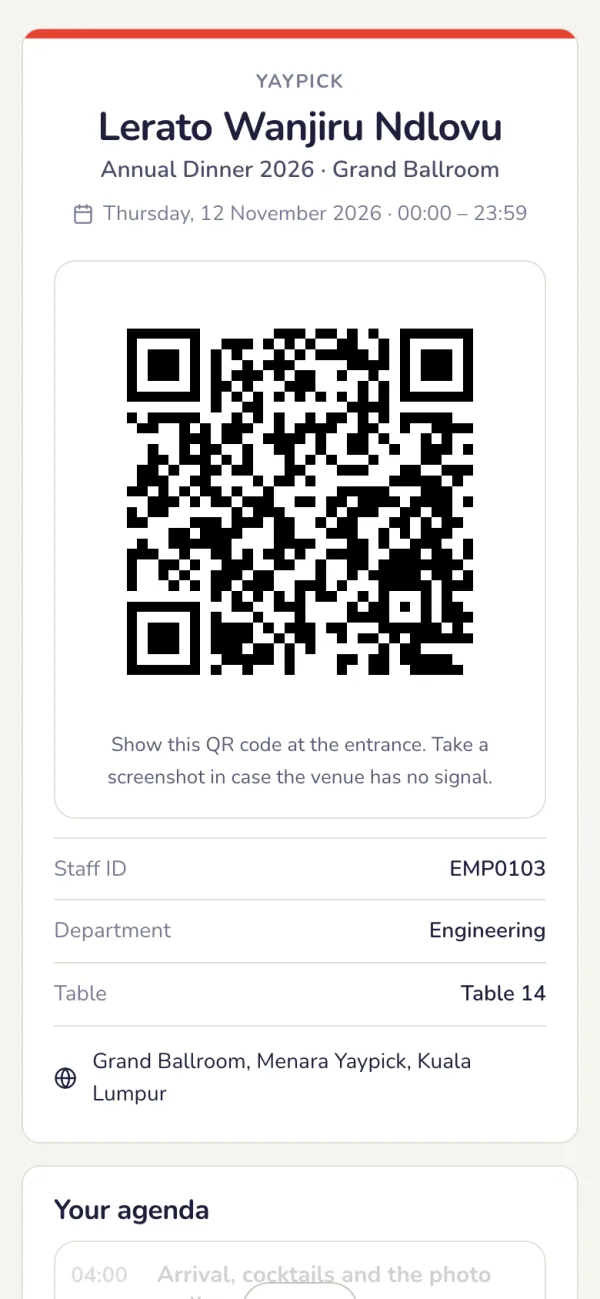
The guest’s name, a QR code for the door, their details and their agenda. A pass opens on one phone; moving it to another phone needs a code we email the guest. Blocking a guest or changing their email replaces the QR code.
Common problems
- Why can’t I send the passes yet?
- Our team prepares delivery first so your emails don’t land in spam, usually within 1 working day. Meanwhile, import your list, preview the email and send a test to yourself.
- A pass email bounced.
- Open the Bounced filter, correct the address and send it again.
- A guest wants their pass on WhatsApp.
- Press Copy pass link on the guest and send it any way you like.
- A guest changed phones.
- A pass opens on one phone. Moving it to another phone needs a code we email the guest.
Check-in
Assistants scan each guest’s pass at the door on an iPad or a phone: first entries, re-entries and shared passes, even offline, with live attendance. Part of YayPass.
Set up
Add your helpers
In the event’s Team area, under Helpers, add each helper by email and give them the job Check-in door, up to your pass’s limit. They need no Yaypick account. Your team members scan with their own login and need no adding. Switch a helper off at any time; every scan records who made it.
- Door rules: how soon a pass scanned again warns “Already inside” (1 to 30 minutes, 5 at first), and whether guests who step out may come back in.
- Open the kiosk link on each iPad or phone at the door, or open it yourself while logged in.
On the night
Assistants sign in with a code
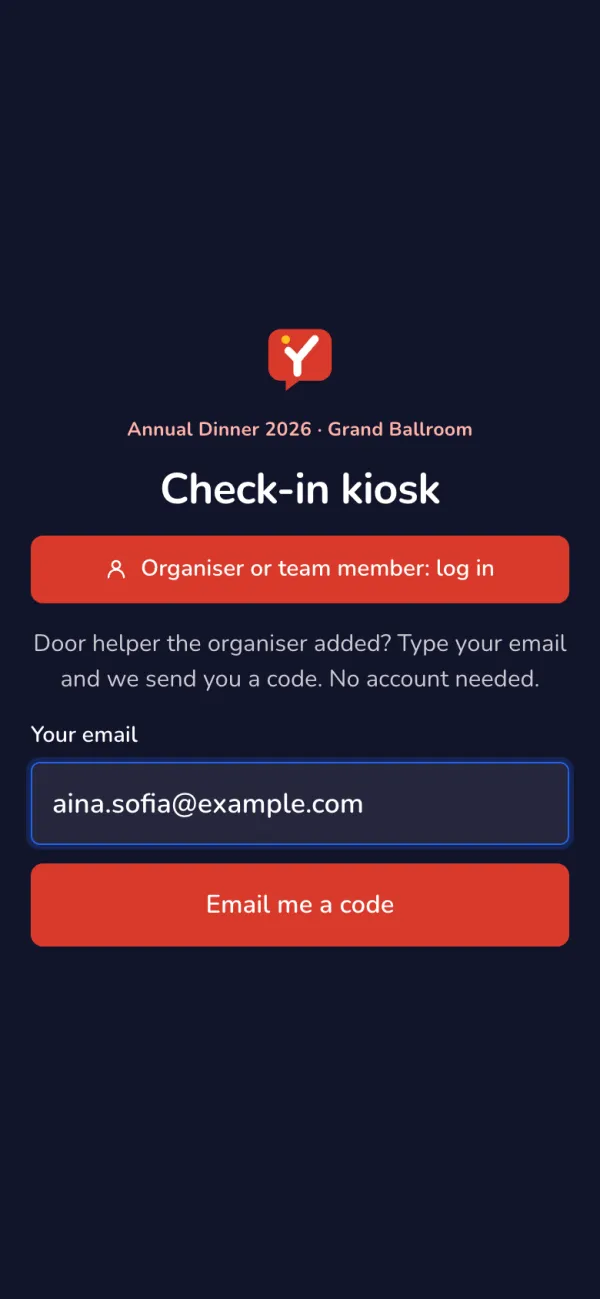
On the kiosk, the assistant types their email and the 6-digit code we send them. The kiosk stays signed in until 12 hours after the event ends.
Scan, and the guest is in
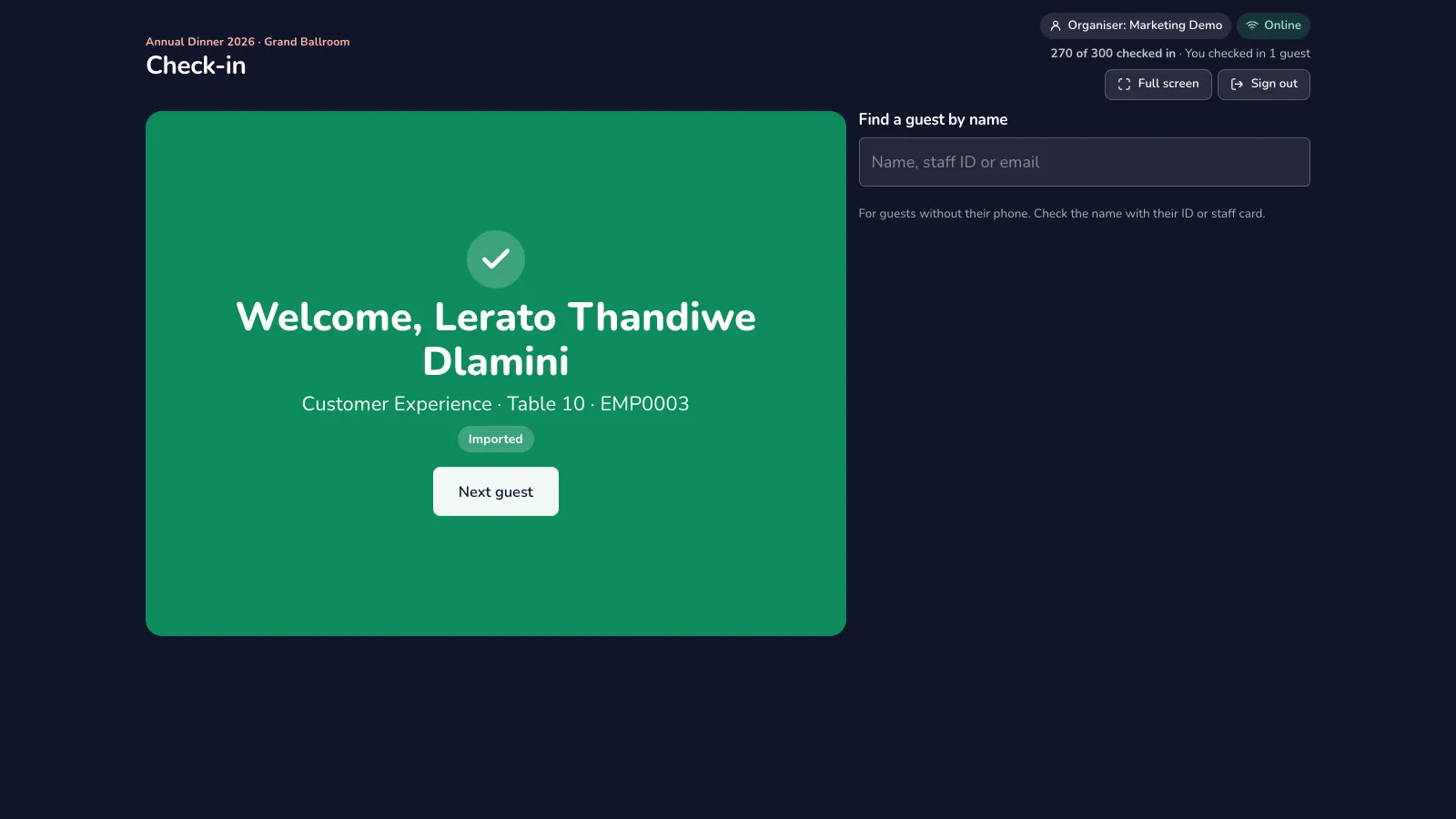
Press Scan Guest QR and hold up the guest’s pass. A green Welcome is their first entry, with their department, table and source; a later scan is a re-entry (entry 2, 3…). A guest without their phone? Find them by name, staff ID or email.
- Not on the list (red): the kiosk offers Register as walk-in when the event has walk-in registration.
- Blocked, or an old QR code from an earlier email (red): send the guest to the organiser, or find them by name.
“Already inside”: let in or refuse
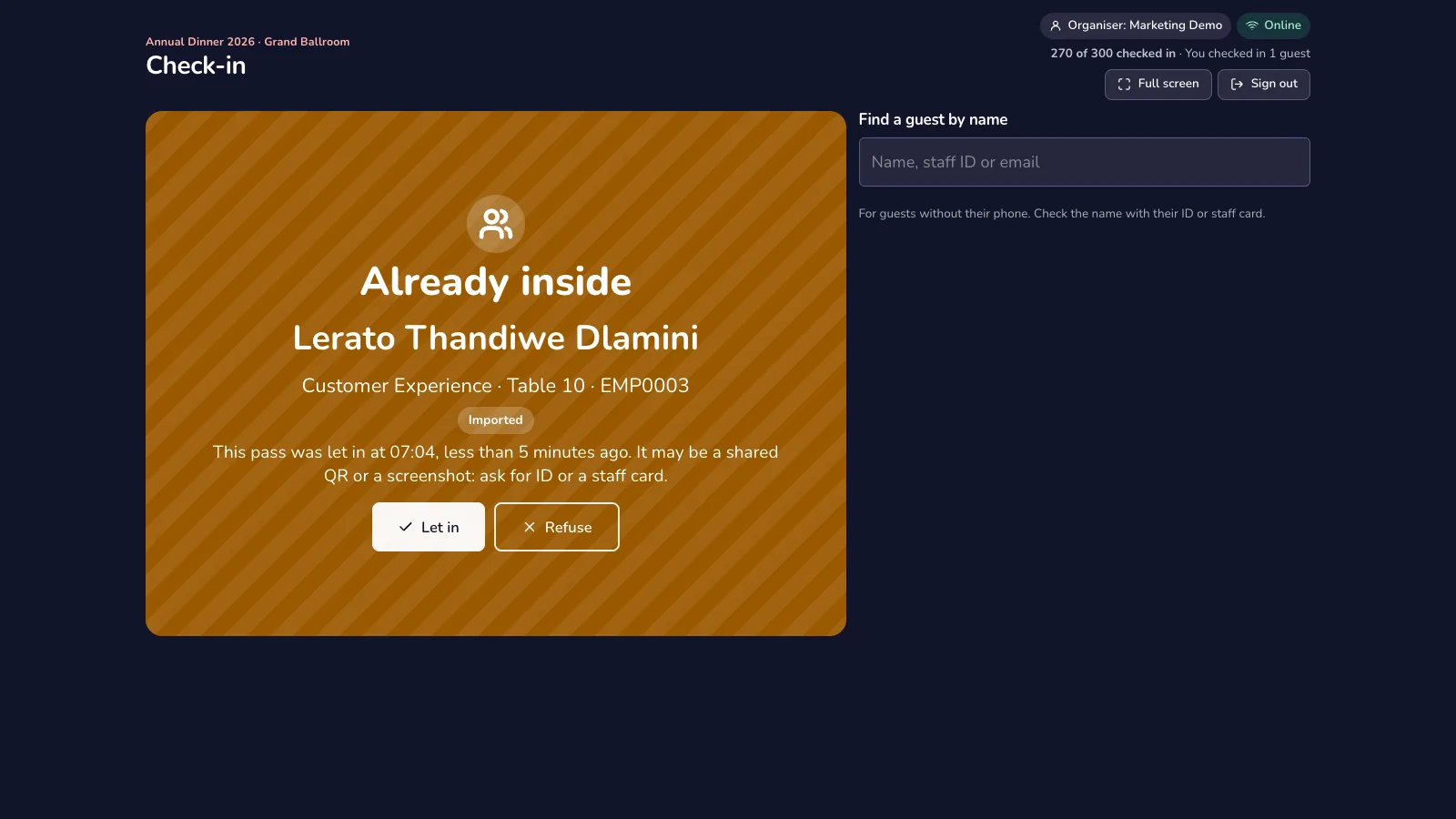
A pass scanned again within a few minutes is probably a shared QR code or a screenshot. The kiosk turns amber with a sound; the assistant checks an ID or staff card and presses Let in or Refuse. Both are logged.
- Offline: when the Wi-Fi drops, the kiosk keeps scanning from its own copy of the list and uploads the scans when it is back. The same pass at two doors is flagged as a conflict.
Live attendance
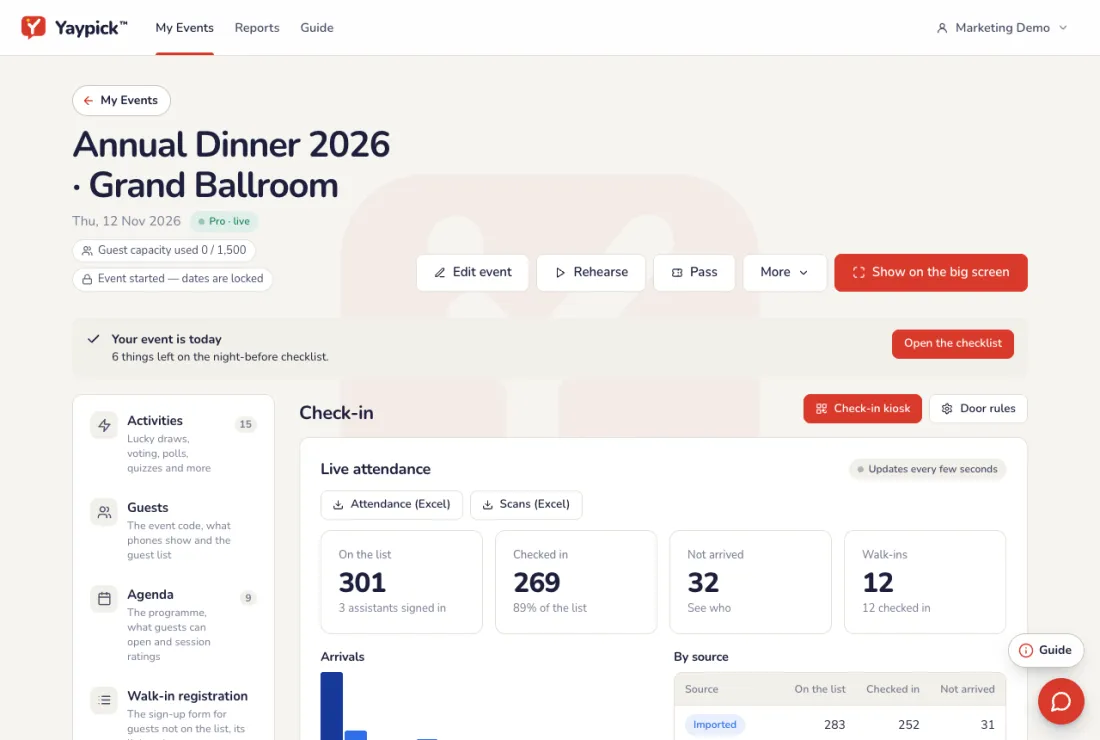
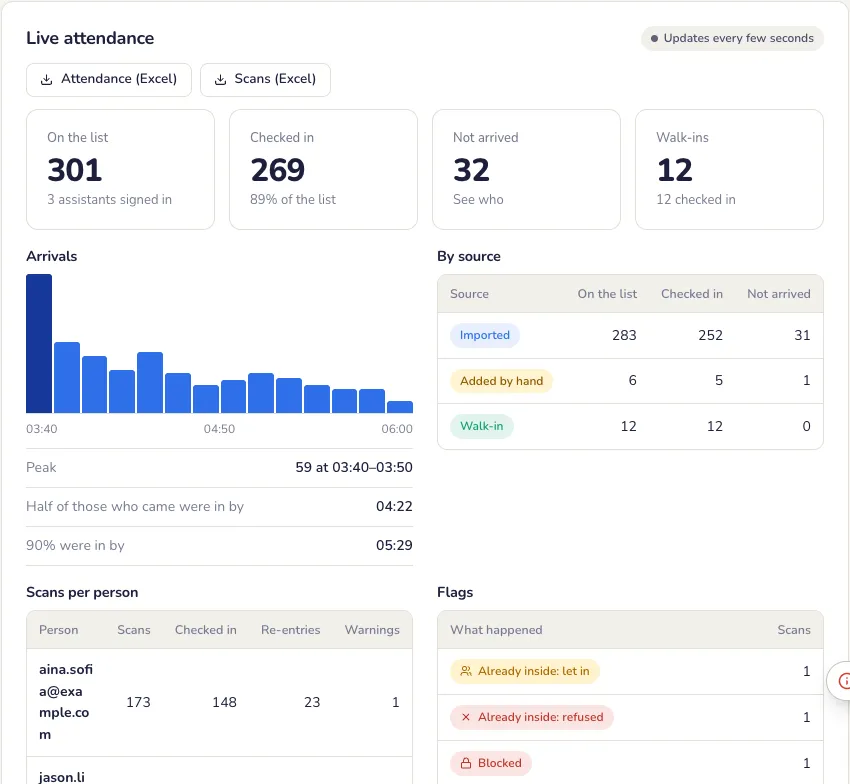
The Check-in tab updates every few seconds: guests on the list, checked in, not arrived and walk-ins, arrivals over time with the peak, each source, scans per person and every flag. Download the attendance and the scans as CSV; the event report has them too, and Team → What helpers did lists every guest each helper checked in.
Common problems
- The Wi-Fi drops at the door.
- The kiosk keeps scanning from its own copy of the list and uploads the scans when it is back.
- The same pass is scanned twice.
- The kiosk turns amber with a sound. The assistant checks an ID or staff card and presses Let in or Refuse; both are logged.
- A guest is not on the list.
- The kiosk offers Register as walk-in when the event has walk-in registration.
- A guest forgot their phone.
- Find them by name, staff ID or email on the kiosk and check them in.
Agenda release
Nothing opens on guests’ phones until you release it. Guests open each activity from their pass, already in their name. Part of YayPass.
Release, lock or end each session
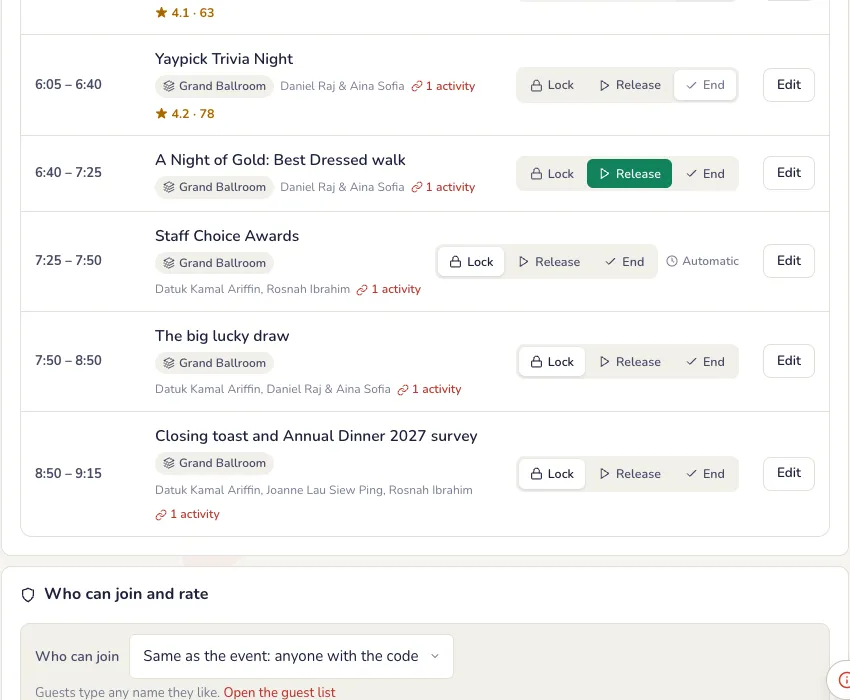
On the event’s Agenda tab, every session has Lock, Release and End, and starts locked. Press Release when it starts on stage and End when it is over; Release next opens the next locked session.
- Automatic: a session can open at its start time and close at its end time by itself (in Edit). You can still release it early or keep it open longer.
- The activity’s controller has the same buttons, so you can release the voting from your phone.
What guests see
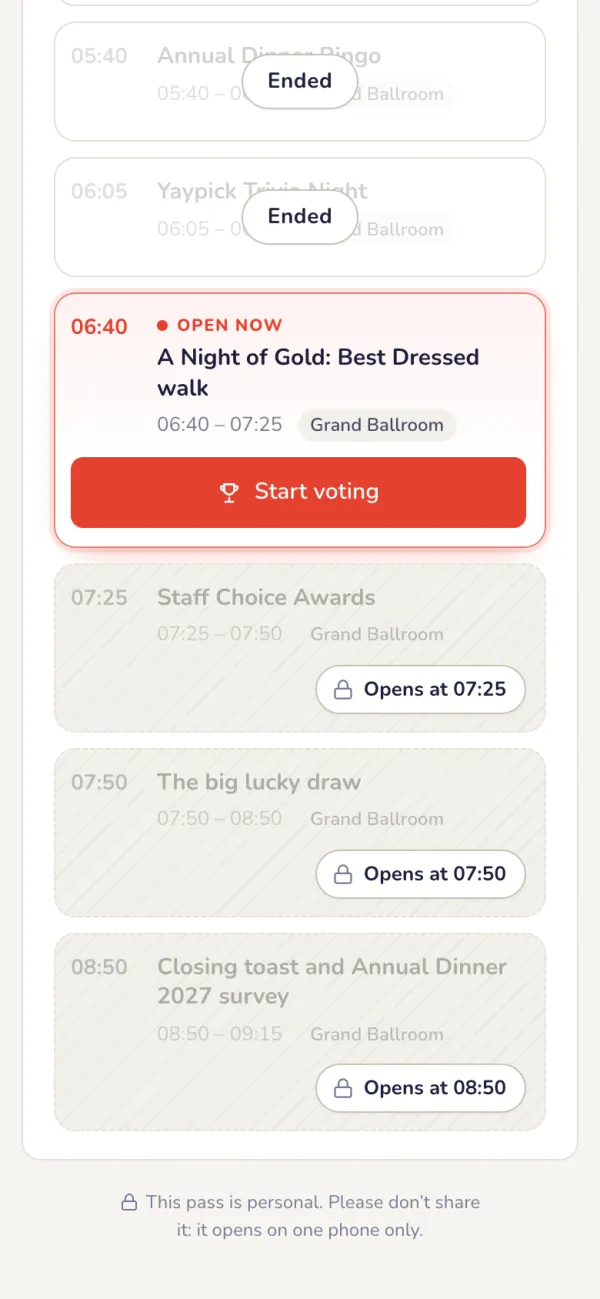
On the guest’s pass, a locked session sits behind a see-through wall with the time it opens. A released session lights up with its action, such as Start voting, Join quiz or Spin the wheel, and opens it in the guest’s name: nobody types a name or joins twice. Ended sessions say Closed, or show the results.
Preview as guest
Press Preview as guest on the Agenda tab to see the guests’ page as it is right now, read only, in a phone frame.
Common problems
- I might forget to release a session.
- Set the session to open at its start time and close at its end time by itself, in Edit. You can still release it early.
- Can I release from my phone?
- Yes. The activity’s controller has the same buttons.
Walk-in registration
A form you design for guests who are not on the list: they register at the door or on their own phone, join the guest list and get their pass. An upgrade to YayPass.
Set up
Design the form
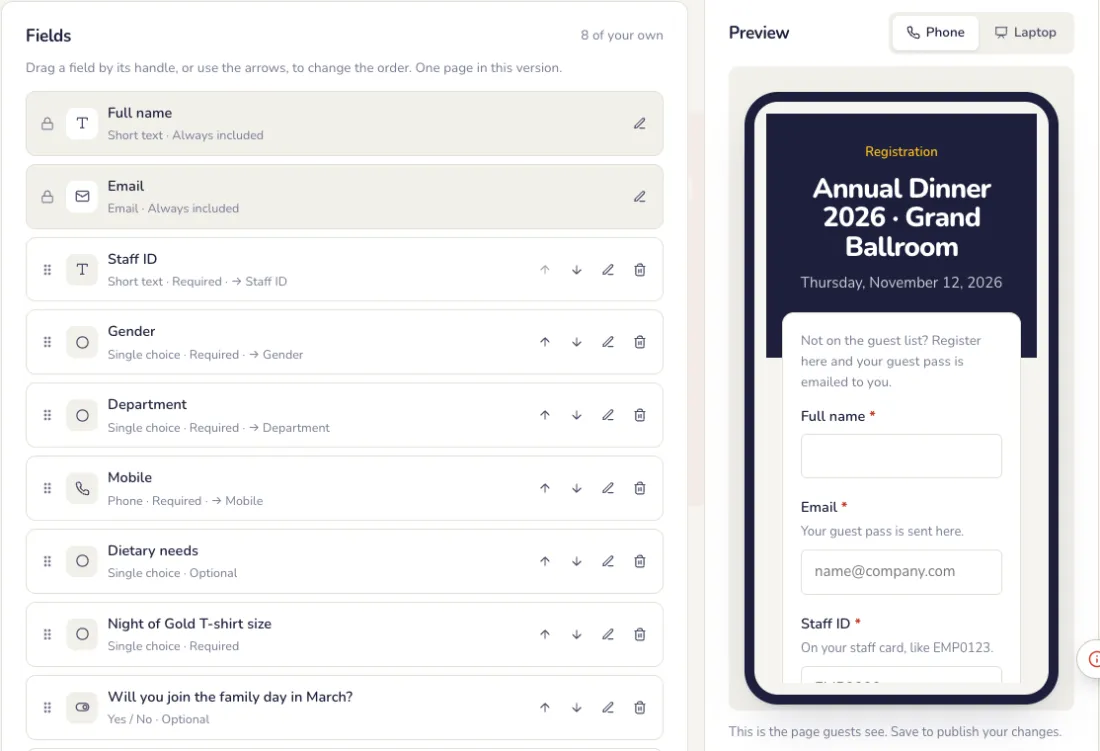
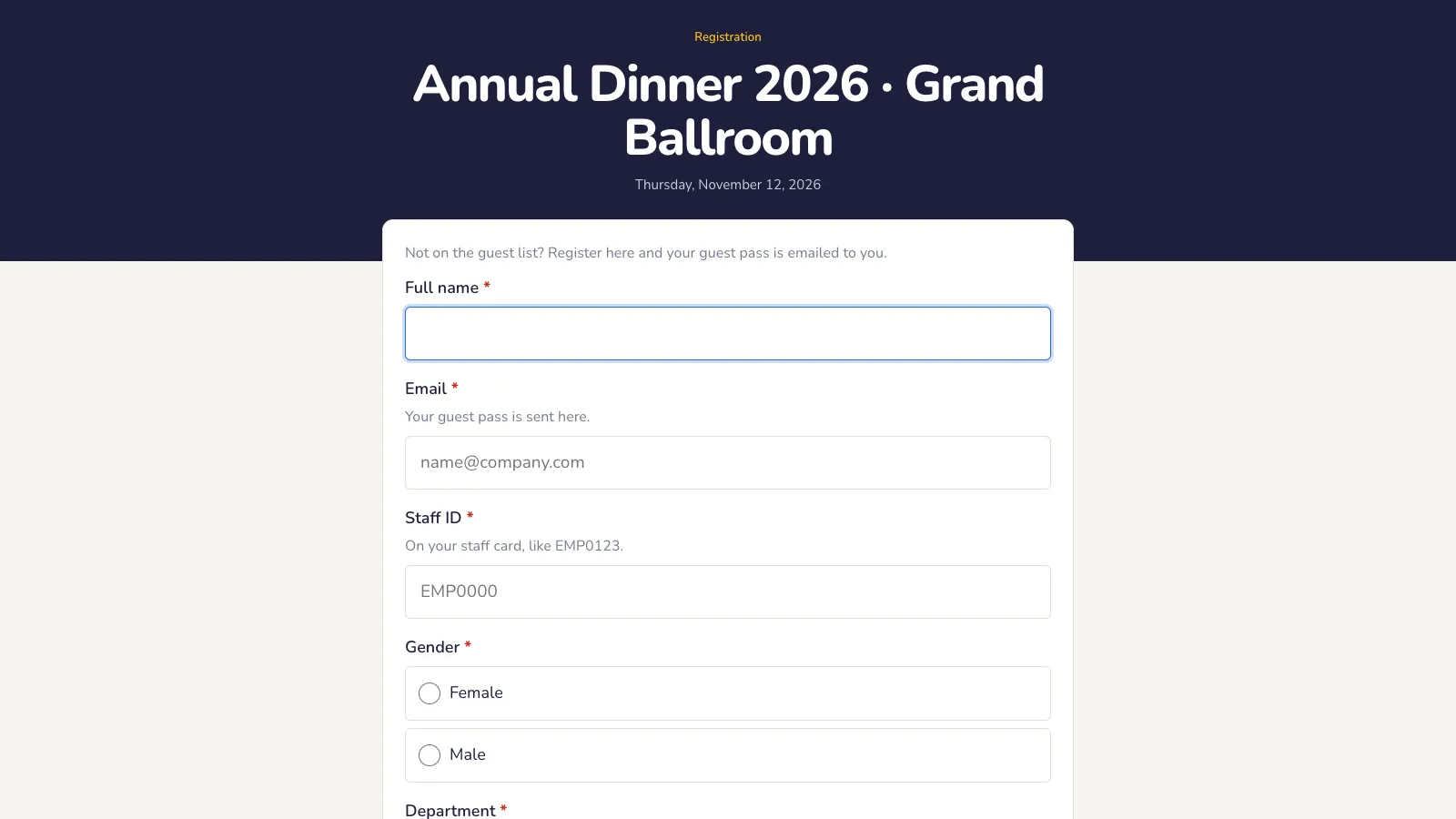
On the guest list’s Walk-in form tab. Name and email are always there; add your own fields and watch the preview on a phone or a laptop.
- Ten kinds of field: short and long text, number, email, phone, date, single and multiple choice, yes or no, and a consent checkbox.
- For each field: the label, help text, placeholder and required, checks (numbers only, Malaysian IC, phone, a pattern like EMP####, or unique), and the guest list column it fills, such as staff ID or department.
- Drag a field by its handle, or use the arrows, to change the order. Press Save form to publish it.
Choose when it is open
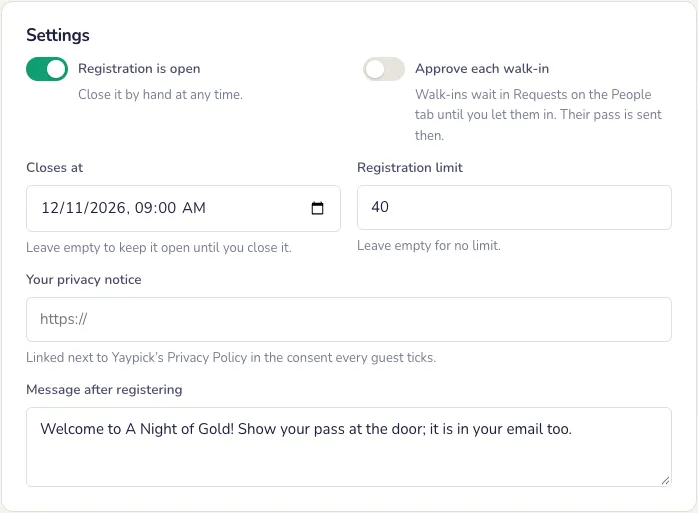
Under Settings: open or closed, a closing time, a registration limit, approving each walk-in first (they wait in Requests), your privacy notice and the message guests see after registering.
Print the poster
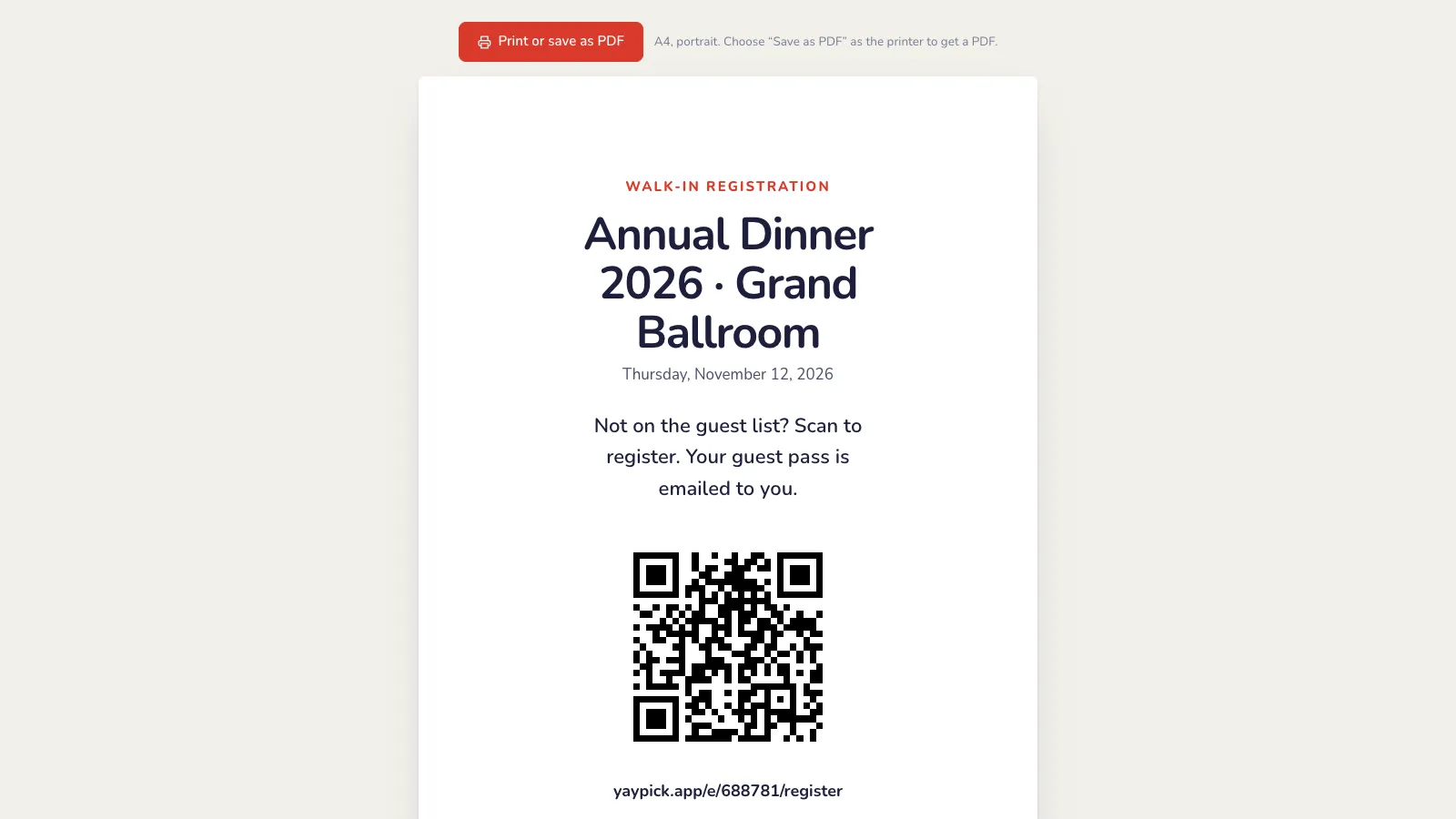
Print poster gives you an A4 page with the form’s QR code for the entrance or the tables. Guests scan it and register on their own phone; a human check keeps bots out.
On the night
Kiosk mode at the door
Kiosk view opens the same form, larger, for an iPad at the registration counter, ready for the next guest after each one. The check-in kiosk offers it too, for a guest who is not on the list.
Walk-ins join the guest list
Each walk-in shows with the Walk-in badge and gets their pass email at once (once our team has released sending). Open one to see every answer and when they gave consent; the answers are in the export and the event report too.
Common problems
- How do I stop fake sign-ups?
- A human check keeps bots out. For full control, turn on approving each walk-in first: they wait in Requests.
- Too many people are registering.
- Under Settings, set a registration limit or a closing time, or close the form.